

People and activity
Add and manage accounts, roles, two-step sign-in and phone numbers in People, and use the audit log to see who changed access and what people did.
People answers "who has an account, and what can they use?" The Audit log answers "who changed access, who signed in, and what did people do with restricted tools?" Together they are the audit trail in Settings. Both need sign-in on, because on a laptop there is only the local owner.
By the end of this page you can onboard and offboard someone, make an administrator, reset a password or two-step sign-in, and find the evidence for an audit.
The People page
Settings → People (/settings#/people) is for organization administrators. It lists everyone Hubzoid knows: people who were granted access, and accounts recorded when they signed in or in an account refresh. Add user and Refresh accounts are at the top.
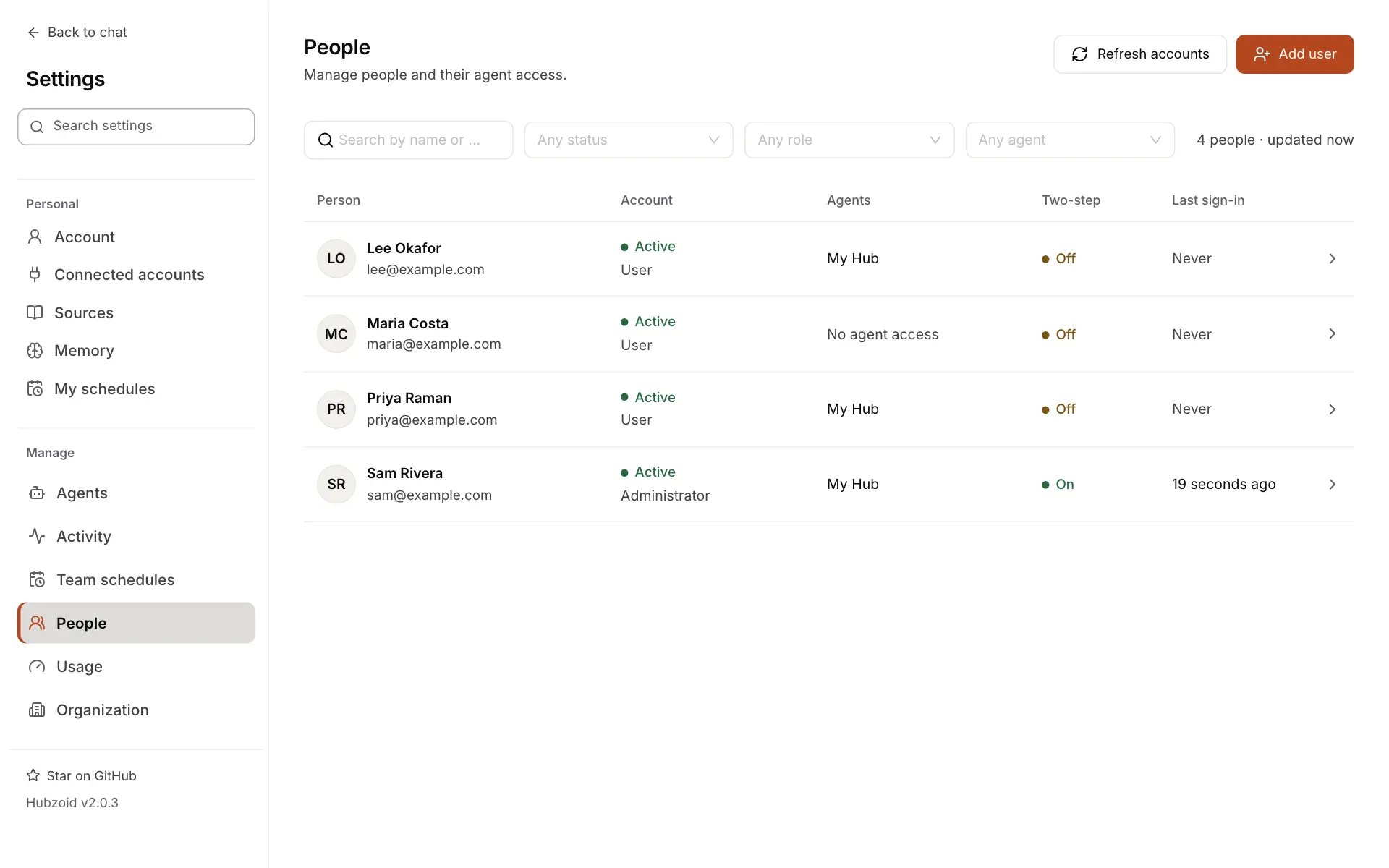
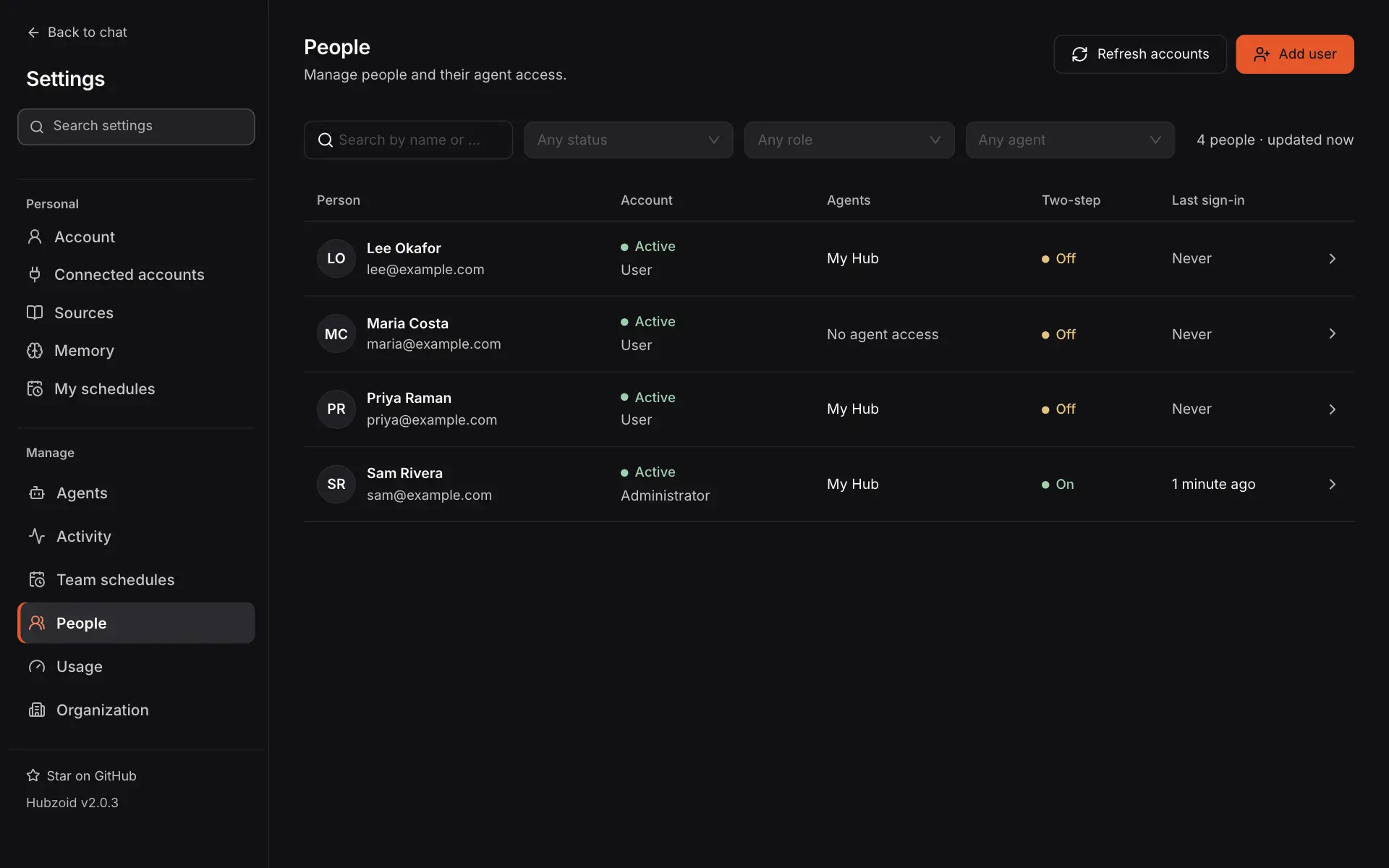
Every column, the filters and Refresh accounts
| Column | Contents |
|---|---|
| Person | Name and email. Opens the person's details |
| Account | The account status and role (User or Administrator), or a Reader tag for someone who signed in only to read a shared report |
| Agents | Each agent they can use, or No agent access |
| Two-step | On or Off |
| Last sign-in | When they last signed in, or Never |
Filter by name or email, account status, role or agent. Filters and the page number live in the address, and results are shown 20 per page. Refresh accounts reads the account directory again to update account states. It never creates accounts.
Add user on People
Add user on People creates a new account with access in any of the agents you manage, in one step. It has the same Name, Email address, optional Phone and Google sign-in only fields as Add user on an agent's Access tab, with these differences:
- You set no password. After Create account, the panel shows a one-time sign-in link with Copy sign-in link. The person opens it, sets their own password and is signed in. The link works once and expires after 72 hours (
HUBZOID_LINK_HOURS). It is shown only once, and Hubzoid sends no email.
Initial access, the review and an email that already exists
- Initial access lists each agent as a collapsed section with the same capability groups. You can also create a user with no agent access yet.
- Review lists the new account with the normal user role and the access per agent.
- If the email already has an account, nothing changes, and the panel offers Edit this user.
Only an organization administrator can create an account for an email whose earlier account was deleted.
Account statuses
Every row shows one status. The same labels appear on the Access tab.
| Status | Meaning | What changes it |
|---|---|---|
| Active | Signed up and approved | |
| Not signed up yet | Granted by email from the server, with no account. The access applies when they first sign in with that email | They sign up or sign in with that email |
| Awaiting approval | Signed up, but not approved yet. Blocked until approved | Approve in their details |
| Blocked | Blocked in an older release or through the API, blocked by the safeguard for a reused email, or their account was removed or can no longer be found | Reactivate clears an administrator block. A missing account clears when the directory lists it again |
| Legacy service identity | A workflow:<name> identity from before workflows ran as accounts |
A failed or partial directory read never marks accounts unavailable.
A user's details
Select a person to open their details at /settings#/people/<email>.
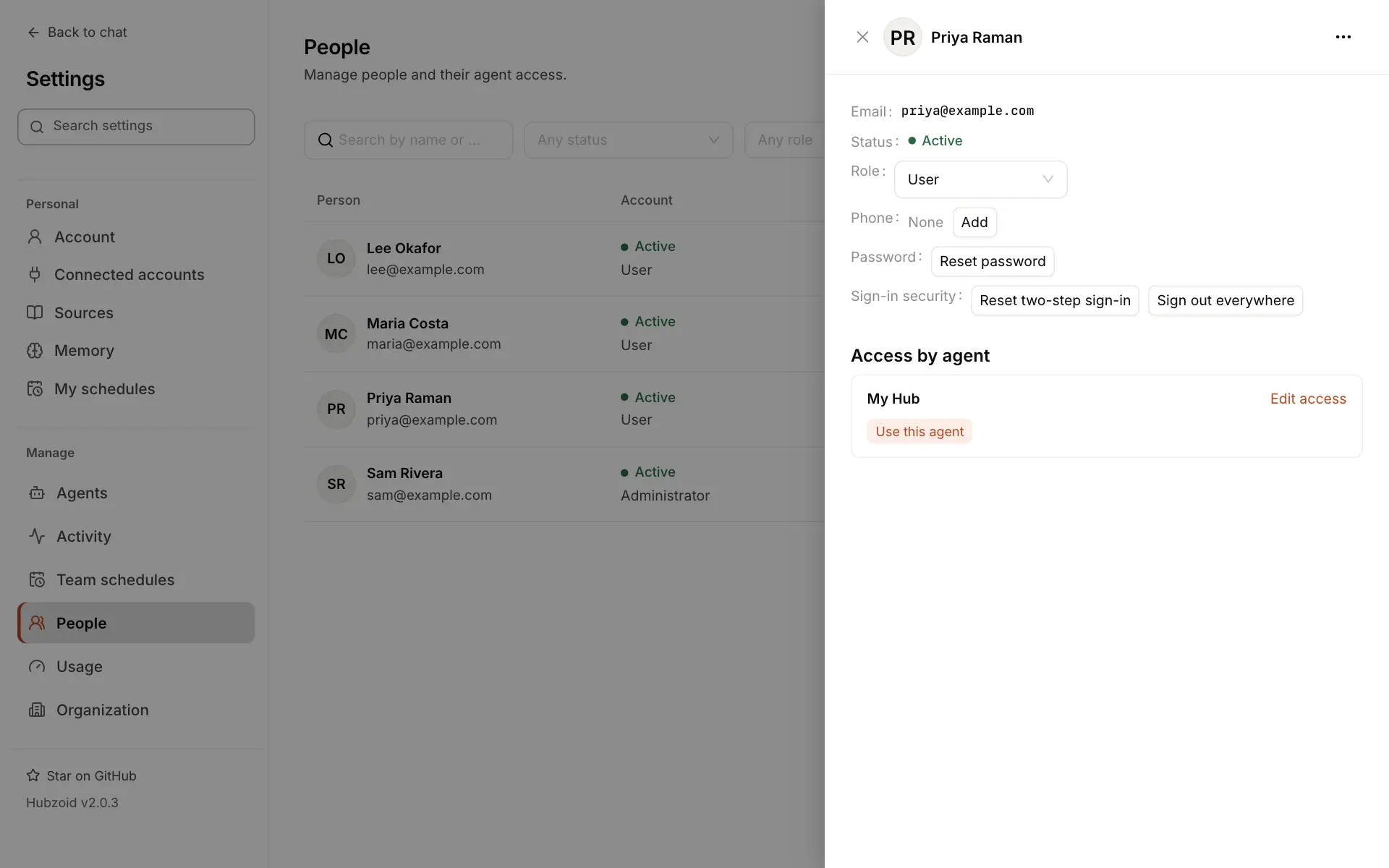
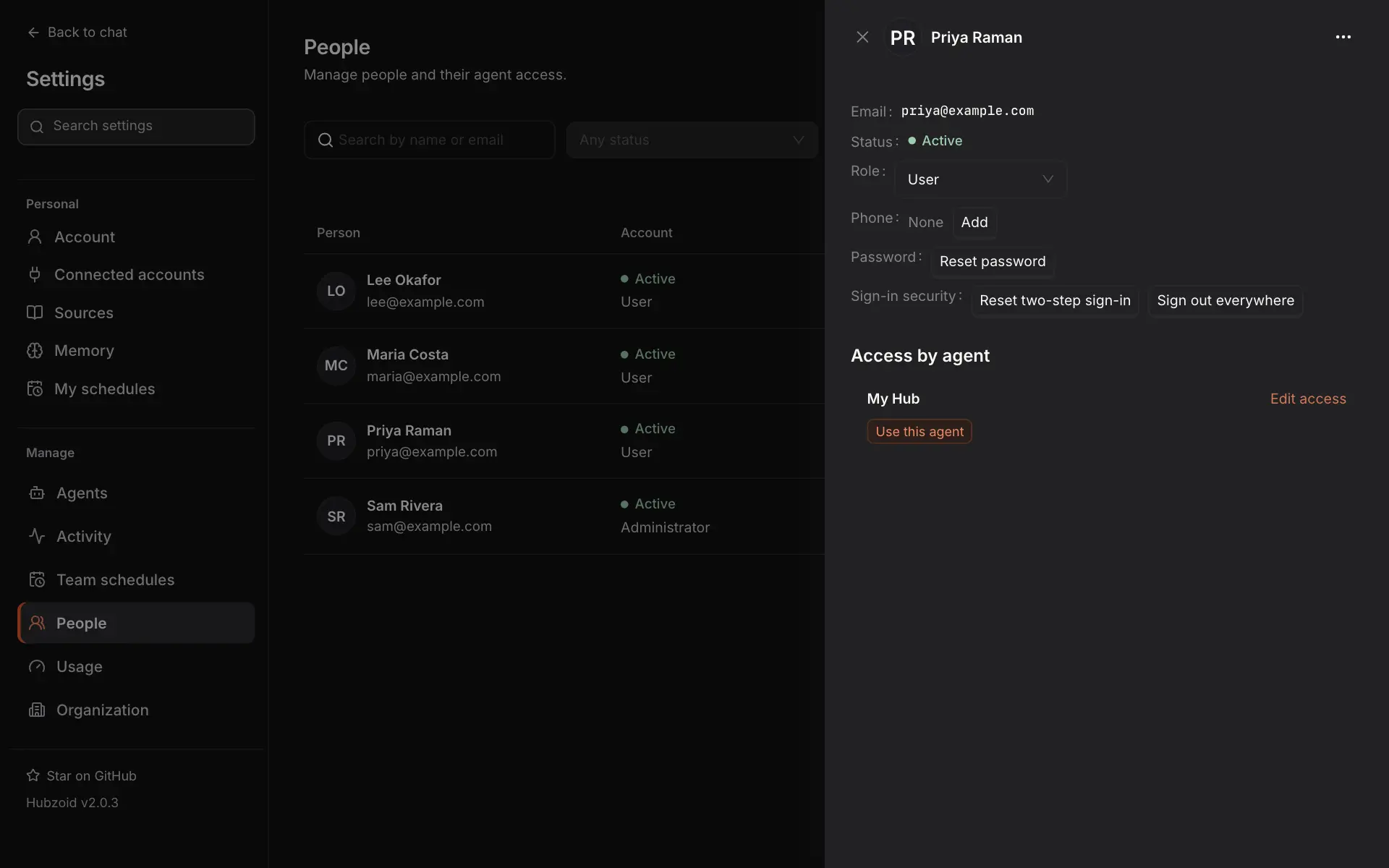
Every field in a person's details
| Field | What you can do |
|---|---|
| The identity grants attach to. Whoever signs in with it holds the access. Changing an email is not offered: create a new account instead | |
| Status | The account status, with a tooltip |
| Role | User or Administrator. For a sign-up awaiting approval, Approve takes its place |
| Phone | The number the person's WhatsApp and Telegram messages come from. Add or Change it with the country code. One number belongs to one person. See WhatsApp and Telegram |
| Password | Reset password. For a Google or company-directory account it says who manages their sign-in instead |
| Sign-in security | Reset two-step sign-in, and Sign out everywhere, which ends their sessions, API keys and assistant connections |
| Access by agent | The capabilities they hold in each agent, with Edit access, and Add an agent for one they can't use yet |
| The … menu | Reactivate for a blocked person, and Delete user |
Nobody can change their own account here. Use Account → Profile instead. Some actions ask you to confirm it's you first, with your password and a code. Every change is recorded in the audit log.
Approve a sign-up
A person who signed up and waits for approval reads Awaiting approval. Select Approve to give them the normal user role. Approval gives no agent access by itself. Give it with Add an agent or from an agent's Access tab.
Reset a password or two-step sign-in
- Reset password → Reset and create sign-in link. The current password stops working at once, the person is signed out everywhere, and the panel shows a one-time link to share so they can set a new one. Two-step sign-in stays on.
- Reset two-step sign-in is for a lost phone. They are signed out everywhere now and set it up again at their next sign-in.
By default, administrators must use two-step sign-in. Organization → Sign-in sets who must use it. See Authentication.
Role: User or Administrator
There is one Administrator role. Administrator gives organization administration in Hubzoid, with Manage access for the whole deployment, and the account's Administrator role, together. User clears both. You confirm with Make Administrator or Make User.
Partial role changes and other limits
- If only one side changes, the panel says which side is set and offers Try again, which finishes the change.
- A person who is an administrator on only one side, for example from
hubzoid grant --orgon the server, shows Needs attention. Choose a role to fix it. - The last administrator can't be made a User or deleted.
- Administration alone does not let someone chat with an agent or use its restricted tools. Grant those per agent.
Reactivate a blocked person
Settings has no Block. A person blocked in an older release or through the API is refused in every agent, and new access for them is refused. Open the … menu in their details and select Reactivate. Reactivating does not restore the grants the block removed, so grant access again.
Delete user
To offboard someone, open the … menu, select Delete user and type their email to confirm:
- Every grant in every agent is removed first. Then their sessions, sign-in methods, API keys, assistant connections and personal connections end, and their share links stop working.
- Their chats stay attached to their account. Activity history, usage records and artifacts they published are kept, and their public artifact links stop working.
- The email is marked as removed, so it inherits nothing. Only an organization administrator can create an account with it again.
- The last administrator can't be deleted. If the grants were removed but the account was not, trying again finishes the deletion.
The audit log
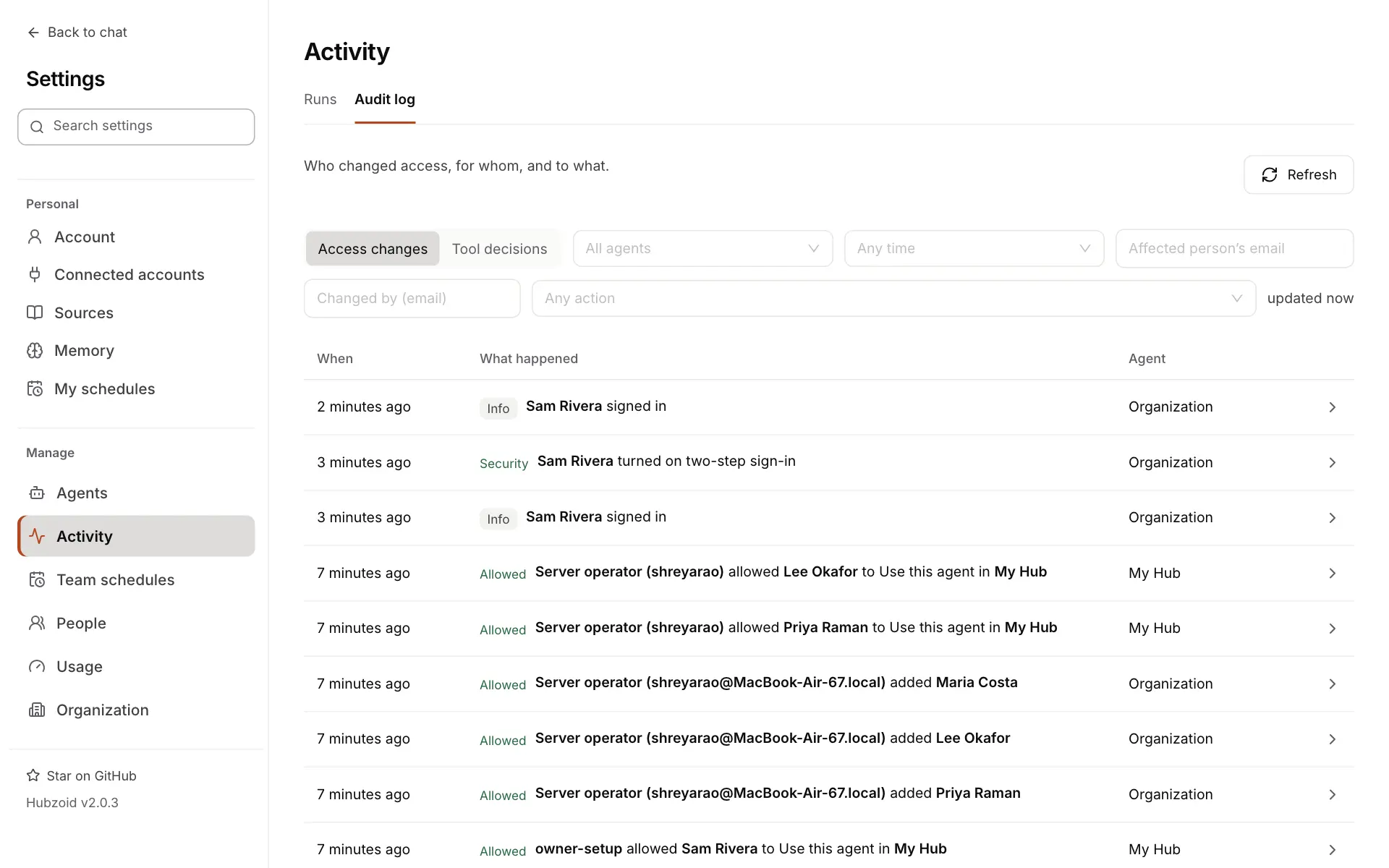
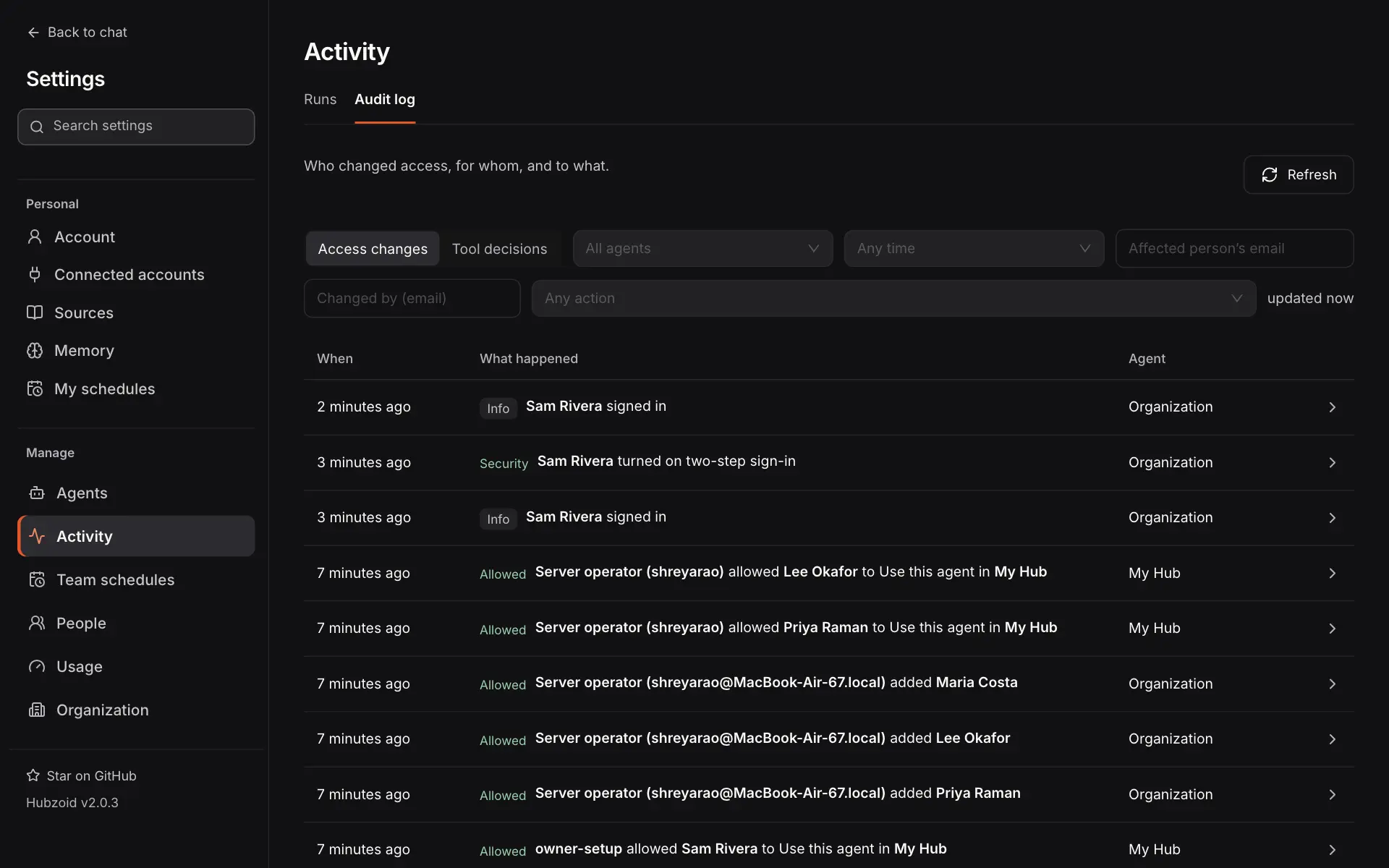
Settings → Activity → Audit log (/settings#/activity) covers every agent you manage. View activity on an agent's page opens it filtered to that agent. A switch at the top chooses Access changes or Tool decisions.
Filters, time ranges and event details
Both records have a time range (Any time, Last 24 hours, Last 7 days or Last 30 days), an agent filter, Refresh and Reset filters. The chosen range is fixed to exact times in the address, so a shared link always shows the same window. Each row has When, What happened and Agent. Select a row for Event details, with the exact time in your time zone and copyable identifiers. Organization-wide events, such as sign-ins, account actions and administrator rights, show the agent Organization.
Access changes
Every change to access writes a row in the same transaction as the change. Filter by Affected person's email, Changed by (email) and Action: Granted, Removed, Blocked, Reactivated, Started a workflow, Paused a workflow, Resumed a workflow or Cancelled a run.
Every access action, how it reads and who the actor is
| Action | Reads as | Written when |
|---|---|---|
grant, revoke | "Sam allowed Priya to Use this agent in My Hub", "Sam removed Priya's access to My Hub" | A capability or administrator right is granted or removed |
account_create, account_approve | "Sam added Priya", "Sam approved Priya's account" | Add user or Approve |
account_password_reset, account_role | "Sam reset the password for Priya", "Sam changed Priya to Administrator" | Reset password or Role |
revoke_all, account_delete | "Sam removed all access from Priya", then "Sam deleted Priya's account" | Delete user |
suspend, reactivate | "Sam blocked Priya", "Sam reactivated Priya" | A block through the API, and Reactivate |
phone_set, phone_clear | A phone number recorded or removed | Phone |
signed_in, sign_in_failed, signed_out, signed_up, password_changed | "Priya signed in with Google", and similar | Sign-in events, including two-step sign-in |
change_proposed, change_confirmed, change_rejected, change_expired | "Sam proposed a change for Priya in My Hub", and similar | A change proposed by an agent in chat |
connector_create, connector_update, connector_delete | "Sam added the connector gmail", and similar | A connector added, changed or deleted |
account_unavailable, account_replaced | An account no longer available, or a new account that reused a known email | A directory read, or the reused-email safeguard |
run_start, workflow_pause, workflow_resume, run_cancel | "Sam started the monday_brief workflow in My Hub", and similar | Run now, hubzoid schedule, or the workflow tools in chat |
The actor tells you where a change came from: a person's name for Settings, the management API or chat, Server operator with the account and host for a command on the server, Initial setup for hubzoid access bootstrap, owner-setup for the configured owner's first sign-in, and Account sync for the account directory.
Tool decisions
Every call to a restricted tool writes a row as it is decided. Filter by Outcome (Allowed or Denied), Person's email, Tool and Channel, the surface such as web, mcp, slack-dm, whatsapp or workflow. Rows read as "Priya used ledger_read in My Hub via web" or "Priya was denied payroll_run in My Hub via web".
Every refusal reason
| Reason | Explanation |
|---|---|
no-grant | They do not have the permission this tool requires |
anonymous | The caller was not signed in |
blocked | Their account is blocked |
store-error | The access store was unavailable, so the request was refused |
surface:<name> | Restricted tools are not allowed from that surface |
Tools hidden from a caller produce no row, because nothing was called. See Identity and access.
Use them for audits
| Question | Where to look |
|---|---|
| Who can use a sensitive capability in this agent now? | The agent's Access tab, or hubzoid access list ./my-hub --hub my-hub |
| What can one person do across agents? | Their details under People, or hubzoid access check <email> ./my-hub for one agent |
| Who granted it, and when? | Access changes, filtered by the affected person |
| When did someone last sign in? | Last sign-in on People, or Access changes filtered by their email |
| Which changes did one administrator make? | Access changes, filtered by Changed by |
| Were calls to a sensitive tool refused? | Tool decisions with Outcome Denied and the tool name |
| Hand evidence to a reviewer | Share the filtered address. The time window is fixed in it |
The same decision rows are available on the server, for example hubzoid audit ./my-hub --denied --limit 200, or as JSON with --json.
Related
Agents and access
Add users, grant and remove capabilities, and the review step.
Identity and access
Subjects, surfaces, decision reasons and fail-closed rules.
Authentication
Sign-in providers, two-step sign-in, one-time links and sessions.
Security model
How Hubzoid keeps identity, tools and secrets apart.