

Settings overview
Settings is where everyone keeps their own preferences and where administrators manage agents, people, activity and usage.
Settings is one page of the Hubzoid web app at /settings. Everyone finds their own account, connections, memory and schedules there. People who manage agents also find each agent's access, workflows and evals, the activity record, usage and the organization's defaults. Earlier releases called this area the Console.
By the end of this page you will know where each part of Settings lives, who sees it, and why some screens are read-only.
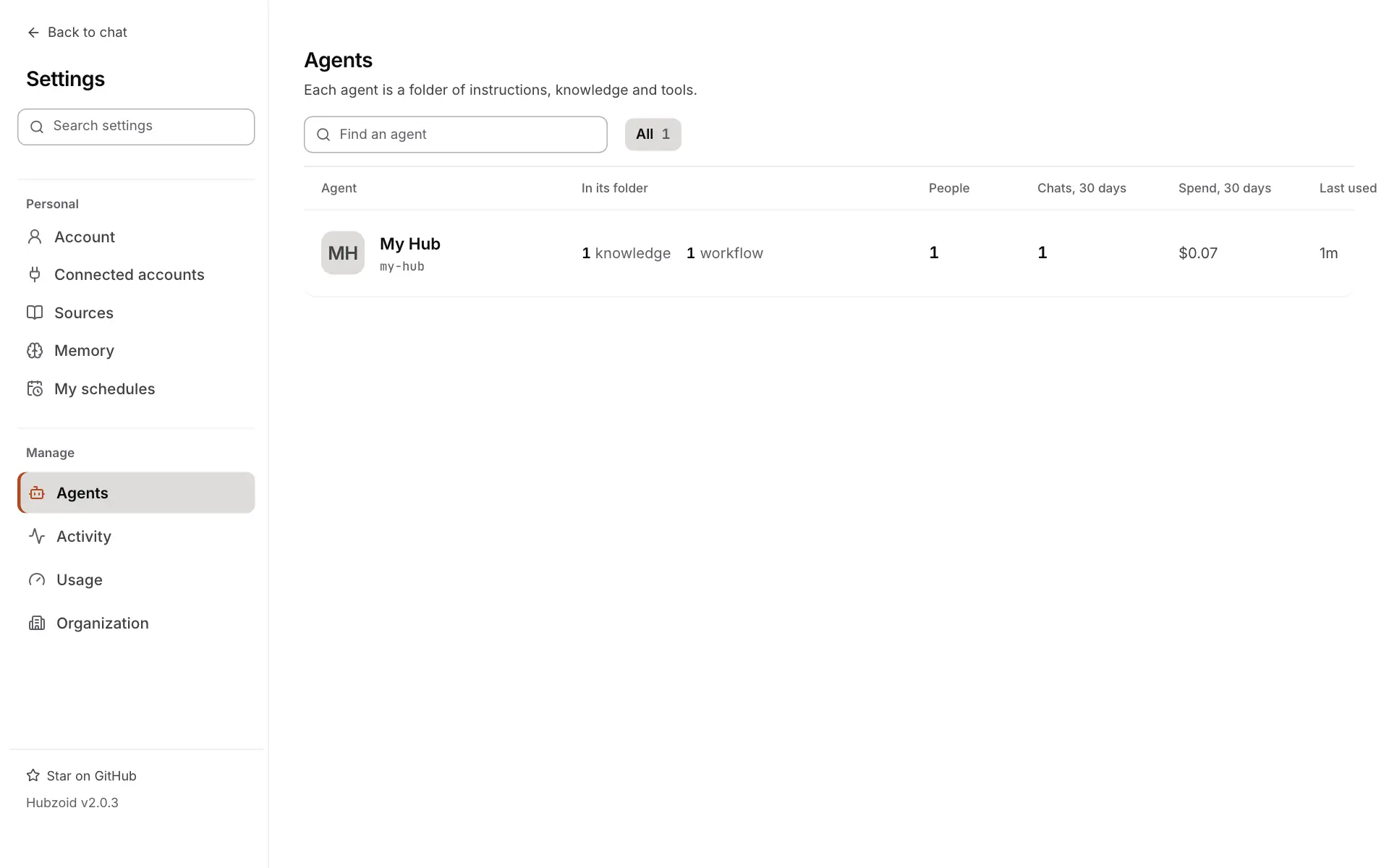
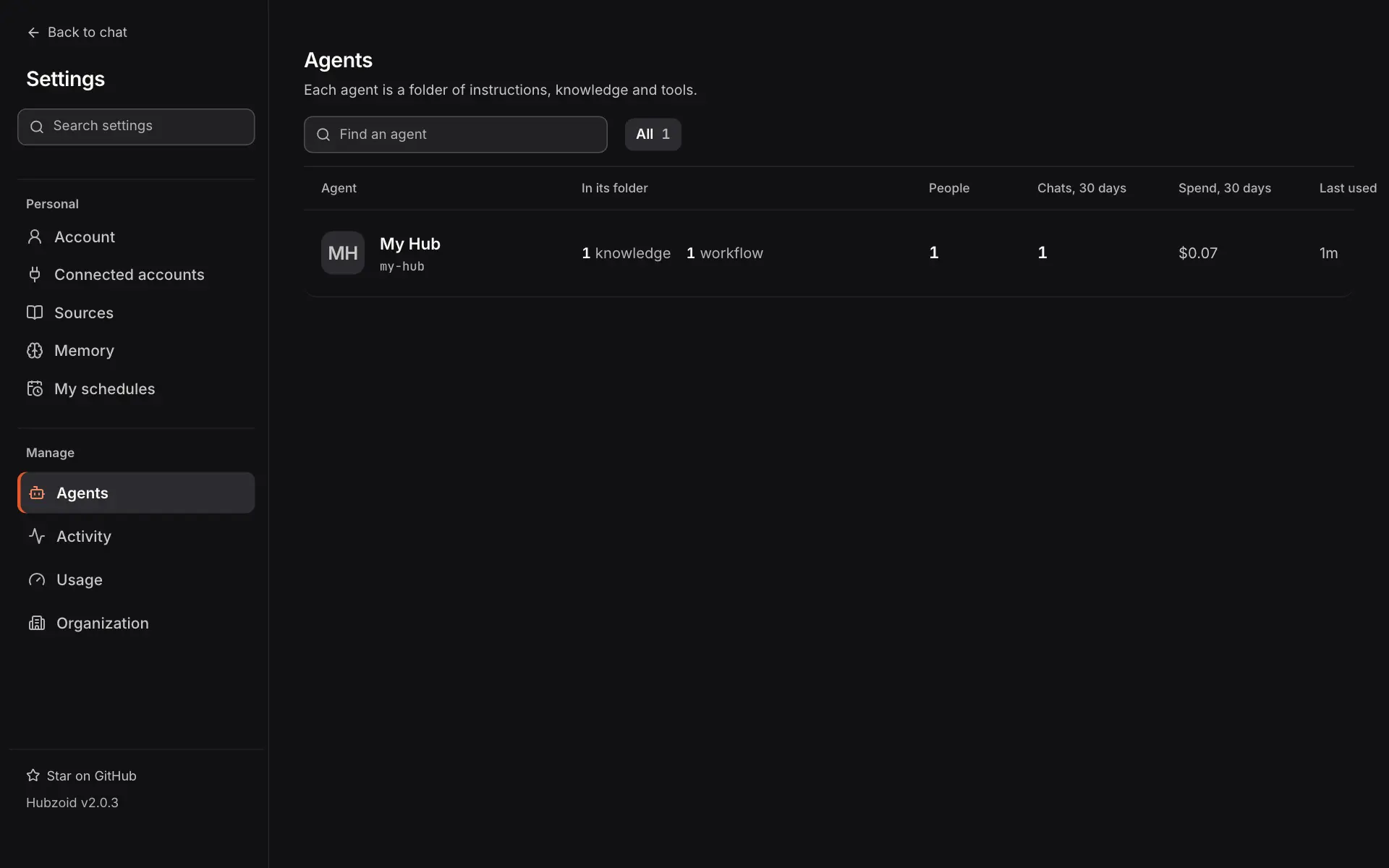
Open Settings
| From | How |
|---|---|
| The chat | Open the account menu at the foot of the sidebar and choose Settings |
| The address bar | http://127.0.0.1:3080/settings on a laptop, or /settings on your deployment's address |
| Inside Settings | Type in Search settings to jump to a section, or select Back to chat |
Section addresses, filters and phones
Every section has its own address after the #, such as /settings#/agents/my-hub/access or /settings#/people. Filters and page numbers are part of the address too, so a filtered view can be bookmarked or shared and survives a refresh. On a phone, Settings opens on the list of sections.
What is in Settings
Settings has two groups. Personal is for everyone. Manage appears for people who manage at least one agent.
Personal
| Section | Address | What it is for |
|---|---|---|
| Account | #/me/profile | Tabs Profile (your name, password and what you can use), Security (two-step sign-in, devices and personal API keys), Appearance (theme, text size, spacing and time zone), Notifications and Data & history |
| Connected accounts | #/me/connections | Outside accounts you signed in to for your agents, such as your Gmail, with Connect, Reconnect and Disconnect. Only you can use them |
| Sources | #/me/sources | Files, notes and pages your agents can cite, in collections where you choose who can read each one |
| Memory | #/me/memory | Private notes you asked the agent to remember, such as "I prefer tables". The agent's instructions and knowledge take priority |
| My schedules | #/me/schedules | What you asked agents to repeat, then the reports you can run. See Schedules and reports |
Work you asked the agents for is no longer in Settings. It is in the Inbox, on the My work tab. See the Inbox.
Manage
| Section | Address | What it is for |
|---|---|---|
| Agents | #/agents | One row per agent you manage. Each agent has tabs for its instructions, access, connectors, workflows, evals, feedback and configuration. See Agents and access |
| Activity | #/runs, #/activity | Tabs Runs (workflow runs across your agents) and Audit log (access changes and tool decisions). See Runs and People and activity |
| Team schedules | #/schedules | Everyone's repeating requests and live reports on one agent |
| People | #/people | Everyone with an account, their role, two-step sign-in and access per agent, with Add user |
| Usage | #/usage | Totals for a period, and each agent's use this month against its limits. See Usage |
| Organization | #/settings/chat | Tabs Chat defaults, Brand, Sign-in, Health and Advanced. See Organization |
Who sees what
Settings uses the chat app's own sign-in and checks it on the server for every request. What it shows depends on the person:
| Person | What Settings shows |
|---|---|
| Everyone signed in | The Personal sections |
| Agent administrator, with Manage access on one or more agents | Also Agents, Activity and Team schedules, limited to the agents they manage |
| Organization administrator, with the Administrator role | Every section, for every agent and every person, including People, Usage and Organization |
Laptops without sign-in, and refused requests
On a laptop with sign-in off there are no accounts, so there is no Security tab, Team schedules, People or Sign-in page. You are the local owner, admin@localhost, and Manage shows Agents, Activity, Usage and Organization.
Opening an address you have no section for, such as an old bookmark, opens your first section instead. Changes sent from a browser must come from the deployment's own address (its host, HUBZOID_PUBLIC_URL or HUBZOID_ALLOWED_ORIGINS). Other requests are refused.
Why some screens are read-only
Changing an agent's files from the browser is Beta and off by default. With it off, Settings still shows everything, but these screens are read-only and say where to make the change instead:
- an agent's Instructions: its
AGENTS.md, skills and shared prompts - adding, changing, offering or removing Connectors
- the agent's settings and channels on Configuration
- approval rules (
hitl.yaml) and usage limits (budgets.yaml) - proposing and approving changes to the agent's knowledge and instructions from chat
The laptop note, and how to turn browser editing on
On a laptop the note reads "Changing this agent's files from the browser is off. Edit the agent's files on this computer, or ask Claude Code or Codex." Access grants, workflow permissions and secrets live in Hubzoid's database, not in files, so they stay editable.
Turn browser editing on only where the agent folders are a working copy someone looks after, such as a laptop or a server checkout you commit from. Add this line and restart hubzoid run:
in_app_editing: trueHUBZOID_IN_APP_EDITING=true in one hub's .env does the same for that hub. Settings then marks those controls Beta. Files that come from an image are never written, whatever the switch says. See Configuration.
The first administrator
How the first administrator gets in depends on how the hub runs:
- Sign-in off. The local owner,
admin@localhost, owns every hub from the first start, so Settings opens straight away. - Sign-in on. Run
hubzoid admin create you@example.com my-hub --owner. It prints a one-time sign-in link and gives you the owner's access on every hub. On a deployment that has never run,HUBZOID_ADMIN_EMAILandHUBZOID_ADMIN_PASSWORDcreate that administrator at the first start instead. Administrators then set up two-step sign-in. See Authentication.
Recovery, headless setups and more administrators
The owner's access is given once per hub. A later sign-in never restores access that was removed, and nobody else is promoted. For headless setups and recovery, bootstrap on the server:
hubzoid access bootstrap --admin you@example.com ./my-hub--admin grants Manage access for the whole deployment only while no administrator exists yet. It does not grant Use this agent, so give that in Settings. To add more administrators, open the person under People and set Role to Administrator. For a deployment of several Hubs, follow Access administration.
Usage
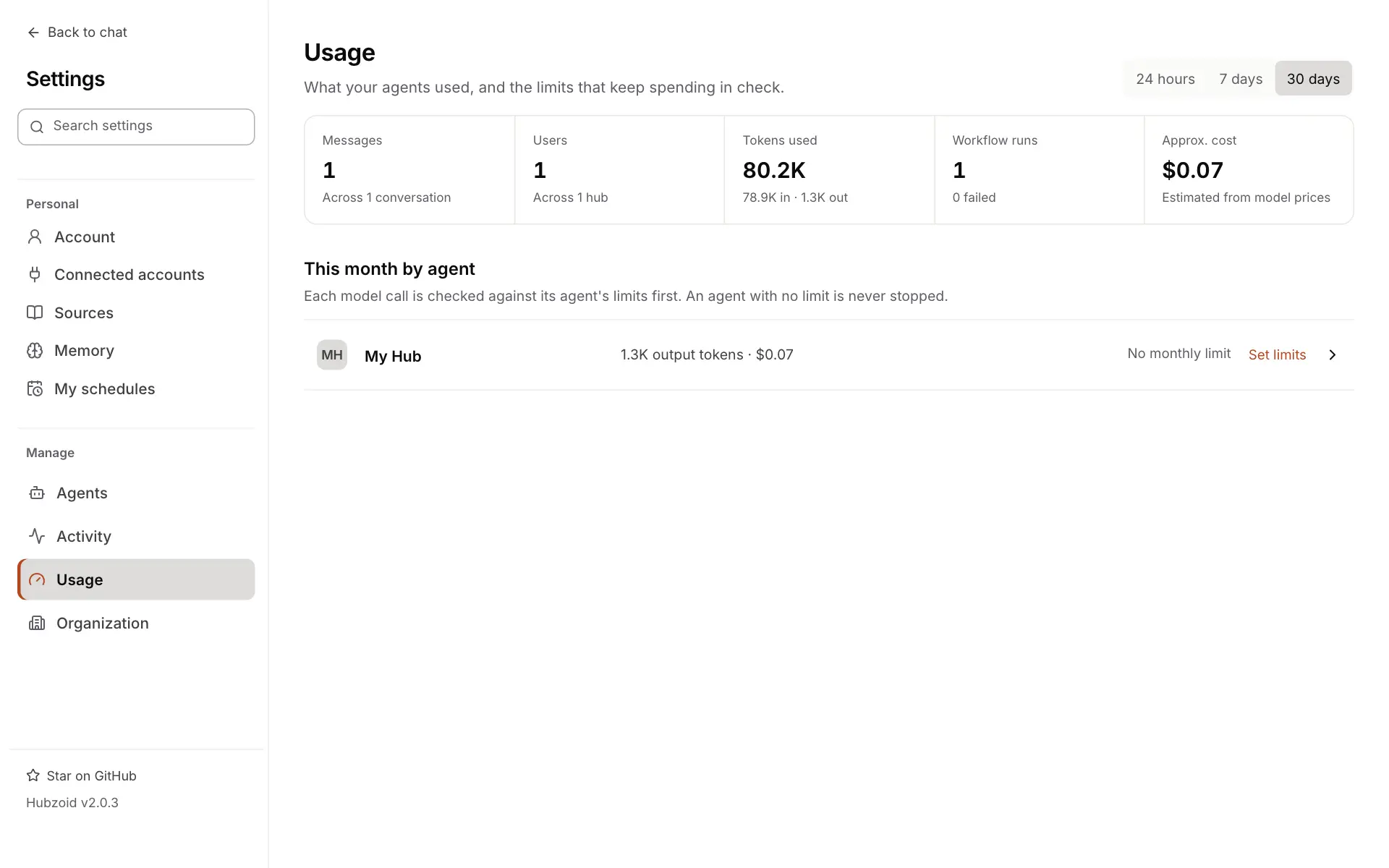
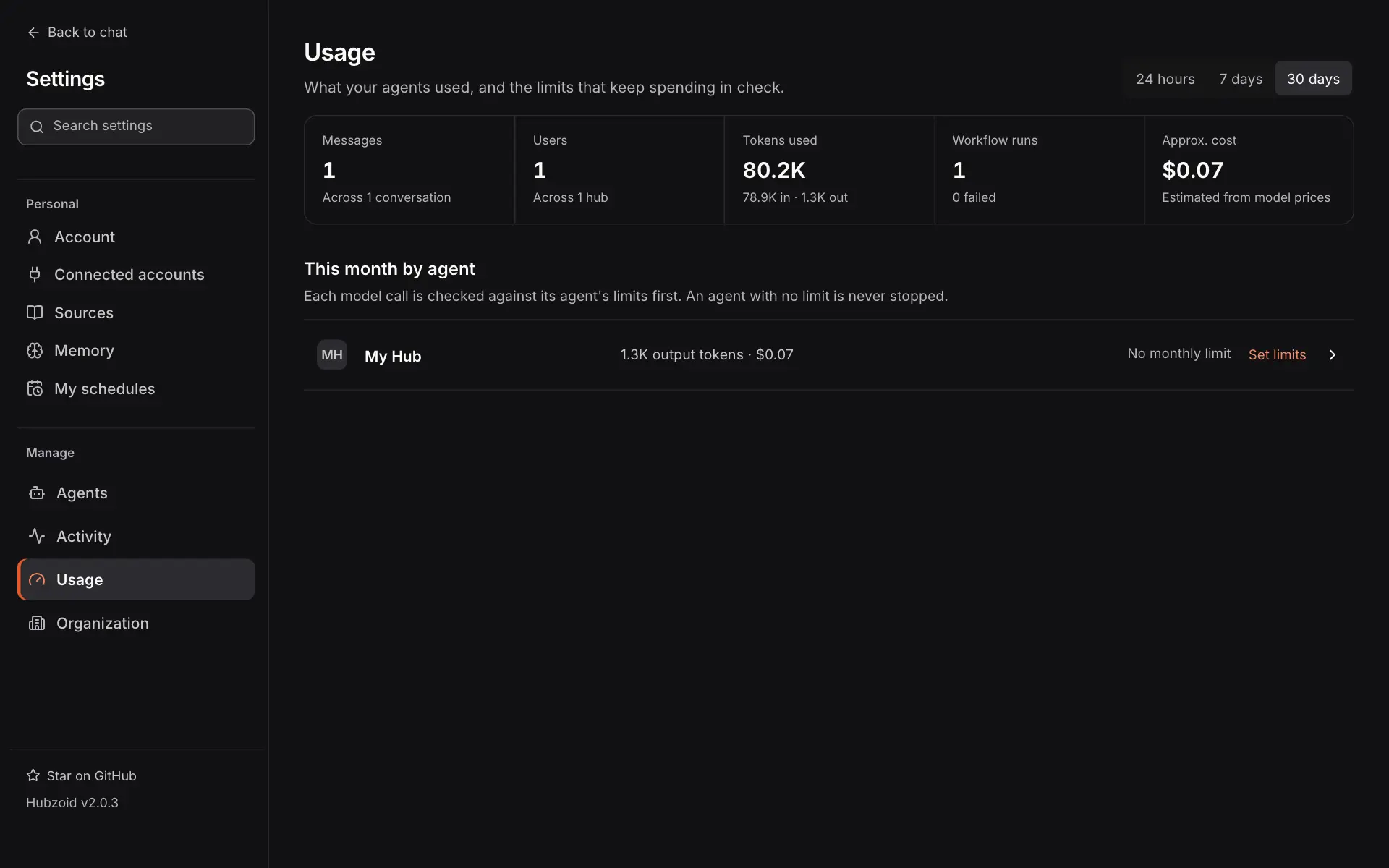
Usage shows what your agents used and the limits that keep spending in check. Choose 24 hours, 7 days or 30 days at the top. The default is 30 days.
What each figure counts
| Figure | What it counts |
|---|---|
| Messages | Chat messages people sent on every chat surface, including Slack, WhatsApp and Telegram, with the number of conversations below. Background title and suggestion calls are not counted |
| Users | Sign-in accounts in your scope, whatever the period, with the number of hubs below. Blocked accounts count. Legacy service identities and people granted by email who have not signed up do not |
| Tokens used | Input and output tokens, with the split below, including background calls, scheduled work and workflow model calls |
| Workflow runs | Runs started in the period, with the failed count below. Reads 0 when none of your agents has workflows |
| Approx. cost | An estimate in USD from model prices. Calls on a subscription, such as claude-local, can show an estimate without an extra charge. Your provider's bill is the reference |
This month by agent shows each agent's tokens and cost against its monthly limits. Every model call is checked against its agent's limits first, and an agent with no limit is never stopped. Set limits or Edit limits opens the limits, which are saved in the agent's budgets.yaml. With browser editing off, change that file or use hubzoid budgets.
When a figure shows a dash
A figure Hubzoid cannot know is shown as a dash, never as zero: Users when the account directory cannot be read, Workflow runs when the run history cannot be read, and a cost when no price is known for the model calls. On Agents, a spend that leaves out calls with no known price is marked with *, and its tooltip says how many. Usage comes from Hubzoid's own records of every chat turn and workflow model call, without message content.
Organization
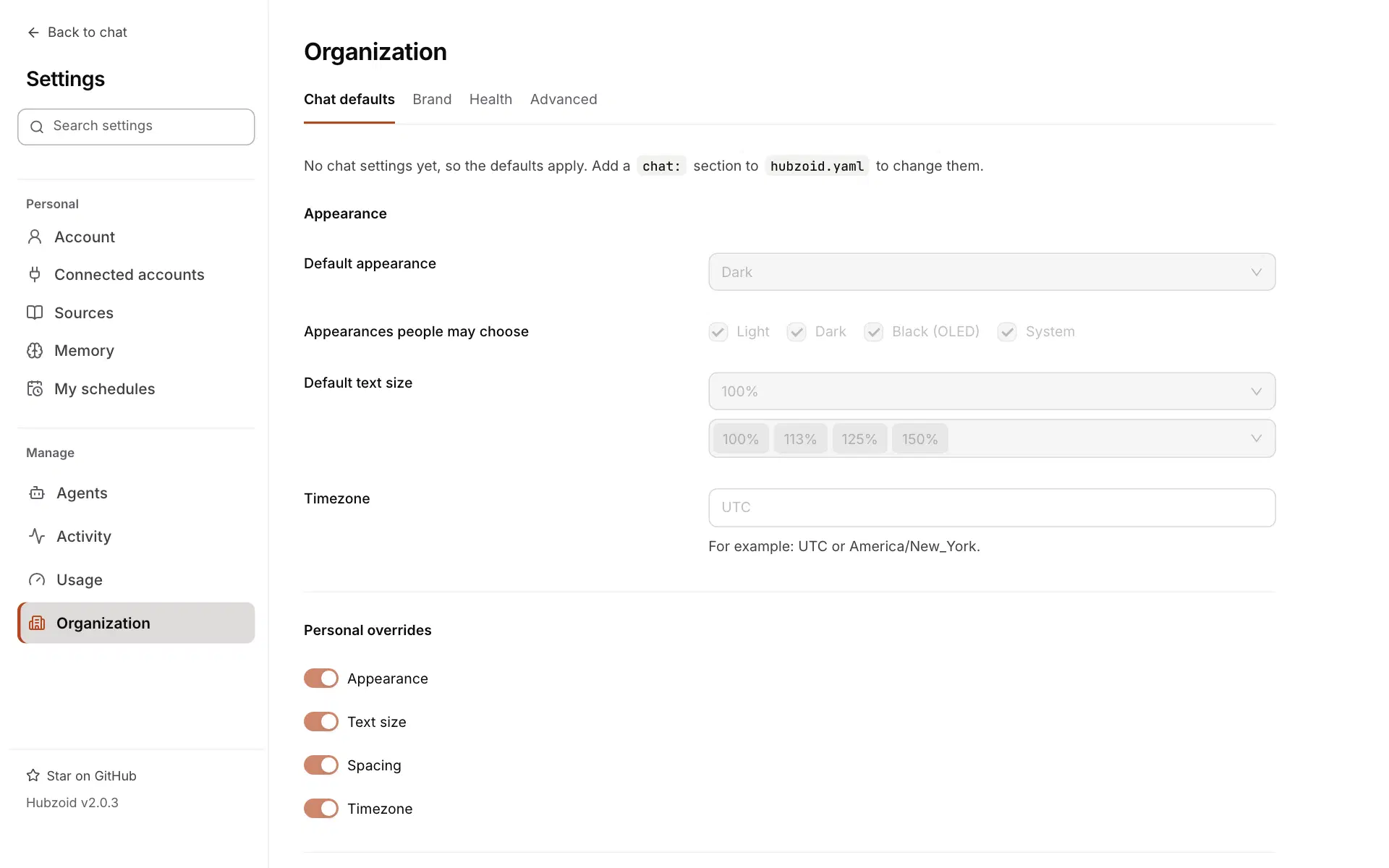
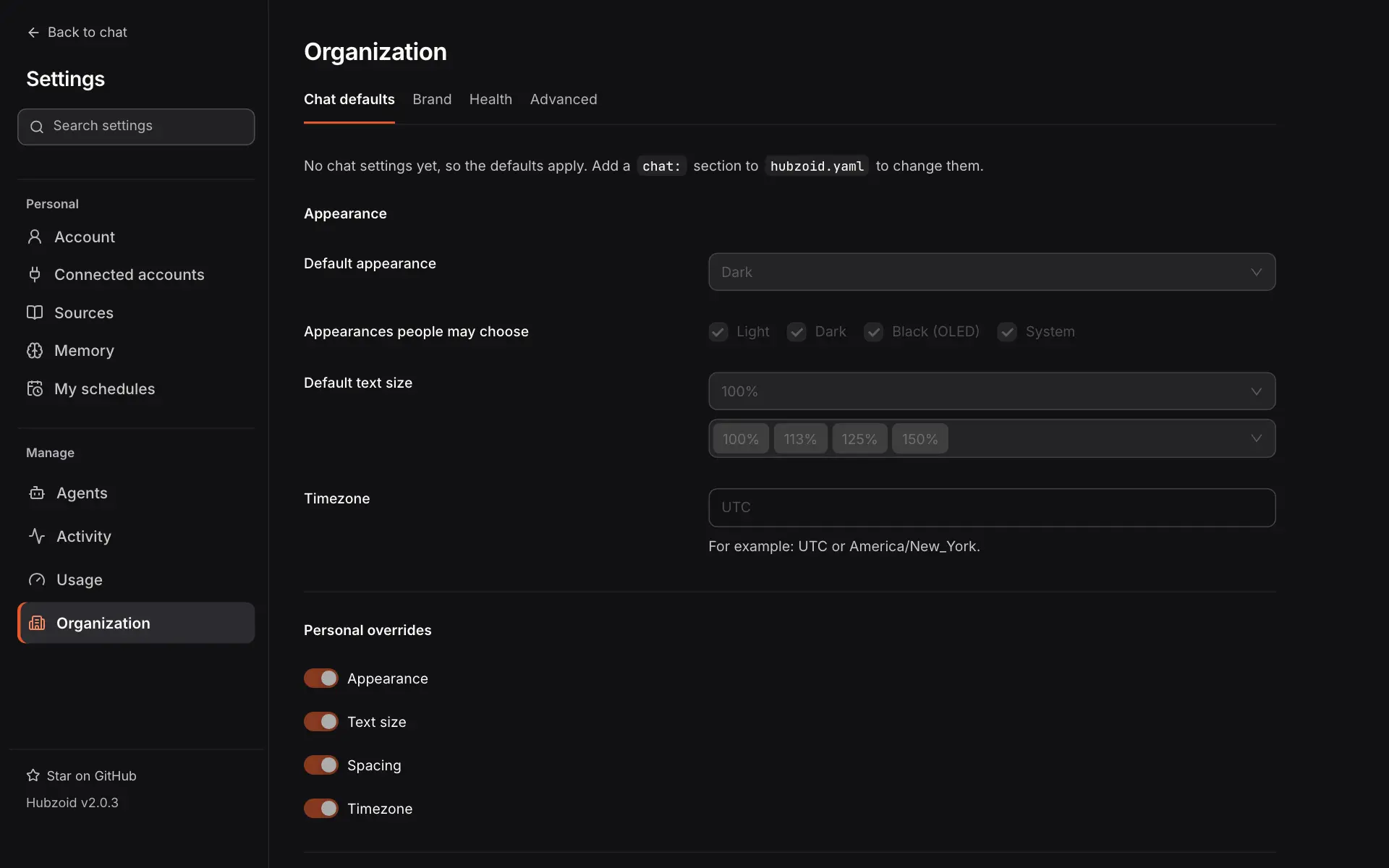
Organization holds the deployment's defaults, for organization administrators.
| Tab | What it holds |
|---|---|
| Chat defaults | The default appearance, the appearances people may choose, text size, time zone, and which of these people may change for themselves. They come from the chat: section of hubzoid.yaml |
| Brand | The app's name and images, from the brand: section of hubzoid.yaml and its branding/ folder. Shown read-only |
| Sign-in | Who must use two-step sign-in, and company sign-in. Only with sign-in on |
| Health | The deployment's checks, and a support bundle you can download |
| Advanced | Every deployment setting, where it is set and how to see it |
Other addresses
A few more addresses open parts of Settings directly.
Confirm links, older addresses and the API
/settings#/confirm/<id>is where you confirm a change an agent proposed in chat, for a person granted Manage access from chat. It shows the exact change with Apply change (or Create account) and Reject. Only the person who asked can open it, it works once, and it expires afterHUBZOID_CHANGE_REQUEST_TTLseconds (900 by default).- Older addresses open where the page lives now. For example
#/budgetsopens Usage,#/me/workopens the Inbox's My work tab, and/portal/opens Settings. - The JSON API behind the management screens is under
/portal/api. It is listed in HTTP endpoints.
Development sign-in
For local work on the web app only, setting both HUBZOID_PORTAL_DEV=1 and HUBZOID_PORTAL_DEV_USER=you@example.com makes the management API trust that email without a session. Never set them on a server other people can reach.