

Schedules and reports
Manage the requests you asked an agent to repeat and the reports you can run, and, as an administrator, everyone's schedules and live report links.
People ask an agent in chat to repeat something, such as "send me the low stock list every Monday at 9". My schedules in Settings is where each person finds those repeating requests and the reports they can run. Team schedules is where administrators see everyone's on one agent.
By the end of this page you can pause, edit or stop your own schedules, find your report links, and, as an administrator, manage other people's schedules and company links. The agent's own timetable, its markdown tasks and code workflows, is on each agent's Workflows tab.
My schedules
Open Settings → My schedules (/settings#/me/schedules). Every signed-in person has it, also on a laptop with sign-in off.
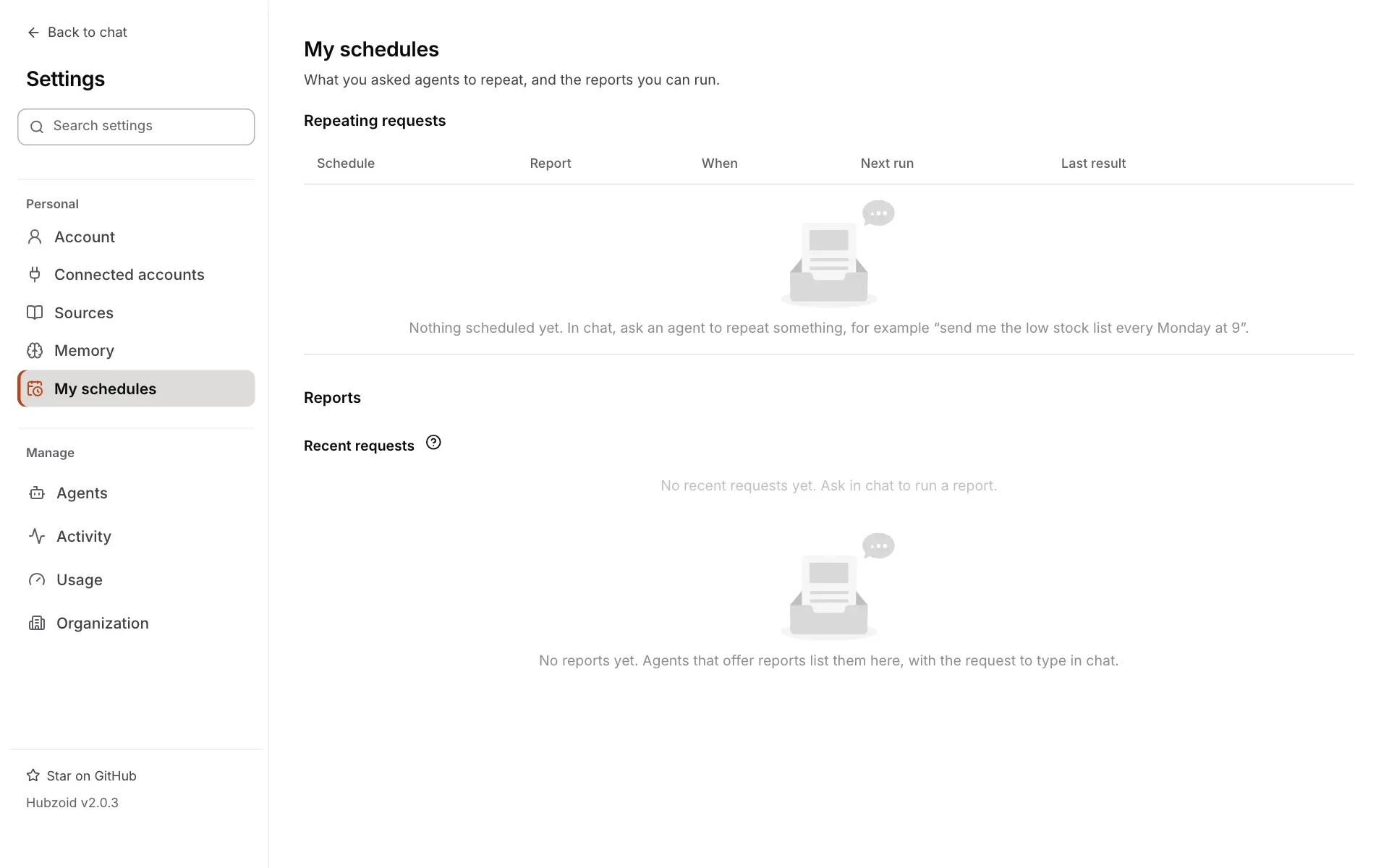
The page refreshes itself while open. Results also appear in chat and in the Inbox. Email is sent only when the hub turns it on.
| Part | What it holds |
|---|---|
| Repeating requests | What you asked agents to repeat: its name and state, the report and inputs, when it runs and in which time zone, the next run and the last result |
| Reports you can run | The reports the agents offer you with your current access, each with the request to type in chat and Open chat |
| Your reports | Your own report links. Each always shows the newest copy, with when it was updated and Live, Last update failed or No longer updating |
| Recent requests | Your recent one-off reports and answers on one agent, including work that kept going after chat stopped waiting |
Repeat a request
- In chat, ask the agent, for example "Repeat this for me every Monday at 9: list the stock items below their reorder level."
- The agent shows the exact request, when it runs and where answers go. It saves it only after you say yes.
- A first run starts at once. Each run asks the agent your request as you, with your access at that time, and puts the answer in a new private chat.
Times use your own time zone from Account → Appearance, then the deployment's, then your browser's, then UTC, unless you name one. Everyone who uses an agent may repeat their own requests. A hub turns this off with HUBZOID_PROMPT_WORKFLOWS=false. On a laptop where scheduled workflows are off, the agent says it cannot schedule and offers the request text instead. See Workflows and schedules.
Manage a schedule
| Control | What it does |
|---|---|
| Edit | Changes the cadence, such as "every monday at 09:00", the time zone and the saved inputs. Changes apply to future runs, and a paused schedule stays paused |
| Pause, Resume | Stops and restarts it. A schedule an administrator paused can be resumed only by an administrator |
| Run now | In the menu. Starts a run at once, as you |
| Stop | In the menu, after a confirmation. It never runs again, and its live link keeps the last copy |
Select a schedule's name for its latest runs, each with a status, a run reference and timing. Its state tells you where it stands, for example Active, First run in progress, Paused by owner, Paused by admin, Paused after failures, Paused: access changed or Stopped. A schedule pauses itself after repeated failures, and when your access or its inputs change.
Reports a workflow offers
Some agents offer reports built as code workflows. A report appears under Reports you can run when you hold Use this agent and the report's Run capability on the agent's Access tab. Scheduling it also needs Schedule reports for themselves and a workflow that allows personal schedules. How a workflow becomes a report people run (as_tool=True) or schedule (schedulable=True) is in Code workflows.
Team schedules
Settings → Team schedules (/settings#/schedules) shows everyone's repeating requests on one agent. Organization administrators can pick any agent, and agent administrators the agents they manage. It needs sign-in on, because on a laptop there is only one person.
People's schedules lists every schedule on the agent, with how many are active.
| Column | Contents |
|---|---|
| Person | Whose schedule it is. Each runs as that person |
| Schedule | Its name and state |
| Report | The report and its inputs |
| When | The cadence and its time zone |
| Next run, Last result | When it runs next and how the last run went |
| 30-day cost | The model cost of its runs in the last 30 days |
Administrators can Pause a schedule and Stop it, after a confirmation. The person sees that an administrator paused or stopped it. An administrator resumes only what an administrator paused, and the owner resumes every other pause. Administrators never see the report contents a person's schedule produces.
Live reports
Live reports appears when the agent publishes reports with a live link. Each link always shows the newest copy: a team report written by the agent's own runs, or a personal report that belongs to one person.
| Column | Contents |
|---|---|
| Report | Its title and key |
| Kind | Team, or Personal with its owner |
| Updated | When it last changed, and Live, Last update failed or No longer updating |
| Company link | Copy for a team report's company link, with Replace link and Turn off link in the menu. A personal report's link can only be turned off. Make a link creates a new one after a link was turned off |
Company links
A company link lets anyone at your company's email domain open a report after signing in, without access to the agent. They get a reader-only account, shown as Reader under People, that opens company links and reports shared with it, nothing else. A tag above Live reports says Company links on for your domains, or Company links off with the reason.
Company links need these settings for the deployment, and company sign-in with Google, Microsoft or OpenID Connect (see Authentication):
HUBZOID_SHARE_DOMAINS=example.com      # who may open company links
OAUTH_ALLOWED_DOMAINS=example.com      # each share domain, listed explicitly
ENABLE_OAUTH_SIGNUP=true               # readers get an account on first visit
The workflow or person that publishes a report with a company link needs Share reports with the company domain. Taking that capability away, or turning a link off, stops the link at once. Replace link stops the current link and makes a new one to share. An agent that an old "Everyone signed in" grant opens cannot have company links. Give people access by name first.