

Agents and access
Open an agent in Settings to see its tabs, add users, grant what each person may do and replace an old Everyone signed in grant.
Each hub in a deployment appears in Settings as an agent. An agent's page is where you decide who can use it and what each person may do, and where you read its instructions, connectors, workflows, evals and configuration.
By the end of this page you can add a teammate, give them the right capabilities and check what an agent's other tabs show. The rules behind every grant are in Identity and access.
The agent list
Settings → Agents lists one row for every agent you manage. Search with Find an agent by name or key, and narrow the list with All, Needs attention or Not used yet. Select a row to open the agent on its Access tab. Chat on a row opens a chat with the agent when you can use it yourself.
Every column in the agent list
| Column | Contents |
|---|---|
| Agent | The agent's name and its key, the hub folder name in lowercase |
| In its folder | What the folder holds, such as knowledge, skills, workflows and connectors, or Only instructions |
| People | How many people have access, or Everyone for an agent open to everyone signed in |
| Chats, 30 days | Chats with the agent in the last 30 days |
| Spend, 30 days | The approximate cost of the last 30 days |
| Last used | When the agent was last used, or Not yet |
| Status | Ready, Workflow failing when a workflow could not be loaded or the scheduler stopped, or Evals N of M when the latest eval run passed only N of M cases |
An agent's tabs
The agent page shows its name and description, View activity (the audit log for this agent) and Open chat. Below are its tabs. Each tab has its own address, /settings#/agents/<key>/<tab>.
| Tab | What it shows | With browser editing off |
|---|---|---|
| Instructions | The agent's AGENTS.md, skills and shared prompts, with each file's Git history | Read-only. With it on, the tab has Files and Changes to review (Beta) |
| Access | People: who can use the agent and with which capabilities. Workflow permissions: who may run, schedule, change and see each workflow | Editable |
| Connectors | The apps the agent can use for people, and the servers in its connectors/.mcp.json | Read-only |
| Workflows | Its markdown tasks and code workflows, their status, who they run as, and their runs. See Runs | Run now works |
| Work | Work items, Incoming messages and Sandboxes. Shown only when the agent has any of them | |
| Evals | Its eval cases, the latest score and recent runs. See Evals | Read-only |
| Feedback | The ratings people gave its answers | Read-only |
| Configuration | Its declared settings with Run checks, its secret settings, and its channels | Settings and channels read-only |
Browser editing is off by default
Settings shows an agent's files but does not change them unless in_app_editing: true is in hubzoid.yaml. Change them in the hub folder, or ask Claude Code or Codex. See Why some screens are read-only.
Give a teammate access
- Open Settings → Agents → the agent → Access.
- For someone without an account, select Add user. For someone who has one, select Edit access on their row.
- Tick the capabilities they need. A tool capability includes Use this agent.
- Select Review changes, check the summary, then save.
- Share the chat address and their sign-in details yourself. Hubzoid sends no email.
The permission check changes at once, and the agents the person sees in chat follow it. Every saved change is recorded in Activity → Audit log.
The Access tab
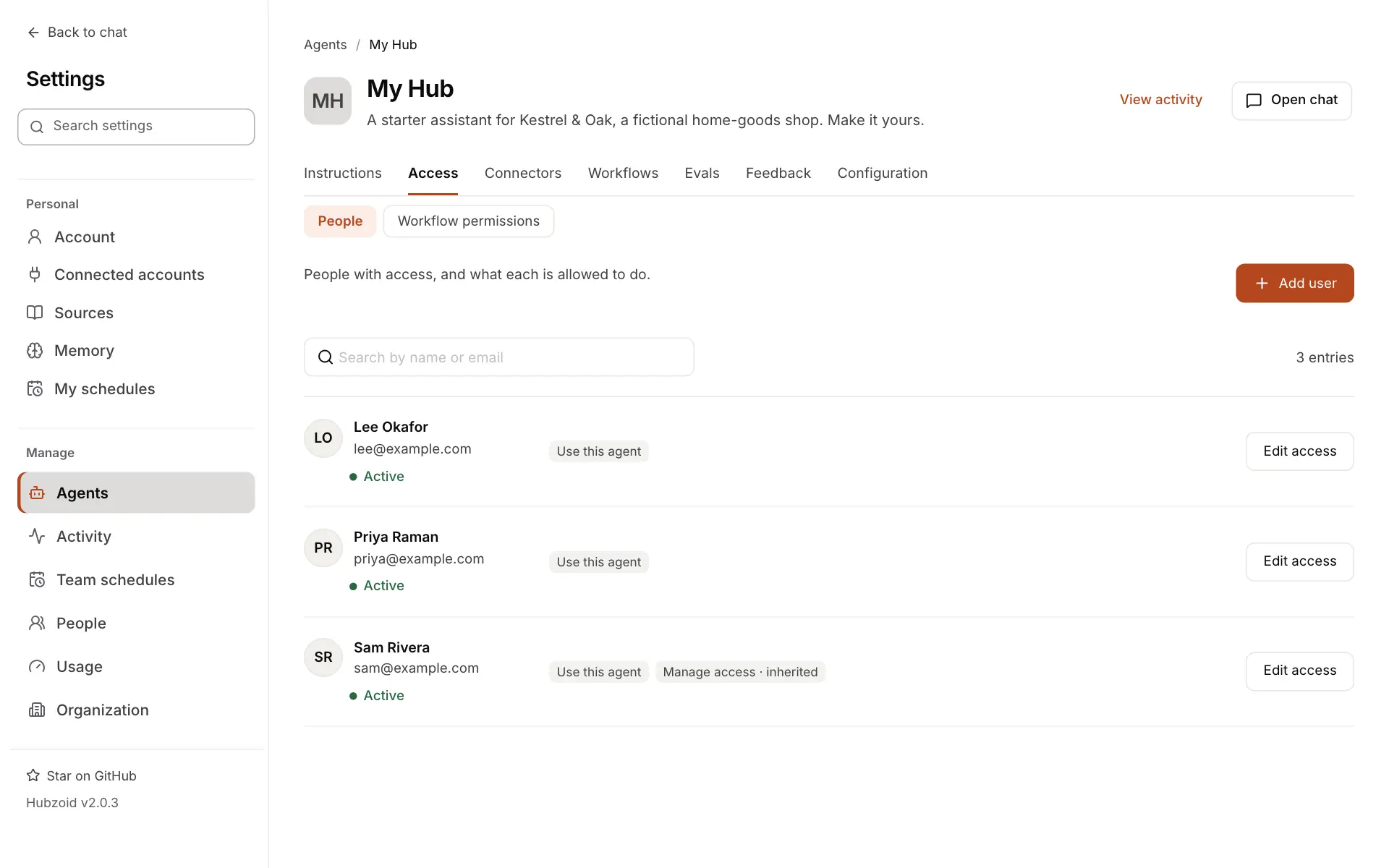
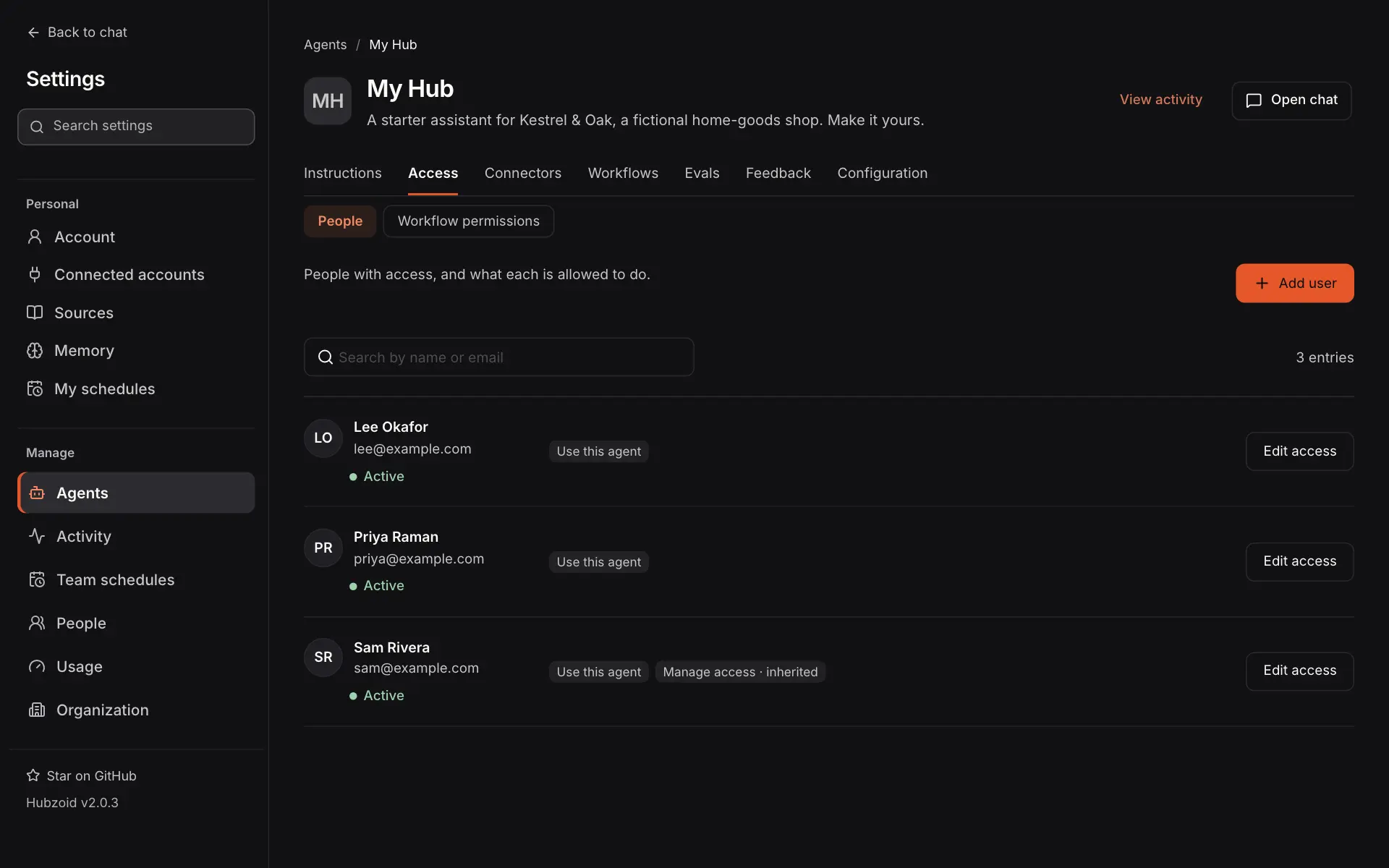
The People part, headed "People with access, and what each is allowed to do", lists the people with direct access.
Searching the list, and every column and tag
Search by name or email. Results are shown 20 at a time. Select a person's name to open their details under People, unless they have not signed up yet.
| Column | Contents |
|---|---|
| Person | Name, email and account status: Active, Not signed up yet, Awaiting approval or Blocked. A legacy service identity reads Legacy service identity, and an "Everyone signed in" row reads Public |
| Capabilities | One tag per capability the person effectively holds here |
| Edit access, or Remove on an "Everyone signed in" row |
| Tag | How the capability is held |
|---|---|
| A plain tag, such as Use this agent | A direct grant in this agent |
| An orange tag | A capability marked sensitive |
| Ending in · inherited | Through organization administrator rights. Administrators appear on every agent with Manage access · inherited. Change it by setting their role under People |
| Ending in · everyone | Through an existing "Everyone signed in" grant |
| Ending in · no longer available | The capability was removed or renamed. Remove it under Edit access |
| No access | Nothing is effective here, for example because the account is blocked |
Add user
Add user on the Access tab starts with one search, Name or email:
- Someone with an account. Pick them from the matches. A person who already has access here is tagged Has access. Picking someone opens their access in this agent, to change and save like any edit.
- Someone new. Enter their full email and choose Create an account.
To create the account:
- Enter their Name and Email address. They sign in with this email. An email that already has an account is caught as you type, with Edit their access.
- Organization administrators can add a Phone with the country code, so the person's WhatsApp and Telegram messages are recognized. It is optional.
- Type a Password, or select Generate for a random one made in your browser. It must be at least 8 characters and at most 72 bytes. Or tick Google sign-in only, described below.
- Choose capabilities. Use this agent is ticked to start with.
- Select Review changes. The review, "Review the new user", shows the person, the agent and each capability. Select Create account.
- The panel shows the chat address, their email and the password once, with Copy sign-in details. Share them yourself. The password is never stored or logged, and it is cleared when you select Done.
Adding users from People, roles and Google sign-in only
Add user on the People page works differently: the person sets their own password with a one-time sign-in link. See Add user on People. Agent administrators add users here, on the Access tab.
New accounts have the normal user role. Make someone an Administrator later from their details under People.
Google sign-in only creates an account with no password. The person selects Google on the sign-in page, and Hubzoid links that sign-in to the account by email. It can be ticked only when Google sign-in is set up with OAUTH_MERGE_ACCOUNTS_BY_EMAIL=true. Otherwise it is disabled with a hint. When Google sign-in is limited to some domains, only those addresses are accepted. See Authentication.
What each result panel means, and access before sign-up
Every result says exactly what exists:
| Panel title | What happened | Next step |
|---|---|---|
| User added | The account exists with the access you chose | Done, or Open their details |
| This user already exists | Nothing was created or changed | Edit their access opens the editor with their current access plus your choices |
| Account created, access not granted | The account exists without access. Its sign-in details stay on screen | Try again grants the access to that account. It is never created twice |
| Not confirmed | The server did not confirm the result | Try again. If the first attempt made the account, the panel says so |
| Nothing was created | The request was refused, for example for a capability you may not give | Back to the form |
To give access to an email before its account exists, for example someone who will first sign in through single sign-on, use the server: hubzoid grant priya@example.com use_hub ./my-hub. Until they sign in, their status reads Not signed up yet.
Edit access
Edit access opens the editor for that person, titled "Edit access", or "Give access" for someone with no access here yet. From a person's details under People, Edit access next to an agent, or Add an agent for one they can't use yet, opens the same editor, starting with Use this agent ticked.
Capability groups, labels and blocked people in the editor
The editor shows the person, their account status and View profile, then Capabilities in groups. Empty groups are hidden. Groups start collapsed except Hub access, and their header says what they hold, for example "Restricted tools · 2 selected".
| Group | What it holds |
|---|---|
| Hub access | Use this agent (use_hub) |
| Restricted tools | The hub's restricted/<capability>.py modules |
| Connectors | Connect or Use and the app's name, one per connector the agent offers (connector_<id>), and Start work from one per channel (channel_<id>) |
| Administration | Manage access (manage_access) |
| Hubzoid tools | Built-in capabilities, such as Save shared knowledge. Under Workflows: See workflows and runs, Run and control workflows, Schedule reports for themselves, Share reports with the company domain and one Run per report the agent offers in chat. Under Access control: Manage access from chat |
| No longer available | Grants whose capability was removed or renamed. They can be removed, never granted again |
Each capability shows a Sensitive tag where declared, and a short status when it cannot run yet, such as "Jev key missing" or "Not checked". Permission and configuration are separate: you can grant a capability before its setting exists, and adding a setting never grants anyone access. The question mark beside a capability explains what it does and why it is locked.
| Label | What it means |
|---|---|
| Required | Use this agent stays ticked while any other capability is ticked. Remove all access takes everything away |
| Included | It comes with Use this agent and has nothing to grant |
| Inherited | Held through organization administrator rights. Change it under People |
| Outside your access | You are an agent administrator and do not hold this capability here yourself |
| Admins only | Only organization administrators can grant it, such as Manage access from chat |
| Locked | Another rule applies, such as your own access or an administrator's. The help button says which |
| Public | Use this agent is held through "Everyone signed in". A direct grant keeps access if that grant is removed |
A blocked person gets a warning, and new capabilities are locked while existing ones can still be removed. Remove all access removes Use this agent and every capability with it, in one request. Cancel with unsaved edits asks before discarding them.
Delegating an agent
An organization administrator ticks Manage access under Administration for a person. They become an agent administrator for this agent only. They see it under Agents, Activity and Team schedules, add users with access to it, and can chat with it. Restricted tools still need their own grants.
What an agent administrator cannot do
An agent administrator grants or removes only capabilities they hold in that agent themselves, never Manage access or Manage access from chat. They cannot change their own access or an administrator's, remove "Everyone signed in", approve sign-ups, reset passwords, change roles, delete users or add connectors. The server checks every change.
Sensitive capabilities
A capability is sensitive only when it is declared so. For a restricted tool, declare it in the hub:
payroll:
  label: Run payroll
  description: Process employee payroll and view salaries.
  sensitive: true
Which other capabilities are sensitive
That file labels restricted tools only. Built-in capabilities declare their own, as Share artifacts publicly, Run and control workflows and Manage access from chat do. Connector capabilities are sensitive. When a change grants a sensitive capability, the review warns "This grants a sensitive capability" and names it.
Review and save
Nothing is saved while you tick boxes. Review changes shows the person, the agent, what is Adding and Removing, and a warning when Use this agent is removed or a sensitive capability is granted. Select Back to adjust, or Save change (Save N changes) to apply. When the change removes Use this agent, the button reads Remove access.
When a save conflicts or is not confirmed
The whole change is sent in one request with the access revision you loaded. Either every change applies or none does:
- If someone changed access after you loaded the page, the panel reads "Nothing was saved" and Settings reloads the current access so you can review again.
- If the response is lost, the panel reads "Save not confirmed", because the change may have applied. Settings reloads the access, and Reopen opens the editor again.
- After a successful save the notice reads "Access updated".
Workflow permissions
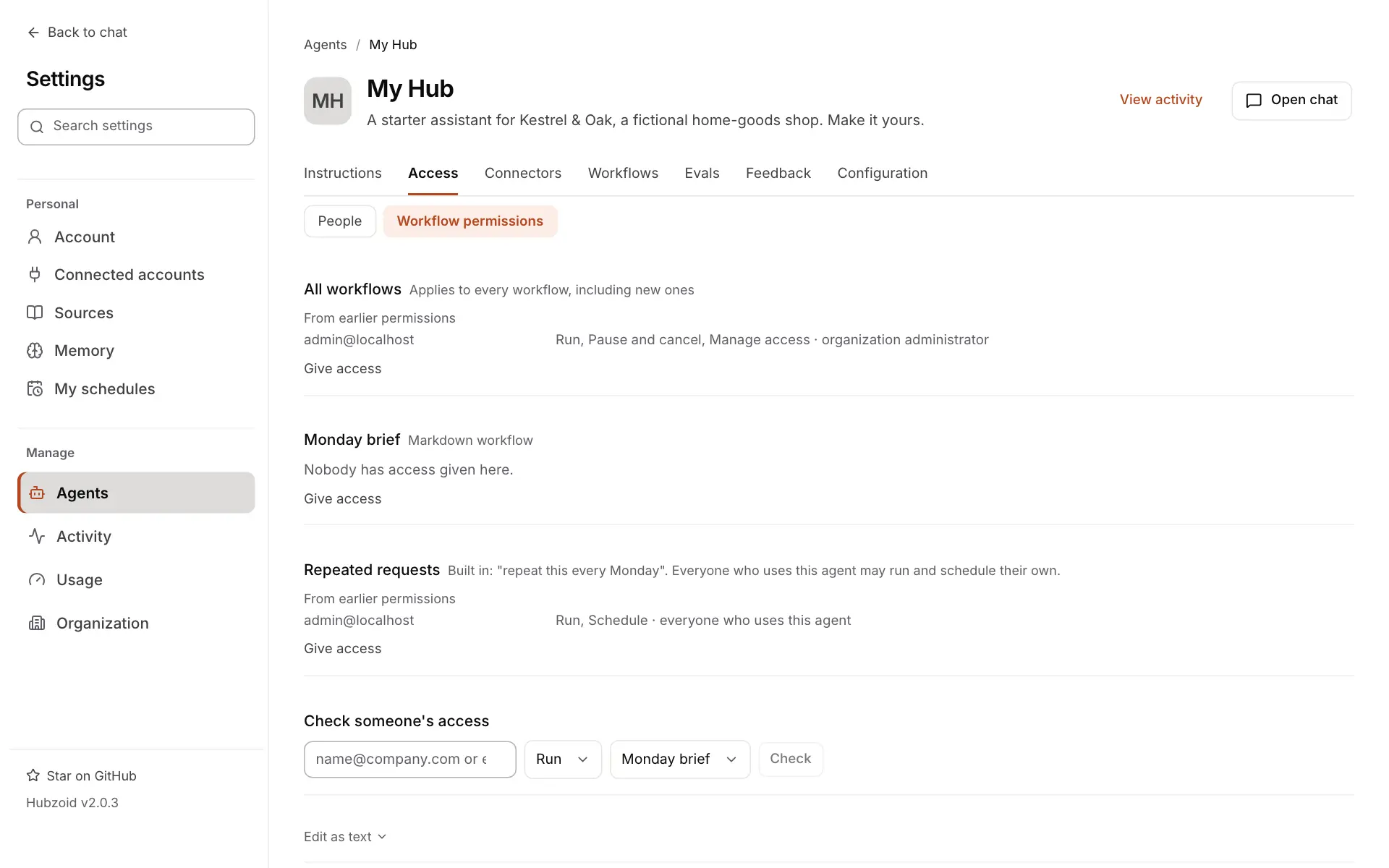
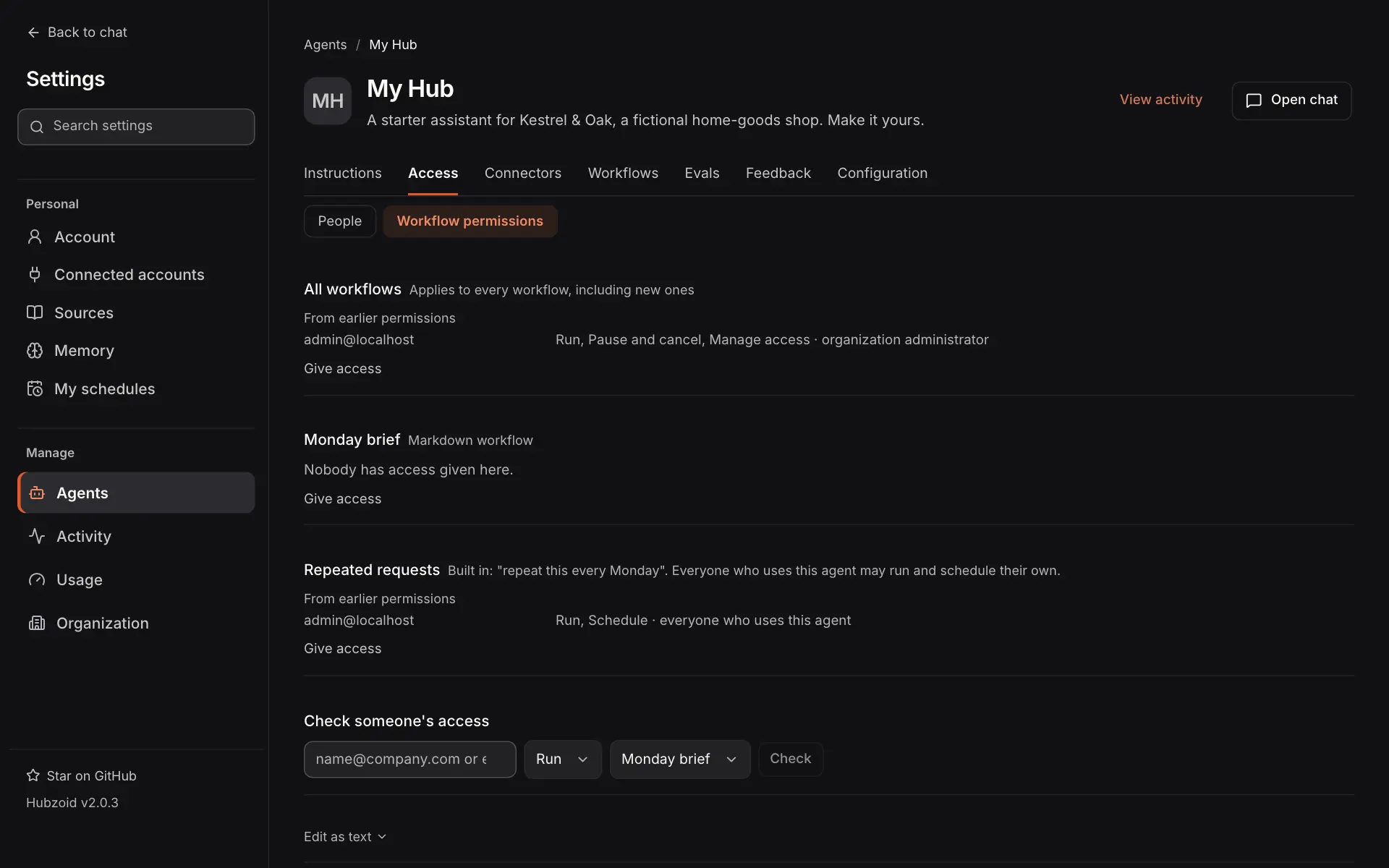
The Workflow permissions part of the Access tab decides who may do what with each workflow. It is the same policy as hubzoid workflow-access and its workflows/access.yaml format.
Every workflow action
| Action | What it allows |
|---|---|
| Run | Start it now |
| Schedule | Set it to repeat for themselves. Needs Run |
| Edit, Create | Propose changes to it, or new workflows, reviewed before they apply |
| Review changes | Review proposed changes to it |
| See definition, See runs, See results | Read how it works, see when it ran and how it went, or open what its runs produced when shared with them |
| Pause and cancel | Pause or resume its schedule, cancel or retry runs |
| Manage access | Change who may use it |
Select Give access under a workflow, or under All workflows for every workflow including new ones. Check someone's access answers whether one person may take one action, and why. Edit as text shows the policy as YAML to copy. Editing the file alone changes nothing: apply it with hubzoid workflow-access apply.
Everyone signed in
Access goes to named people. Nobody can create access for everyone who can sign in, administrators included. Settings has no control for it, and hubzoid grant '*' is refused.
An agent that was open to everyone under an older release keeps that access as an Everyone signed in row, with a notice above the list. It keeps working until an organization administrator removes it. To replace it with named access:
- Give the people who need the agent their own access, with Add user, Edit access or Add an agent under People. Give the account your workflows run as access the same way.
- Select Remove on the Everyone signed in row. The confirmation says how many people open the agent only through it.
- Confirm with Remove access for everyone.
The server command, and company links
On the server, hubzoid revoke '*' use_hub --hub my-hub ./my-hub does the same. An agent open to everyone signed in cannot have company links for its reports.
Connectors
The Connectors tab lists the apps this agent offers, so it can use people's own accounts or one company account. A connector is registered once for the deployment and offered in each agent that lists it.
Every column on the Connectors tab
| Column | Contents |
|---|---|
| Connector | The app's name, id and server address |
| Sign-in | OAuth when each person signs in, Shared key for one company key, or No sign-in |
| Tools | How many tools are allowed, or All tools |
| Connected | How many people are connected |
| On | Whether the connector is switched on |
With browser editing on, organization administrators use Add connector, Test, Edit, Stop offering and Delete connector here. With it off, the tab is read-only. Offering a connector grants nothing: people also need its Connect or Use capability, and each person connects their own account under Connected accounts.
Servers from the hub folder
Below the list, From the hub folder shows the servers in connectors/.mcp.json, read-only, with Ready or Missing settings. See Tools and connectors.
Blocked people
Settings does not block people. Someone can still be blocked by a block from an older release or through the management API.
Why blocked rows appear, and lifting a block
A block removes every direct grant, so blocked people usually no longer appear on Access tabs. Rows marked Blocked that do appear are usually accounts that were removed or can no longer be found, and their capabilities read No access. An organization administrator lifts a block with Reactivate in the person's details. See People and activity.
Related
People and activity
Accounts, roles, two-step sign-in, deleting users and the audit log.
Runs
The Workflows tab, who each workflow runs as and each run's steps.
Restrict a tool
Create a restricted capability and grant it from start to finish.
Tools and connectors
Add Python tools and MCP servers, and let people connect their own accounts.