
Console overview
The Console is Hubzoid's administration UI at /portal/. Learn who can open it, how the first administrator gets in, how to move around and what the totals on the Agents page mean.
The Console is where administrators add users, decide who can use each agent, inspect workflow runs and review what happened. The Hubzoid bridge serves it at /portal/. Access, runs and activity come from Hubzoid's own records: the access store, the decision log, usage rows and the workflow engine's run history. Accounts and sign-in stay in the chat app. When you add, approve or delete a user, the Console makes that change through the chat app's admin API, as the deployment's service account.
When to use this
Open the Console to add a user, grant or remove access to an agent, approve a sign-up, check scheduled work after a deploy, find out why a tool call was refused, or see how much each agent is used. Server-side operations, such as starting, pausing or cancelling runs and migrating hubs, stay in the CLI.
Where it lives
| Deployment | Console address |
|---|---|
Local, started with hubzoid run | http://localhost:3080/portal/ |
| A server or a gateway | /portal/ on the same host and port as the chat app |
The edge routes /portal to the bridge on the chat app's public port, while the bridge's /v1 API stays private. In the chat app, anyone allowed into the Console sees Admin Console above their profile in the sidebar. When the sidebar is collapsed it shows as an icon with a tooltip. The link appears only while the signed-in account passes the Console's check.
Every screen has a bookmarkable address after the #, such as #/agents/finance/access or #/people. Filters and page numbers are part of the address as well, so a filtered view can be shared and survives a refresh or the Back button.
Who can open it
The Console has no login of its own. It reuses the chat app's session: the session cookie is checked on the server against the chat app (GET /api/v1/auths/), and the verified email is what counts. Identity headers sent by a browser are ignored. An account that is still awaiting approval in the chat app is refused. Sign out in the Console signs out of the chat app.
The verified email must then hold manage_access:
| Role shown in the Console | Grant | Scope |
|---|---|---|
| Administrator (organization administrator) | manage_access in * | Every agent and every person. Can also add users with any access, approve sign-ups, reset passwords, set a user's role, delete users, remove an existing "Everyone signed in" grant, refresh accounts and retry the chat app visibility sync |
| Agent administrator (delegate) | manage_access in one or more agents | Only those agents, their runs and activity, and the people with access to them. Grants or removes only the capabilities they hold in that agent themselves, never Manage access, their own access or an organization administrator's. Can add a user with access in the agents they manage |
Anyone else sees "Console access is not enabled for this account", with a button back to the chat app. The chat app's admin role alone does not open the Console. Every change sent from a browser session must come from the Console's own origin. A request whose Origin or Referer does not match the host is refused.
The first administrator
The deployment's configured owner becomes the first administrator the first time they sign in:
- Locally, with sign-in off, the owner is the chat app's single
admin@localhostaccount, so the Console opens straight away at/portal/. - On a server, the owner is the chat app administrator whose email matches
HUBZOID_GATEWAY_ADMIN_EMAIL, orWEBUI_ADMIN_EMAILwhen that is not set. Set it before the first sign-in.
At that sign-in Hubzoid grants the owner organization administration, unless administrators were already set up with hubzoid access bootstrap, and Use this agent in each hub. Hubs created fresh with hubzoid init switch to managed access. Existing hubs keep their access mode until you migrate them. This happens once: a later sign-in never restores access that was removed, and no other chat app administrator or user is promoted.
For headless setups and recovery, bootstrap on the server instead:
hubzoid access bootstrap --admin you@example.org --authoritative ./finance--admingrantsmanage_accessin*only while no administrator has been set up yet, by an earlier bootstrap or by the owner's first sign-in. Later runs add no administrators, but they still mark further hubs as managed with--authoritative.--authoritativemakes the hub managed, so its access is edited in the Console. Bootstrap refuses this when no organization administrator exists, because nobody could open the Console afterwards.- Add more administrators under People: open the user and set Role to Administrator, which makes them an administrator in the Console and in the chat app together. On the server,
hubzoid grant colleague@example.org manage_access --org ./financesets only the Hubzoid side, so the Console marks that user Needs attention until you choose a role. - For a gateway with several hubs, and for hubs that still use chat app groups, follow Access administration.
Development sign-in
For local UI work only, setting both HUBZOID_PORTAL_DEV=1 and HUBZOID_PORTAL_DEV_USER=you@example.org makes the Console trust that email without a chat app session. Never set them on a server that other people can reach.
Navigation
| Section | Address | What it is for |
|---|---|---|
| Agents | #/agents | The landing page: usage totals for a chosen period above one card per agent. Each agent has Access, Runs & schedules and Activity tabs |
| People | #/people | Everyone with access, their account status and role, their access per agent, and Add user |
| Activity | #/activity | Access changes and tool decisions across your agents |
Runs and schedules live inside each agent. The old cross-agent runs list has no sidebar entry, but #/runs still opens it, so earlier links keep working. #/confirm/<id> is the page where you confirm a change that an agent proposed for you, when a hub sets HUBZOID_MANAGEMENT_TOOLS=true. It shows the exact change with Apply change (or Create account) and Reject. Only the person who asked can open it, it works once, and it expires after HUBZOID_CHANGE_REQUEST_TTL seconds (900 by default).
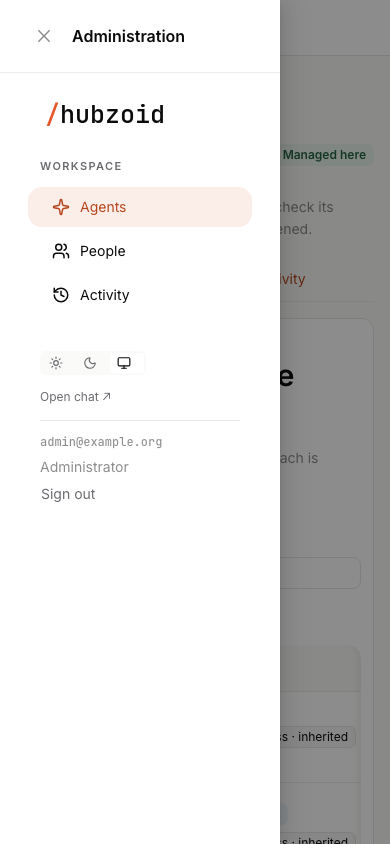
The sidebar footer holds a theme switch (light, dark or match the system), Open chat, your email with your role (Administrator or Agent administrator), and Sign out. On a phone the sidebar moves into a menu opened from the top bar.
The Agents page
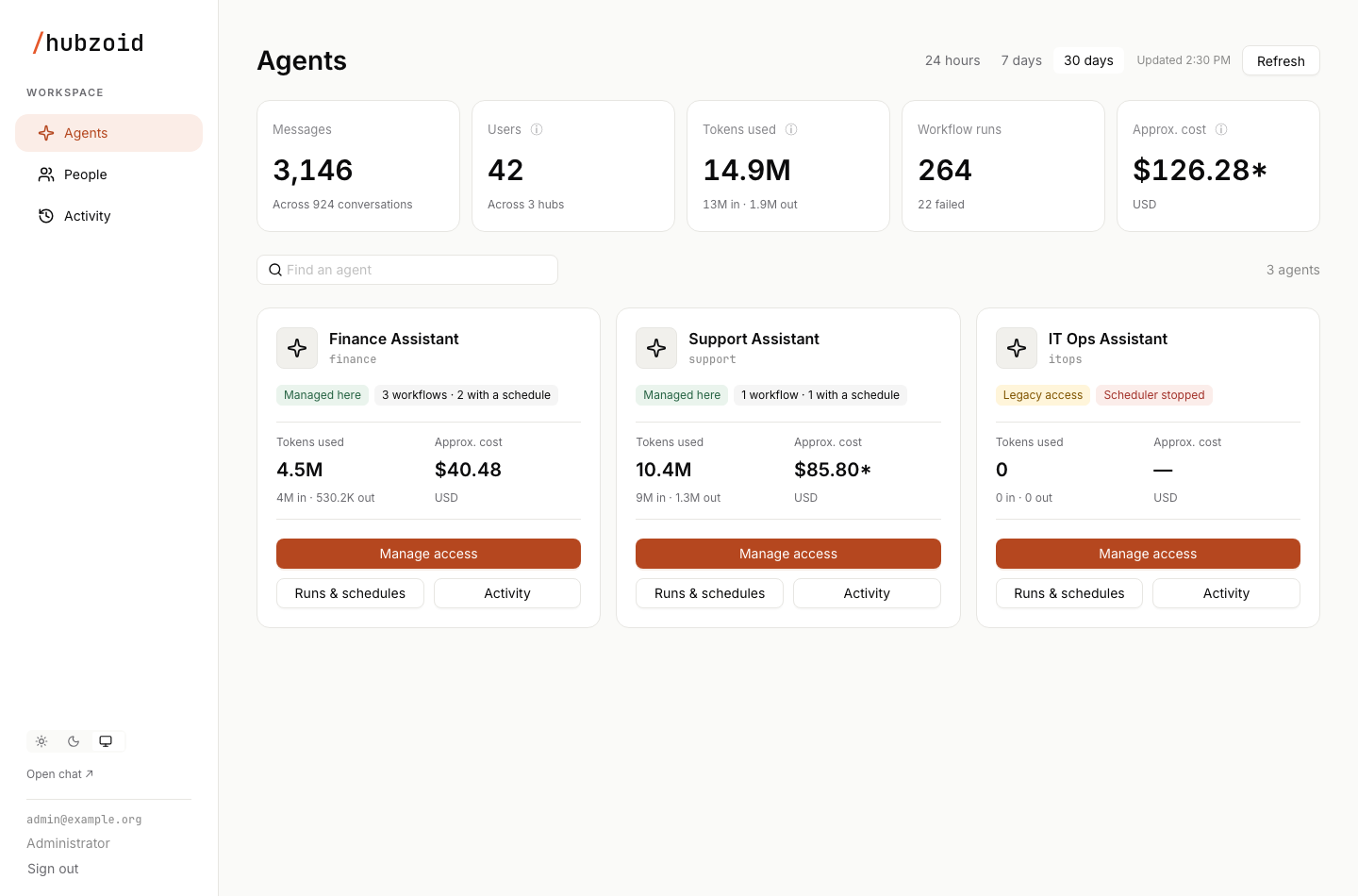
The Console opens on Agents. Choose 24 hours, 7 days or 30 days at the top of the page. The default is 7 days. Refresh reloads the totals, the agents and their workflow status, and the time of the last update shows beside it. Agent administrators see only their agents.
Totals
Five cards sit above the agents:
| Card | What it counts |
|---|---|
| Messages | Chat messages people sent in the period on every chat surface, including Slack, WhatsApp and Telegram, with the number of conversations below. Background title and suggestion calls are not counted |
| Users | Sign-in accounts in your scope, whatever the period: every account in the deployment for an organization administrator, or the accounts with access to your agents for an agent administrator. Blocked accounts count. Legacy service identities and grants to an email with no account do not. Read from the chat app's account directory |
| Tokens used | Input and output tokens, with the split below, including background calls, scheduled work and workflow model calls |
| Workflow runs | Runs started in the period, with the failed count below. Failed includes runs the engine stopped recovering. Reads 0 when none of your agents has workflows or scheduled tasks |
| Approx. cost | An estimate in USD from the model's reported cost, or from LiteLLM's price table, for those calls. Your provider's bill is the reference |
The info buttons next to Users, Tokens used and Approx. cost explain each figure.
Agent cards
Each card shows the agent's name and key, its access and workflow tags, Tokens used and Approx. cost for the chosen period, and the buttons Manage access, Runs & schedules and Activity. Search with Find an agent. The tags and each agent's page are described in Agents and access.
Unknown is never zero
A figure Hubzoid cannot know is shown as a dash, never as zero. If the chat app's account directory cannot be read, Users reads Unavailable. If the run history cannot be read, Workflow runs reads Unavailable. If no price is known for the model calls, the cost is a dash. A cost that leaves out some calls with no known price is marked with *, and its tooltip says how many. A very small cost shows as < $0.01. If a refresh fails, the page keeps the last numbers and says it could not refresh them.
Usage comes from Hubzoid's own hz_usage table, which records every chat turn and workflow model call without message content. Runs come from the workflow engine's run history. Only Users reads the chat app, from its account directory. The usage numbers are therefore the same whichever chat front end serves the agents.
The API behind the Console
The Console is a static app over a JSON API under /portal/api, protected by the same session check. The same API is the management API for scripts: every endpoint also accepts Authorization: Bearer sk-... with an Open WebUI API key, and the caller acts as the key's owner under the same rules. A key caller needs no Origin header. A refusal returns a JSON body with detail, which is safe to show, and a stable code, such as outside_ceiling or last_admin.
| Endpoint | Used for |
|---|---|
GET /portal/api/me | Your identity, role, the agents you manage, what you may grant in each and whether you can create accounts |
GET /portal/api/hubs | The agent list, each marked managed or legacy |
GET /portal/api/summary?period=7d | The totals and per-agent usage on the Agents page |
GET /portal/api/overview | Agent, grant and people counts, and the chat app visibility sync state |
GET /portal/api/permissions?hub=finance | An agent's capability catalog |
GET /portal/api/access?hub=finance | An agent's Access tab |
POST /portal/api/access/apply | Saving one person's change set in one transaction |
POST /portal/api/access/grant, POST /portal/api/access/revoke | Single changes. The Console uses revoke to remove an existing "Everyone signed in" grant, which nobody can create |
GET /portal/api/people | The People page |
POST /portal/api/people/refresh | Refresh accounts |
POST /portal/api/people/block | API only, for organization administrators. With "suspended": false it unblocks someone blocked in an earlier release. The Console has no control for it |
POST /portal/api/accounts | Add user: a new account with its first access |
POST /portal/api/accounts/grant | Access for an account that already exists, used by Try again after a partial create |
GET /portal/api/accounts/<email> | A user's role and sign-in method, read live from the chat app |
POST /portal/api/accounts/<email>/approve, /password, /role | Approve, Reset password and Role |
DELETE /portal/api/accounts/<email> | Delete user, with confirm_email in the body |
GET /portal/api/workflows, GET /portal/api/runs | Runs & schedules and run history |
GET /portal/api/audit | Tool decisions |
GET /portal/api/access-changes | Access changes |
POST /portal/api/sync | Retrying the chat app visibility sync |
GET /portal/api/change-requests/<id>, then /confirm or /reject | Confirming or rejecting a change an agent proposed |
The full list of Hubzoid endpoints is in HTTP endpoints.
Next steps
Agents and access
Add users, grant capabilities and save changes safely.
Runs
Follow an agent's workflow runs and read each run's steps.
People and activity
User details, roles, deleting users and the records you use for audits.
Access administration
Bootstrap administrators and migrate hubs that still use chat app groups.
OpenAI-compatible API
The bridge's /v1 chat completions API on 127.0.0.1, with its authentication, request fields, streaming, identity headers, attachments and uses.
Agents and access
The Console's agent cards and agent pages, and how to add users, grant capabilities in grouped sections, handle sensitive grants, replace an old Everyone signed in grant and save changes atomically.