
Agents and access
The Console's agent cards and agent pages, and how to add users, grant capabilities in grouped sections, handle sensitive grants, replace an old Everyone signed in grant and save changes atomically.
Each hub in a deployment appears in the Console as an agent. Its page is where you decide who can use it and what each person may do, check its scheduled work and review what happened in it.
When to use this
Use the Access tab to add a new user, give an existing user an agent, grant or remove a restricted capability, delegate an agent to another administrator, or replace an old "Everyone signed in" grant with named people. The rules the tab applies are described in Identity and access. For a first grant from start to finish, follow Restrict a tool.
The agent cards
Agents in the sidebar is the Console's landing page. Below the totals it shows one card for every agent you manage. Search with Find an agent by name or by key. The count beside the search shows how many agents you manage.
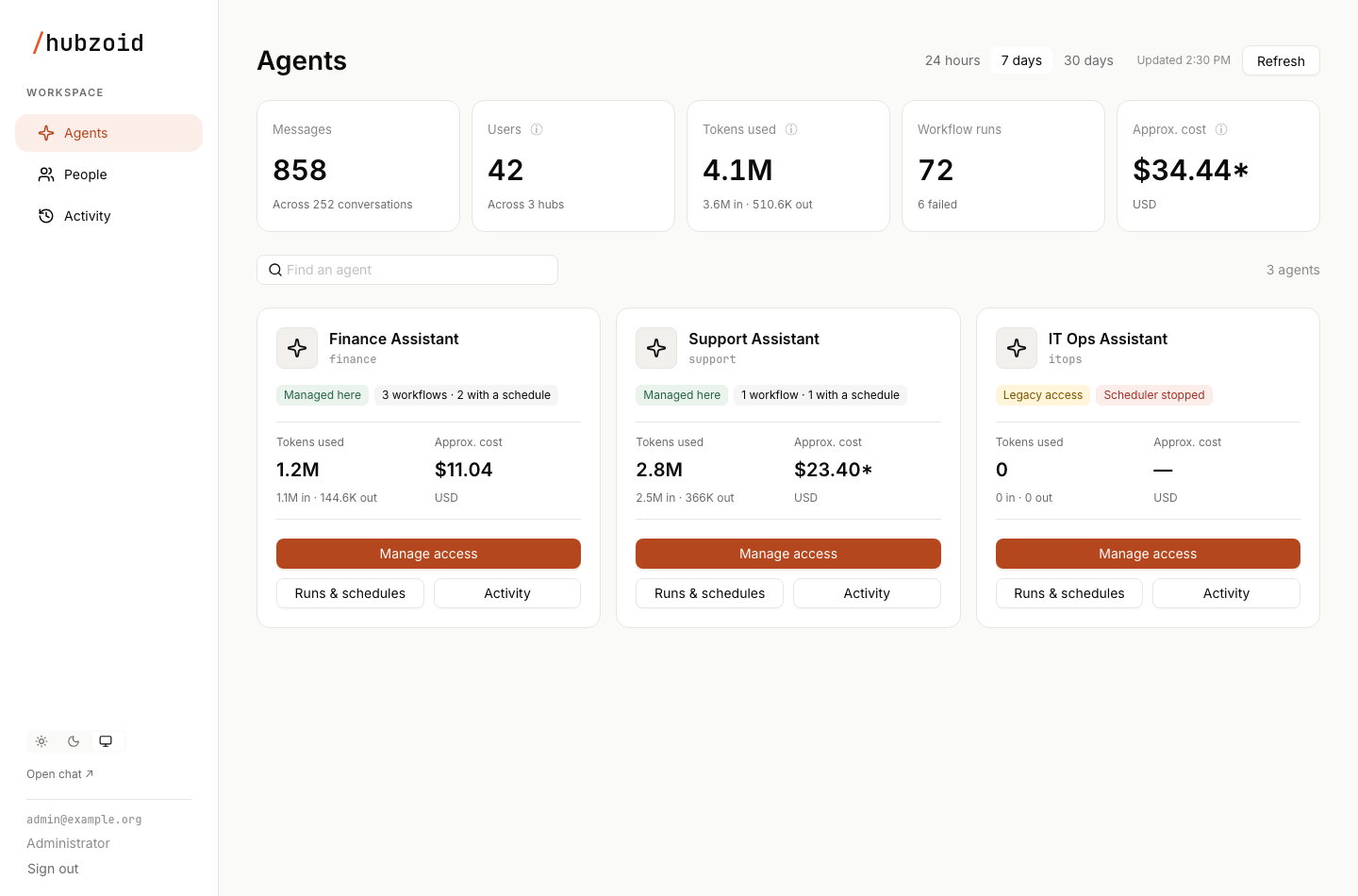
Each card shows the agent's name, its key (the hub folder name in lowercase), its tags, and Tokens used and Approx. cost for the chosen period.
| Tag | Meaning |
|---|---|
| Managed here | Access is held in Hubzoid's store and edited in the Console |
| Legacy access | The agent still uses chat app groups. Its Access tab is read only until the hub is migrated |
| Scheduler stopped | Schedules are on but the dispatcher has sent no heartbeat in the last 150 seconds, so scheduled runs will not fire until the bridge restarts |
| Workflow error | A workflow or scheduled task could not be loaded |
| N workflows · M with a schedule | Code workflows and markdown tasks, and how many have a schedule or a webhook trigger |
| N manual workflows | Workflows that run only when started by hand |
| No workflows | Nothing in workflows/ or schedule/ |
Select a card, or Manage access, to open the agent's Access tab. Runs & schedules and Activity go straight to those tabs.
An agent's page
The agent page has a header with the agent's name, its access tag and its key, and three tabs. Each tab has its own address, so you can bookmark it. When you can use the agent yourself, Open chat with and the agent's name opens it in the chat app.
| Tab | Address | Contents |
|---|---|---|
| Access | #/agents/<key>/access | Who can use the agent and with which capabilities |
| Runs & schedules | #/agents/<key>/runs | The agent's workflows, their schedule state, who they run as and their runs. See Runs |
| Activity | #/agents/<key>/activity | Access changes and tool decisions for this agent. See People and activity |
The Access tab
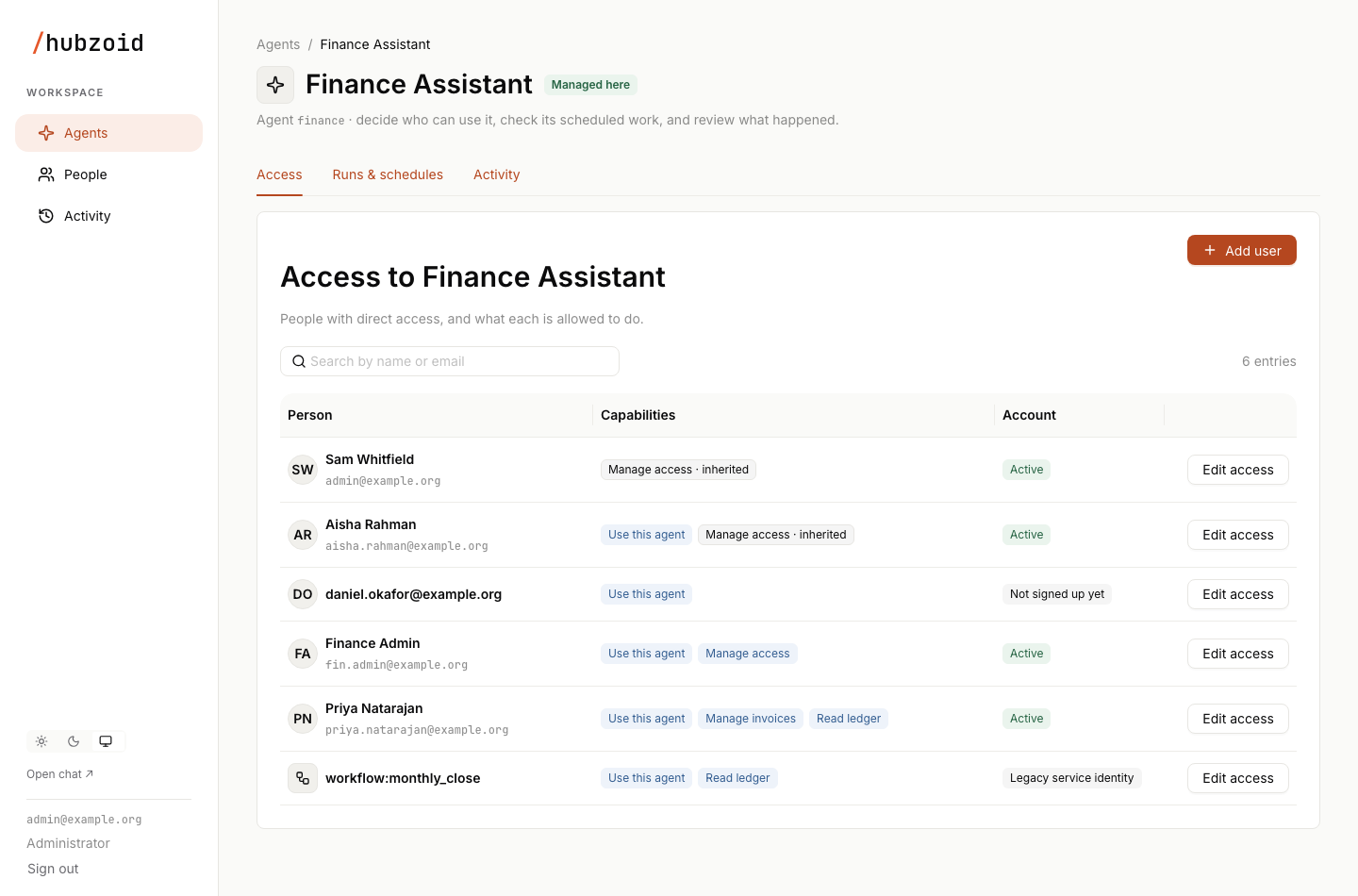
The Access tab, headed "Access to" and the agent's name, lists the people with direct access and what each may do. Add user sits at the top. Search by name or email. Results are shown 50 at a time.
| Column | Contents |
|---|---|
| Person | Display name with the email underneath. A legacy service identity shows a workflow icon instead of initials |
| Capabilities | One tag per capability the person effectively holds in this agent |
| Account | The account status: Active, Not signed up yet, Awaiting approval or Blocked. A legacy service identity reads Legacy service identity, and an "Everyone signed in" row reads Public |
| Actions | Edit access, or Remove on an "Everyone signed in" row |
Capability tags tell you how each capability is held:
| Tag | How it is held |
|---|---|
| A filled tag, such as Read ledger | A direct grant in this agent |
| An orange tag | A capability marked sensitive |
| A tag ending in · inherited | Held through organization administrator rights. Organization administrators therefore appear in every agent with Manage access · inherited. Change it under People by setting their role |
| A tag ending in · everyone | Held through an existing "Everyone signed in" grant |
| A tag ending in · no longer available | A grant whose capability was removed or renamed. Remove it under Edit access |
| No access | Nothing is effective here, for example because the account is blocked or unavailable |
When the agent is tagged Legacy access, a warning explains that its access is still managed in the chat app, and Add user and the edit controls are disabled. The existing chat app access keeps applying. The Console API refuses edits to such an agent as well, so nothing written here could be overwritten later by migration. Migrate the hub with hubzoid access migrate, as described in Access administration.
Everyone signed in
Access goes to named people. Nobody can create access for everyone who can sign in, organization administrators included. The Console has no control for it, and the API, changes proposed by an agent, hubzoid grant '*' and the access store all refuse it.
An agent that was open to every signed-in user before this release, or before its hub was migrated, keeps that access as an Everyone signed in row with Use this agent, and a notice above the list says it was carried over. It keeps working until an organization administrator removes it. Agent administrators see the row as Read-only. To replace it with named access:
- Give the people who need the agent their own access: Add user for someone new, or Edit access on their row, or Add an agent on their details under People, for an existing user. Give access to the account your workflows run as in the same way.
- Select Remove on the Everyone signed in row. The confirmation says how many users open the agent only through it. They, and anyone who signs up later, lose entry. Named grants are not affected.
- Confirm with Remove access for everyone.
On the server, hubzoid revoke '*' use_hub --hub finance ./finance does the same. While the grant exists, the editor shows Public beside Use this agent for a person without a direct grant, and its help says that a direct grant keeps their access after "Everyone signed in" is removed.
Add user
Add user always creates a new user, with their first access to this agent, in one step. It never changes an existing account. Add user on the People page works the same way, with initial access chosen per agent.
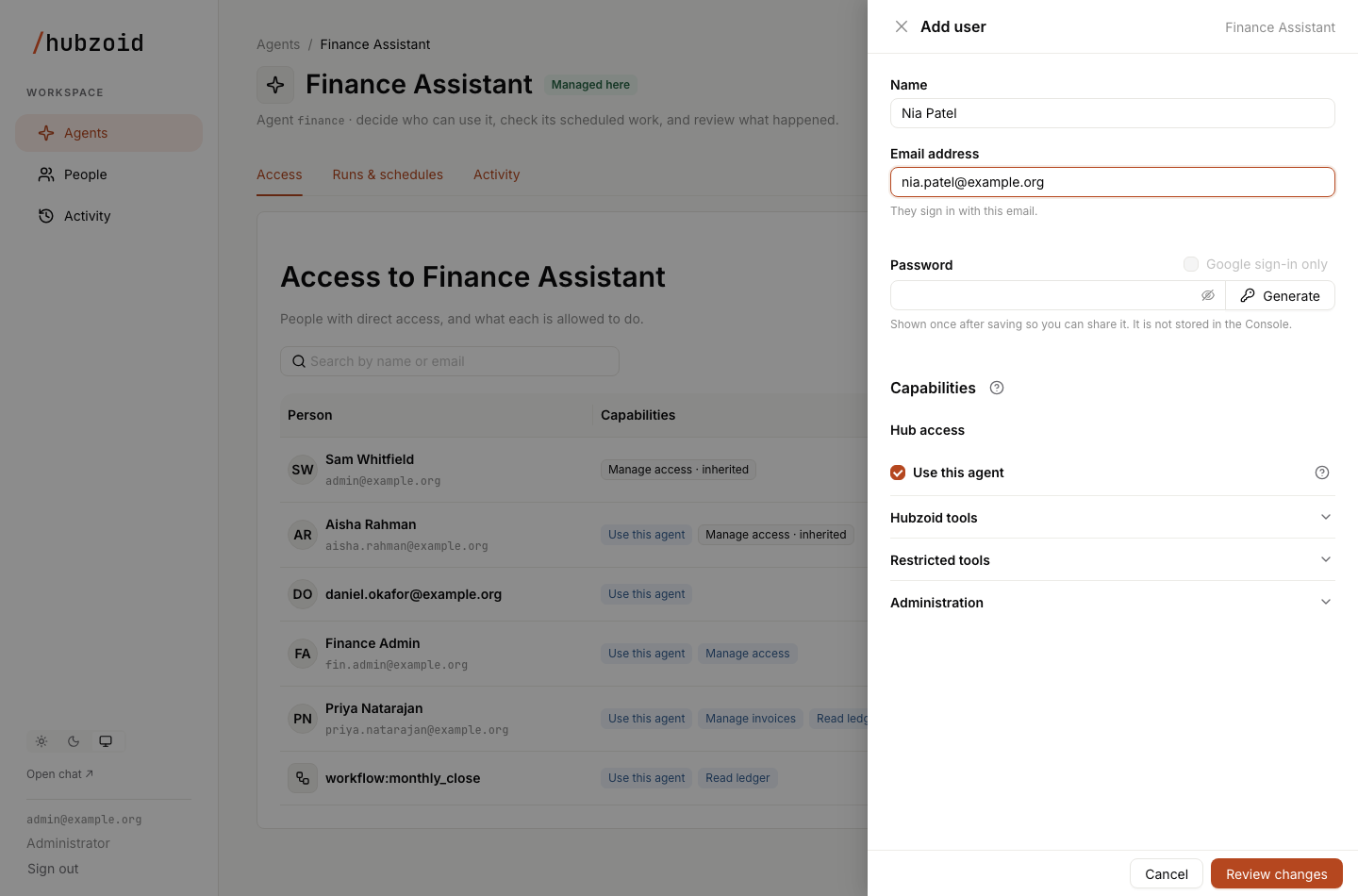
- Enter the person's Name and Email address. They sign in with this email.
- Type a Password, or select Generate for a random 20-character one made in your browser. It must be at least 8 characters and at most 72 bytes. Alternatively, tick Google sign-in only, described below.
- Choose capabilities. Use this agent is ticked to start with.
- Select Review changes. The review shows the new user, the agent and each capability being added. Select Create account.
- The panel confirms that the person can now sign in, and shows the chat address, their email and the password once, with Copy and Copy sign-in details. Share them yourself. No invitation or email is sent. The password is never stored or logged, and it is cleared when you select Done.
The account is created with the chat app's normal user role. The Administrator role is set later from the user's details under People.
Google sign-in only creates an account with no password to share. The person selects Google on the chat app's sign-in page, and the chat app links that sign-in to the account by email. It can be ticked only when the chat app has Google sign-in configured and OAUTH_MERGE_ACCOUNTS_BY_EMAIL=true. Otherwise it is disabled with a hint. When Google sign-in is limited to some email domains, only those addresses are accepted. See Authentication.
The account and its access live in two systems that cannot commit together, so every result says exactly what exists:
| Panel title | What happened | Next step |
|---|---|---|
| User added | The account exists with the access you chose | Done |
| This user already exists | The email already has an account. Nothing was created or changed | Edit their access opens the editor with their current access plus your choices, to review and save |
| Account created, access not granted | The account exists without access. Its sign-in details stay on screen | Try again grants the access to that account. It is never created twice |
| Not confirmed | The chat app did not answer, so the account may or may not exist | Try again. If the first attempt made the account, the panel says the user exists and shows the password you set |
| Nothing was created | The request was refused, for example for a capability you may not give | Back to the form |
Add user needs account management set up on the server: the chat app's internal address, which hubzoid run and a gateway provide, and the chat app service account in HUBZOID_GATEWAY_ADMIN_EMAIL and HUBZOID_GATEWAY_ADMIN_PASSWORD. Until then the panel says that creating accounts isn't set up on this server.
To give access to an email before its account exists, for example for someone who will first sign in through single sign-on, use the server or the management API: hubzoid grant priya@example.org use_hub ./finance, or POST /portal/api/access/apply. The Console no longer does this. Until the person signs in, their status reads Not signed up yet.
Edit access
Edit access on a row opens the editor for that person, titled "Edit access". From a user's details under People, Edit access next to an agent, or Add an agent for an agent they can't use yet, opens the same editor directly, through an address of the form #/agents/<key>/access?edit=<email>. Add an agent starts with Use this agent ticked.
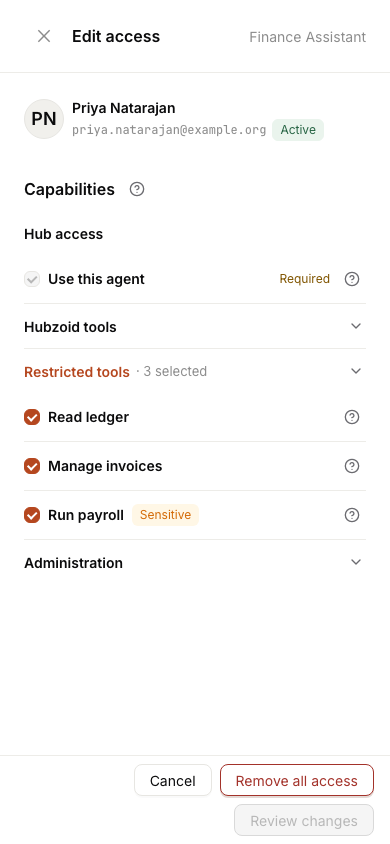
The editor shows the person with their email and account status, then Capabilities in groups. Empty groups are hidden.
| Group | What it holds |
|---|---|
| Hub access | Use this agent (use_hub) |
| Hubzoid tools | Built-in capabilities, such as Save shared knowledge, Call Jev and Share artifacts publicly, and a connector capability (connector_<app>), labelled Connect and the app's name, for each OAuth MCP connection set up in the chat app |
| Restricted tools | The hub's restricted/<capability>.py modules |
| Workflows | Workflow capabilities, when there are any |
| Administration | Manage access (manage_access) |
| No longer available | Grants whose capability was removed or renamed. They can be removed, never granted again |
Hub access and No longer available are always open. The other groups start collapsed, and their header says what they hold, for example "Restricted tools · 2 selected", adding "· 1 not configured" or "· needs attention" when that applies. Choices are kept when a group is collapsed. Group headers and help buttons work with a keyboard, by touch and with a screen reader.
Each capability shows its label, a Sensitive tag where declared, and a short status when its settings are missing, such as "Jev key missing", or "Not checked" when they may be in a secret the Console does not read. Configuration is separate from permission. You can grant a capability before it is configured, but it cannot run until an operator adds the setting, and adding a setting never grants anyone access. The question mark button beside a capability shows its description, where it works (chat, assistants over MCP or workflows) and why it is locked.
The editor applies the same rules as the server and labels a locked checkbox instead of failing on save:
| Label | What it means |
|---|---|
| Required | Use this agent stays ticked while any other capability is ticked, because every capability includes entry to the agent. Remove all access takes everything away |
| Included | The capability comes with Use this agent and has nothing to grant |
| Inherited | Held through organization administrator rights. Change it under People |
| Outside your access | You are an agent administrator and do not hold this capability in this agent yourself |
| Admins only | Only organization administrators can grant or remove this capability |
| Locked | Another rule applies, such as Manage access for an agent administrator, your own access, an organization administrator's access or a blocked person. The help button says which |
| Public | Use this agent is held through "Everyone signed in". A direct grant keeps access if that grant is removed |
| No longer available | The capability no longer exists. It can be removed but not granted |
A person blocked by an administrator gets a warning, and new capabilities are locked while existing ones can still be removed. A person whose chat account is unavailable gets a warning that it was removed or not found and that access resumes if the account reappears, with the same locks. If a selected capability can no longer be granted when you review, for example because it was removed from the agent meanwhile, the editor opens its group and marks it.
Remove all access removes use_hub and with it every capability the person holds in this agent, in one request. Access inherited from organization administrator rights or "Everyone signed in" still applies. Cancel with unsaved edits asks before discarding them.
A workflow:<name> or workflow:md:<task> identity from before workflows ran as user accounts keeps its row, labelled Legacy service identity, and its access can still be changed or removed. New ones cannot be added in the Console, and runs that act as an account do not use their grants. Give the account the workflow runs as the access it needs instead.
Delegating an agent
To delegate an agent, an organization administrator ticks Manage access under Administration for a person. That person becomes an agent administrator for this agent only. They can open the Console, see this agent, its runs and activity and the people with access to it, and add users with access to it. Because every direct capability includes Use this agent, they can chat with the agent too. Restricted tools still need their own grants.
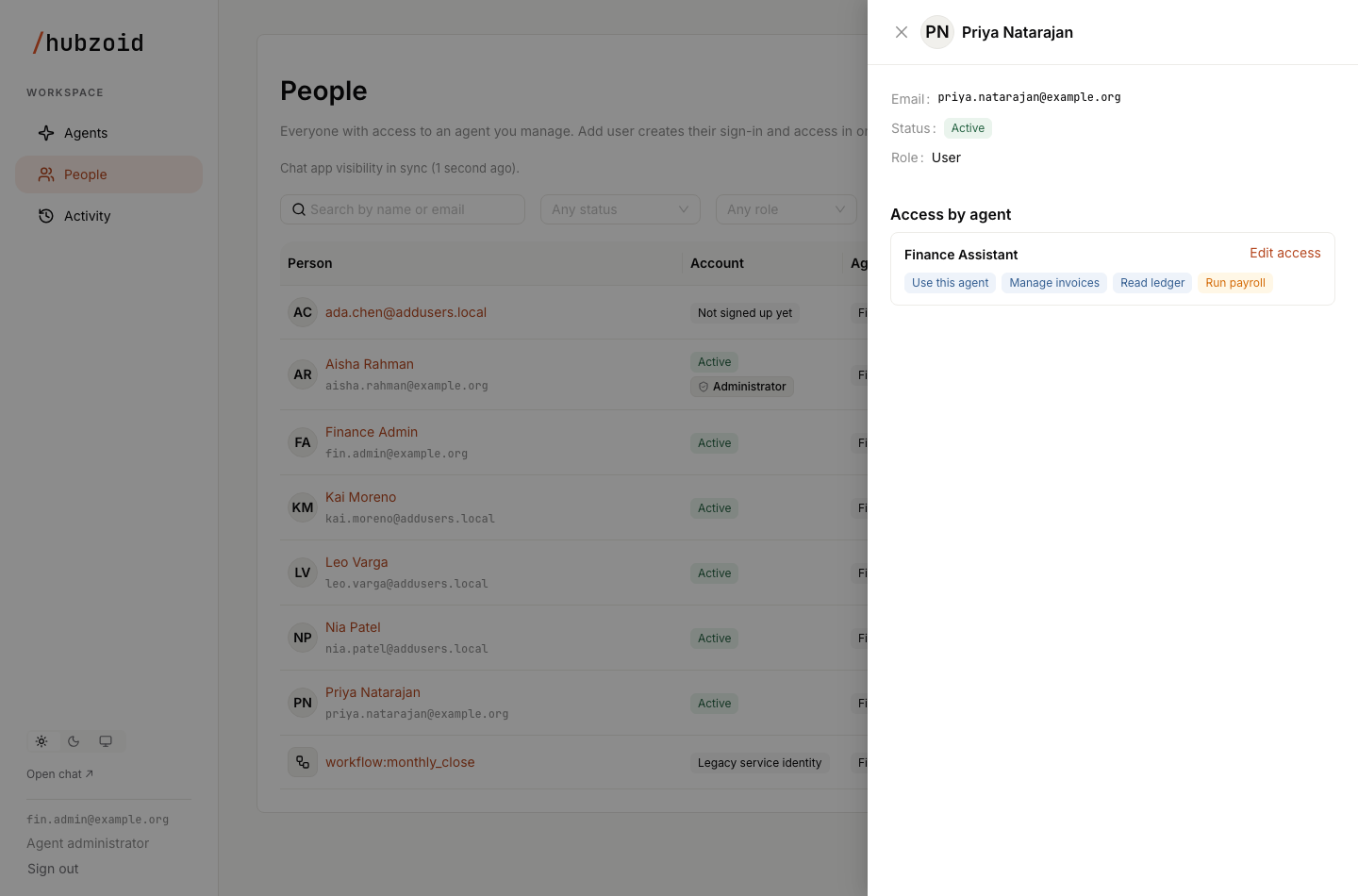
An agent administrator grants or removes only the capabilities they hold in that agent themselves, never Manage access. They cannot change their own access or an organization administrator's, remove all access from someone who holds a capability they do not, or remove "Everyone signed in". They cannot approve sign-ups, reset passwords, change roles or delete users. The server checks every change, and a refusal names the capabilities that are outside their access.
Sensitive capabilities
A capability is sensitive only when it is declared so. Hubzoid never infers it from a name. For a restricted tool, declare it in identity/permissions.yaml in the hub:
payroll:
  label: Run payroll
  description: Process employee payroll and view salaries.
  sensitive: true
That file labels restricted tools only. An entry for a built-in capability is ignored. Built-in capabilities declare their own sensitivity, as Share artifacts publicly does, and connector capabilities are sensitive.
A sensitive capability shows an orange Sensitive tag in the editor and an orange tag in the table. When a change grants one, the review adds the warning "This grants a sensitive capability", names each sensitive capability and asks you to make sure the person should have it.
Review and save
Nothing is saved while you tick boxes. Review changes shows the change before anything is written.
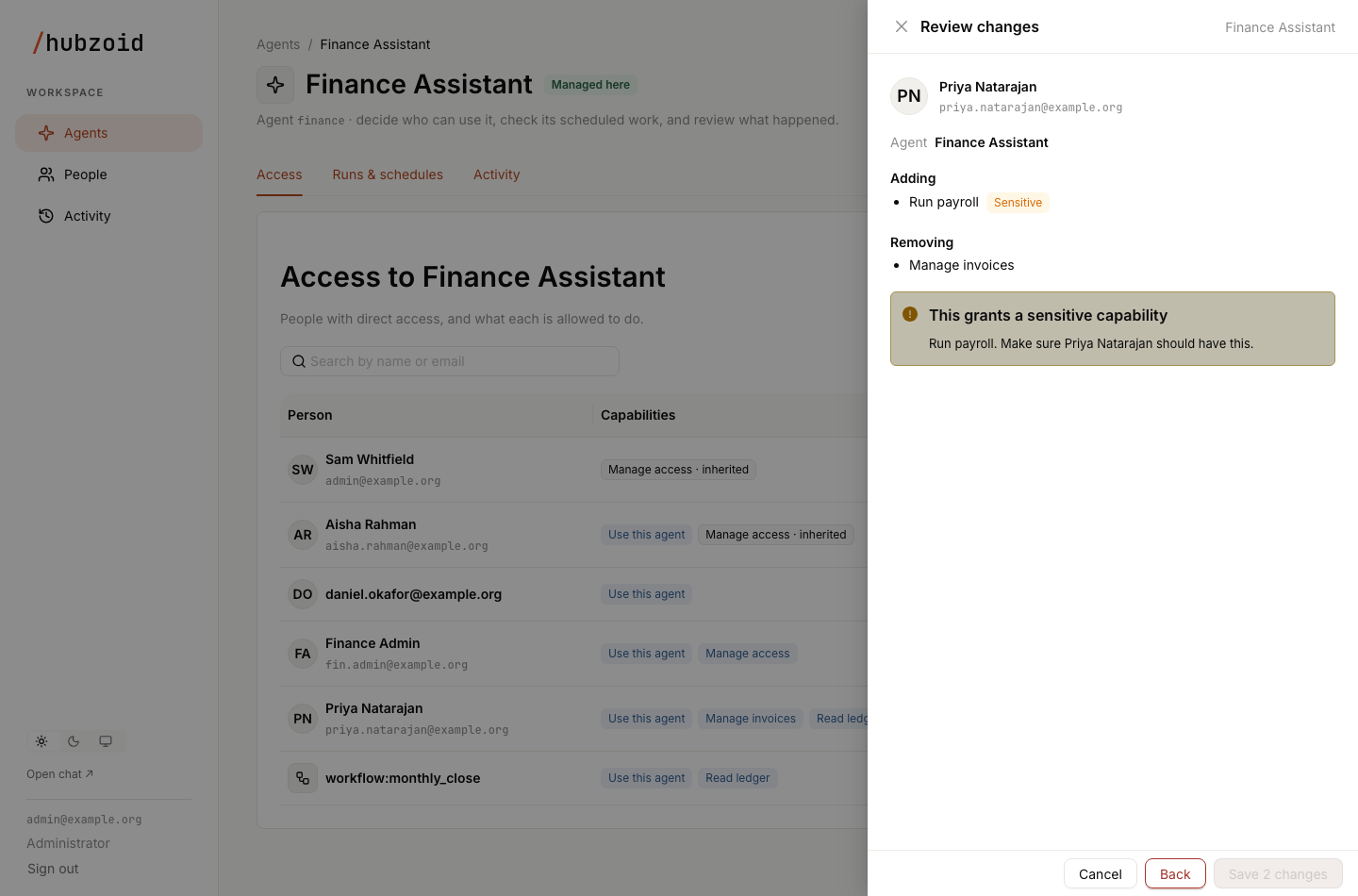
The review shows the person with their email and the agent, then:
- Adding: each capability being added, with its Sensitive tag and a note when it can't run until configured.
- Removing: each capability being removed.
- A warning when Use this agent is removed. The person loses access to the agent, or, when they still hold it through organization administrator rights or "Everyone signed in", only their direct access is removed.
- The sensitive capability warning, when one is being granted.
Select Back to adjust, or Save change (Save N changes for several) to apply. When the change removes Use this agent, the button reads Remove access.
How saving works
The whole change set is sent in one request, POST /portal/api/access/apply, with the policy revision that was current when the tab loaded. The server then:
- Refuses any change to an agent that still uses legacy access.
- Checks each capability against the agent's catalog. A capability that does not exist, or one that comes with Use this agent, is refused, except a removal of a grant already held.
- Refuses any grant to "Everyone signed in".
- For an agent administrator, refuses changes outside the capabilities they hold there, Manage access, their own access and an organization administrator's access.
- Refuses new grants to a blocked or unavailable account.
- Takes the database write lock, confirms the revision has not moved, applies every operation and increments the revision, all in one transaction.
Either every change applies or none does. If access changed after you loaded the page, the save is refused, the panel reads "Nothing was saved" and the Console reloads the current access so you can review again. If the response is lost, for example to a network drop or a server error, the panel reads "Save not confirmed", because the transaction may have committed just before the connection failed. The Console reloads the access so you can see what applies before trying again.
After a successful save, the editor closes and a notice reads "Access updated". The permission check changes immediately, and the chat app's agent list follows it. While a save is in flight, the editor cannot be closed and navigation is held. With unsaved edits, leaving the page asks for confirmation first. Every saved change appears under Activity, Access changes, with you as the actor.
Blocked people on the Access tab
The Console no longer blocks or reactivates people. Someone blocked in an earlier release, or by the safeguard for an email reused by a new chat account, lost every direct grant when they were blocked, so they usually no longer appear on Access tabs. Rows marked Blocked that do appear are usually accounts that were removed or can no longer be found in the chat app. They keep their grants but hold nothing effective, so their capabilities read No access until the account is available again. To offboard someone, delete the user under People. See People and activity.
Next steps
People and activity
User details, roles, approving sign-ups, deleting users and the activity records.
Runs
The Runs and schedules tab, who each workflow runs as and each run's steps.
Restrict a tool
Create a restricted capability and grant it from start to finish.
Access administration
Bootstrap, migration from chat app groups and rollback.
Console overview
The Console is Hubzoid's administration UI at /portal/. Learn who can open it, how the first administrator gets in, how to move around and what the totals on the Agents page mean.
Runs
Follow an agent's workflow and scheduled task runs in the Console, see who each workflow runs as and what managers can see, read each run's steps, and see which actions stay in the CLI.