
People and activity
The People page and account statuses, a user's details with their role, password and access by agent, approving sign-ups, deleting users, and how to use the two Activity records for audits.
People answers "who has access, and can their account use it?" Activity answers "who changed access, and what did people actually do with restricted tools?" Together they are the Console's audit trail. Accounts and sign-in live in the chat app, and access is decided in Hubzoid. Organization administrators can also add, approve and delete users under People, and the Console makes those changes in the chat app for them.
When to use this
Use People when you onboard or offboard someone, approve a sign-up, reset a password, make someone an administrator, review who holds a sensitive capability, or find out why a granted person still cannot use an agent. Use Activity when you need evidence: who granted something and when, who added or deleted a user, which calls were refused and why, or who paused a workflow.
The People page
People in the sidebar (#/people) lists everyone with access to the agents you manage. Add user is at the top for anyone who can create accounts, next to Refresh accounts for organization administrators.
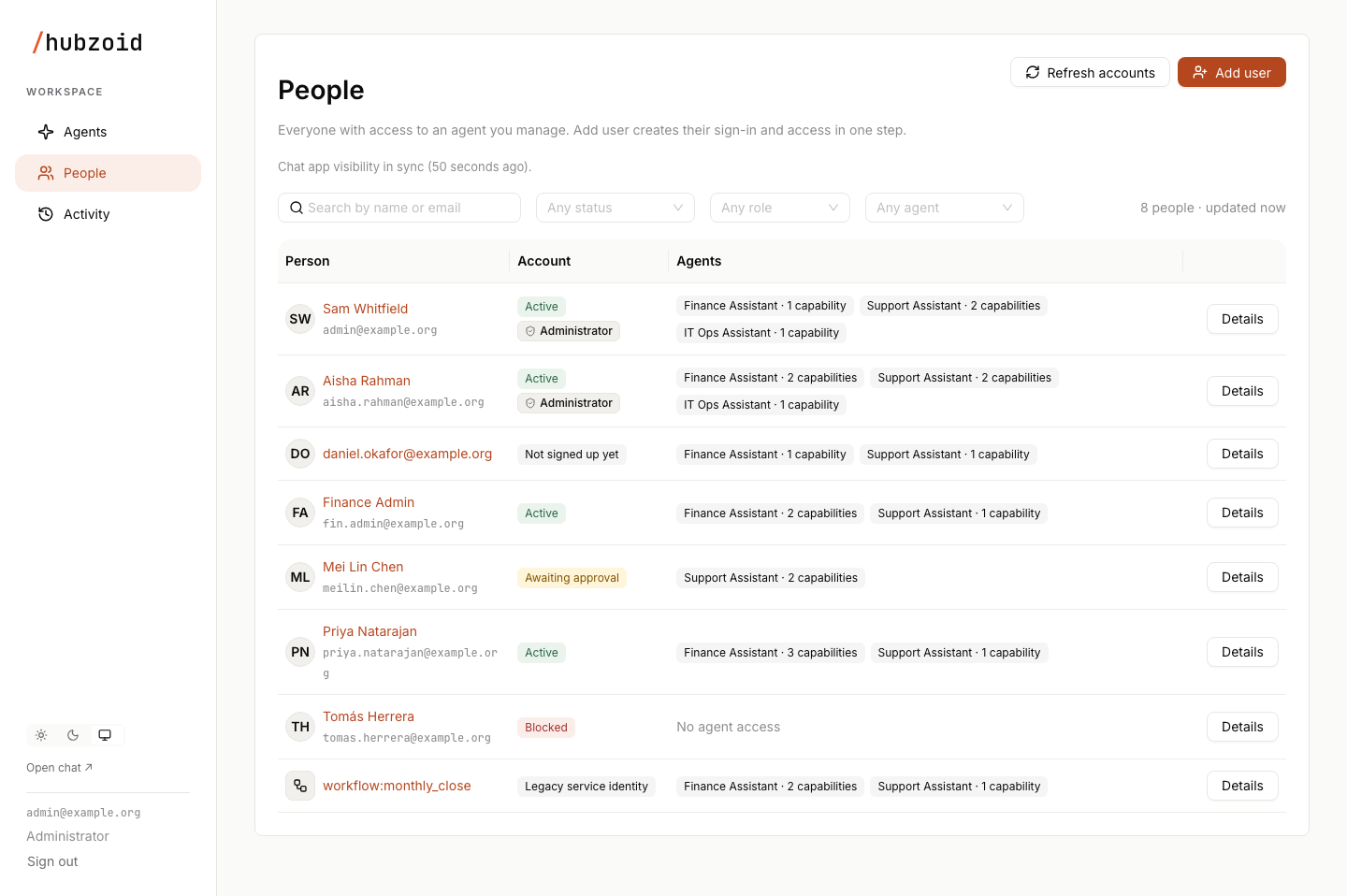
Organization administrators see every identity Hubzoid knows: everyone who has been granted access, plus chat accounts recorded when they signed in, used an API key or appeared in an account refresh or sync. A user deleted in the Console is no longer listed. Agent administrators see only the people with a grant in an agent they manage.
| Filter | Options |
|---|---|
| Search | Name or email |
| Account status | Active, Not signed up yet, Awaiting approval, Blocked, Legacy service identity |
| Role | Administrator, User, Legacy service identity |
| Agent | People with access to one agent |
| Column | Contents |
|---|---|
| Person | Name and email. Opens the user's details |
| Account | The account status, plus an Administrator badge for organization administrators |
| Agents | One tag per agent with the number of capabilities they effectively hold there, including "Everyone signed in" and organization-wide rights, or "No agent access" |
| Details |
Filters and the page number live in the address, and results are shown 50 per page. Refresh accounts reads the chat app's account directory again to update account states. It never creates accounts, and it needs the deployment's chat app service credentials.
On a gateway, a line under the heading reports the chat app visibility sync, which copies each person's agent access into the agent list they see in the chat app. Enforcement never depends on it. When it succeeds, the line says visibility is in sync and when it last ran. When the last attempt failed, a warning says recent access changes haven't reached the chat app yet and that access is enforced regardless. The periodic sync keeps retrying, and organization administrators can select Try again now. The line also says when no agent is managed yet, so there is nothing to mirror, or when no sync has run, with Run it now for organization administrators. hubzoid access sync does the same on the server. A standalone hub shows no line, because the edge checks each person's agent list directly.
Add user on People
Add user on People creates a new user with access in any of the agents you manage, in one step. It works like Add user on an agent's Access tab, with the same name, email, password and Google sign-in only fields, and these differences:
- Initial access lists each agent you manage as a collapsed section, with the same capability groups inside. Capabilities you may not give read Outside your access or Admins only and cannot be ticked. An agent that still uses legacy access takes no grants here.
- An organization administrator can create a user with no agent access yet. An agent administrator must choose access in at least one agent they manage.
- Review lists the new account, with the chat app's normal user role, and the access per agent. Create account creates it and shows the sign-in details once.
- If the email already has an account, nothing changes and Edit this user opens their details.
Only an organization administrator can create an account for an email whose earlier account was deleted.
Account statuses
Every row shows one status. The same labels appear on the Access tab.
| Status | Meaning | What changes it |
|---|---|---|
| Active | Signed up and approved in the chat app | |
| Not signed up yet | Granted by email, from the server, the API or an earlier release, with no chat account. It is not blocked. The access applies as soon as they sign in with that email | They sign up, or first sign in, with that email |
| Awaiting approval | Signed up, but the account has not been approved. It is blocked until approved | Approve in their details. Approval in the chat app itself shows after Refresh accounts, their next sign-in or the next sync |
| Blocked | Blocked by an administrator in an earlier release or through the API, blocked by the safeguard for a reused email, or their chat account was removed or can no longer be found | An administrator block is cleared only through the API. A missing account clears only when the chat app lists it again |
| Legacy service identity | A workflow:<name> or workflow:md:<task> identity from before workflows ran as user accounts. It has no chat account | |
| Public | The * subject of an existing "Everyone signed in" grant. Seen on Access tabs |
The status is chosen by the first rule that matches: an administrator block, then *, then a legacy service identity, then no chat account, then pending approval, then a chat account missing from the directory, and otherwise active.
Behind the status, Hubzoid keeps two independent markers per person. Enforcement treats them as blocked when either is set.
| Marker | Set by | Cleared by |
|---|---|---|
| Administrator block | A block made in an earlier release, POST /portal/api/people/block, or the safeguard that runs when a different chat account signs in with an email already bound to an earlier one. Setting it removes every grant the person holds | POST /portal/api/people/block with "suspended": false, by an organization administrator. Grants removed by the block are not restored |
| Unavailable account | The chat app reports the account as awaiting approval, a complete directory read no longer lists an account that was bound before, or the account was deleted in the Console | Only the chat app reporting the account as approved or present again: at sign-in, on Approve, on Refresh accounts or on the periodic sync |
A failed or partial directory read never marks accounts unavailable.
A user's details
Details, or the person's name, opens their details at #/people/<email>. The panel is titled with their name.
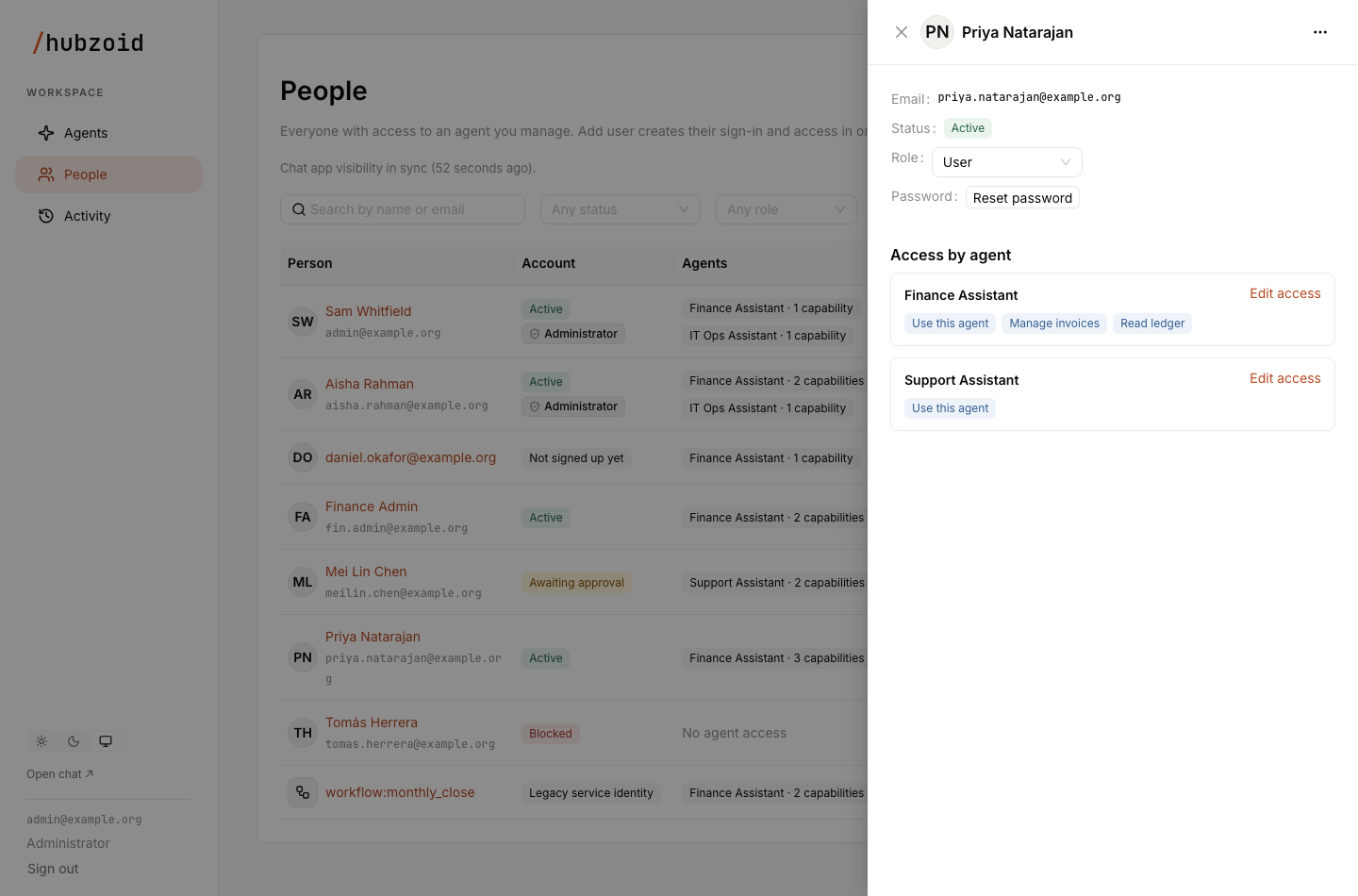
- Email is the identity that grants attach to. Whoever signs in with it holds the access.
- Status is the account status. Its tooltip explains what it means.
- Role is User or Administrator. For a sign-up awaiting approval, Awaiting approval with Approve takes its place.
- Password offers Reset password. For a user created with Google sign-in only, it says instead that they sign in with Google and their password is managed through Google.
- Access by agent lists, for each agent you manage, the capabilities they effectively hold there. Edit access opens that agent's editor on this person. Add an agent picks an agent they can't use yet and opens its editor with Use this agent ticked. It is not offered for a blocked user.
- The … menu at the top holds Delete user.
Role, Password and the … menu are for organization administrators, on a person with a chat account. They need account management set up on the server, as for Add user. Nobody can change their own account here. Change it in the chat app's own settings. The Console's service account is refused as well. Agent administrators see the role as text and can edit access in the agents they manage. Every change is recorded in Activity.
Approve a sign-up
When someone signs up and the chat app holds the account for approval, their status reads Awaiting approval. Select Approve in their details to give them the chat app's normal user role. Approval gives no agent access by itself, except through an existing "Everyone signed in" grant. Give them access with Add an agent or from an agent's Access tab.
Reset a password
Reset password opens a password field with Generate. Set password applies it and shows it once with Copy, so you can share it with the person directly. The chat app signs them out of their other sessions. A Google-only user has no password to reset here.
Role: User or Administrator
There is one Administrator role. Administrator makes the person an organization administrator in Hubzoid, with Manage access for the whole deployment, and an administrator in the chat app, together. User clears both. Choosing a role asks you to confirm with Make Administrator or Make User.
- The chat app's role is set first, then Hubzoid administration. If only one side changes, the panel says which side is set and offers Try again, which finishes the change.
- A user who is an administrator on only one side, for example one made an administrator in the chat app directly or with
hubzoid granton the server, shows Needs attention, and its tooltip says which side is set. Reading their details never changes either side. Choose a role to fix it. - The last administrator, on either side, can't be made a User or deleted.
- A blocked or unavailable user can't be made an Administrator, and a sign-up must be approved first.
- Administration alone does not let someone chat with an agent or use its restricted tools. Grant those per agent.
Agent administrators have no role control.
Delete user
To offboard someone, an organization administrator opens the … menu in their details, selects Delete user and types the person's email to confirm. This is a real deletion:
- Every grant the person holds, in every agent, is removed first. Then the chat account is deleted through the chat app, together with their chats, shared chat links and group memberships. Their chat app API keys stop working with the account.
- Kept: Activity history, usage records and artifacts they published. Their public artifact links stop working.
- The email is marked as removed, so it inherits nothing and the person no longer appears under People. Only an organization administrator can create an account with that email again.
- The last administrator can't be deleted.
- If the grants were removed but the chat account could not be deleted, the panel says so. Trying again finishes the deletion.
Nothing else needs doing in the chat app. The chat app does keep the deleted account's stored connection tokens in its own database.
People blocked in an earlier release
The Console no longer offers Block or Reactivate. A person blocked in an earlier release stays blocked. They show as Blocked, are refused in every agent, including through an "Everyone signed in" grant, and new access for them is refused. Delete them, or have an organization administrator unblock them through the management API with an Open WebUI API key:
curl -X POST https://chat.example.org/portal/api/people/block \
  -H "Authorization: Bearer sk-..." \
  -H "Content-Type: application/json" \
  -d '{"subject": "priya@example.org", "suspended": false}'
Unblocking does not restore the grants the block removed, so grant access again per agent. The same applies to the safeguard that blocks an email when a different chat account signs in with it. Review that account before unblocking it, and never unblock one only because its email matches.
Activity
Activity in the sidebar (#/activity) covers every agent you manage. Each agent's Activity tab shows the same view for that agent alone. A switch at the top chooses one of two records.
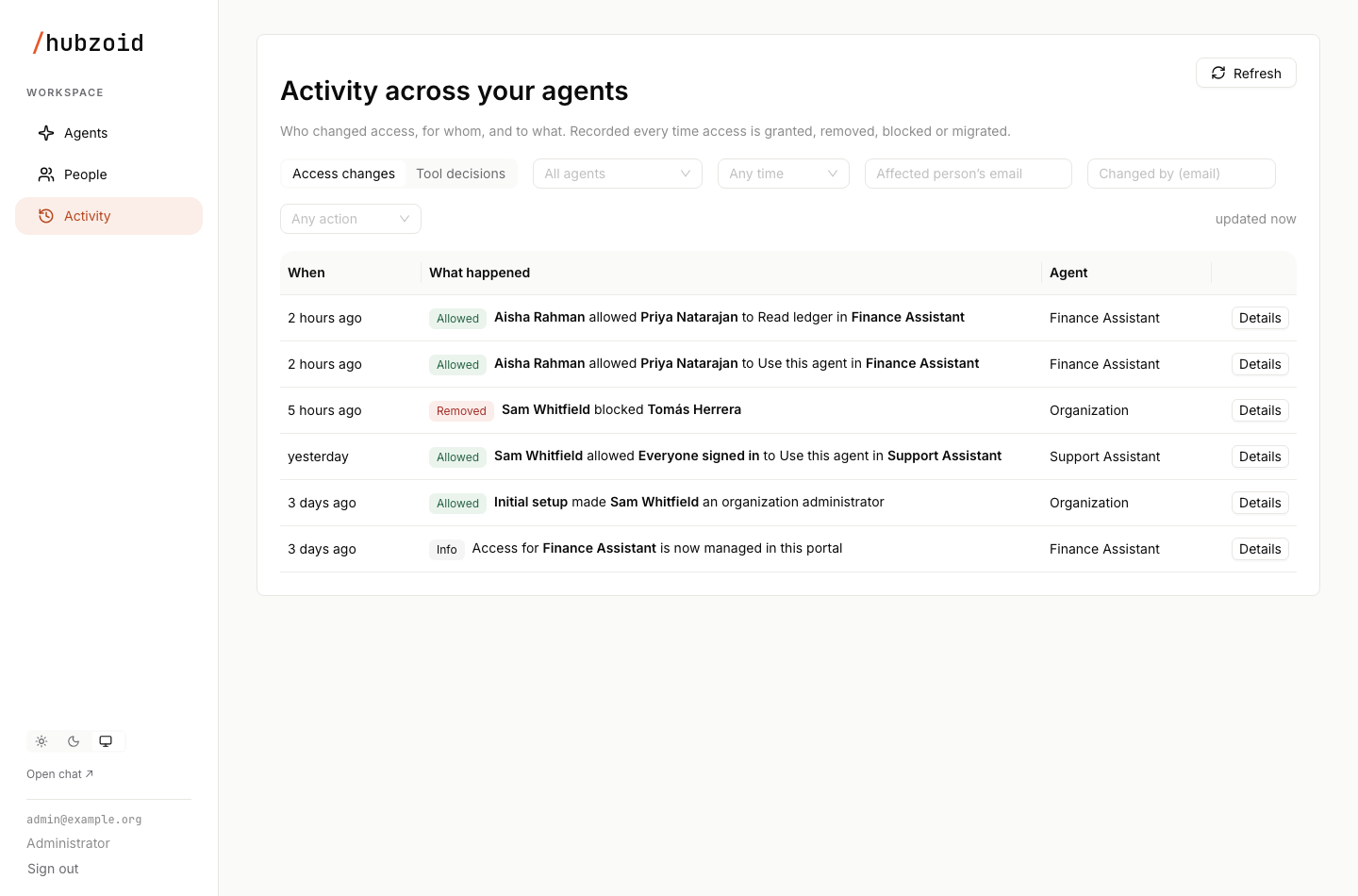
Both records share these controls:
- Time range: Any time, Last 24 hours, Last 7 days or Last 30 days. The chosen range is fixed to exact start and end times in the address, so a shared link always shows the same window and new events never shift the pages.
- Agent, in the cross-agent view.
- Refresh, Reset filters and pages of 50 events.
- Columns When, What happened (a tag and a sentence), Agent in the cross-agent view, and Details, which opens Event details with the exact time in your timezone and copyable identifiers.
In the cross-agent view with no agent selected, organization administrators also see organization-wide events, such as account actions and administrator rights, listed with the agent Organization. Agent administrators see only events in their agents.
Access changes
Every change to access writes a row to hz_access_audit in the same transaction as the change itself. Filter by Affected person's email, Changed by (email) and Action: Granted, Removed, Blocked, Reactivated, Paused a workflow, Resumed a workflow or Cancelled a run. Account actions have no Action filter of their own, but they appear in the list.
| Action | Reads as | Written when |
|---|---|---|
grant | "Sam allowed Priya to Read ledger in Finance Assistant", or "Sam made Priya an organization administrator" | A capability or administrator right is granted. An implied Use this agent gets its own row |
revoke | "Sam removed Read ledger from Priya in Finance Assistant", or "Sam removed Priya's access to Finance Assistant" | A capability is removed. Removing Use this agent also writes a row for each capability it takes with it |
account_create | "Sam added Priya" | Add user created the account. Its grants follow as grant rows |
account_approve | "Sam approved Priya's account" | Approve |
account_password_reset | "Sam reset the password for Priya" | Reset password. The detail notes that their chat sessions were signed out |
account_role | "Sam changed Priya to Administrator", or "to User" | The chat app's side of a role change. Hubzoid's side is a grant or revoke of organization administrator rights |
revoke_all, account_delete | "Sam removed all access from Priya", then "Sam deleted Priya's account" | Delete user |
suspend, reactivate | "Sam blocked Priya", "Sam reactivated Priya" | A block or unblock through the API, or in an earlier release |
change_proposed, change_confirmed, change_rejected, change_expired, change_failed | "Sam proposed a change for Priya in Finance Assistant", and similar | A change proposed by an agent and confirmed, rejected or left to expire in the Console |
activate | Access for an agent is now managed in the Console | Bootstrap makes a hub managed |
replace_hub_grants | All access for an agent was replaced by migration | hubzoid access migrate --apply |
rollback, restore_grant | Access was rolled back or restored from a backup | hubzoid access rollback |
account_replaced | A new chat account reused a known email | The safeguard removed the grants and blocked the identity |
account_unavailable | A person's chat account is no longer available | A directory read no longer lists the account |
workflow_pause, workflow_resume, run_cancel | "paused the monthly_close workflow in Finance Assistant", and similar | hubzoid schedule pause, resume and cancel |
The actor tells you where the change came from:
| Actor shown | Source |
|---|---|
| A person's name | An administrator in the Console, or a caller of the management API |
| Server operator, with an account name | A command on the server. Run controls also record the host |
| Initial setup | hubzoid access bootstrap |
owner-setup | The configured owner's first sign-in |
| Account sync | The chat app's account directory, including the safeguard for a reused email |
Tool decisions
Every call to a restricted tool writes a row to hz_access_decisions as it is decided. Filter by Outcome (Allowed or Denied), Person's email, Tool and Channel, which is the surface value such as owui, mcp, slack-dm or workflow.
Rows read as "Priya used ledger_read in Finance Assistant via owui" or "Priya was denied payroll_run in Finance Assistant via owui". A call with no signed-in caller reads "Someone not signed in". Event details shows the time, outcome, person, tool, channel, agent and reason, and the list explains the reason in words:
| Reason | Explanation |
|---|---|
no-grant | They do not have the permission this tool requires |
no-group | They are not in the required group, on an agent that still uses legacy access |
anonymous | The caller was not signed in |
blocked | Their account is blocked |
store-error | The access store was unavailable, so the request was refused |
surface:<name> | Restricted tools are not allowed from that surface |
Tools hidden from a caller produce no row, because nothing was called. See Identity and access.
Using People and Activity for audits
| Question | Where to look |
|---|---|
| Who can use a sensitive capability in this agent now? | The agent's Access tab, or hubzoid access list ./finance --hub finance on the server |
| What can one person do across agents? | Their details under People, or hubzoid access check <email> ./finance for one agent |
| Who are the administrators? | People with Role set to Administrator |
| Who granted it, and when? | Access changes, filtered by the affected person |
| Who added or deleted a user? | Access changes, filtered by that person's email |
| Which changes did one administrator make? | Access changes, filtered by Changed by |
| What did a person use last month? | Tool decisions, filtered by person, with Last 30 days |
| Were calls to a sensitive tool refused? | Tool decisions with Outcome Denied and the tool name |
| Hand evidence to a reviewer | Share the filtered address. The time window is fixed in it |
The same decision rows are available on the server with hubzoid audit, for example hubzoid audit ./finance --denied --limit 200.
Next steps
Runs
Follow an agent's workflow and scheduled task runs in the Console, see who each workflow runs as and what managers can see, read each run's steps, and see which actions stay in the CLI.
Deployment topologies
The deployment shapes Hubzoid supports, where each one keeps its data, and how to choose between SQLite and PostgreSQL for your hubs.