
Restrict a tool
Put a sensitive tool behind a permission, keep its credentials in restricted/.env, grant it to people and workflow accounts in the Console or CLI and confirm every call in Activity.
This guide gates a ledger lookup in a finance agent so that only the people you choose, including the accounts your workflows run as, can call it. By the end, a signed-in person with the grant can use the tool, everyone else cannot, and each call appears in the Console with who made it and why it was allowed or refused.
When to use this
Use a restricted tool when a tool reads or changes something that not every user of the agent should reach, such as payroll data, refunds or a production system. Tools that anyone who can open the agent may use belong in tools_local/ instead. The model behind the rules is explained in Identity and access.
Before you start
- The hub uses managed access. A hub created with
hubzoid initbecomes managed when the configured owner first signs in. Otherwise, on a fresh install, runhubzoid access bootstrap --admin you@example.org --authoritative ./financeonce. A hub that still uses Open WebUI groups is migrated first, as described in Access administration. - Sign-in is on in the chat app, so every person arrives with a verified email. See Authentication.
- You can open the Console as an organization administrator, or hold
manage_accessin the agent. An agent administrator grants only capabilities they hold there themselves, so they also needledger.
What you will build
- restricted/ledger.py
- Permission ledger
- Grant in Console
- Checked at call
- Row in Activity
Gate the tool
Write the tool in restricted/
A restricted tool is an ordinary @function_tool, the same as a tool in tools_local/. The difference is the folder. The file stem, in lowercase, is the permission, so every tool in restricted/ledger.py requires ledger.
"""Ledger lookups. Every tool in this file requires the `ledger` permission."""
from __future__ import annotations

import os

import httpx
from agents import function_tool


@function_tool
def ledger_read(account: str, period: str) -> str:
    """Return ledger entries for one account and accounting period.

    Args:
        account: Ledger account code, for example "4000".
        period: Accounting period as YYYY-MM, for example "2026-08".

    Returns:
        The entries as JSON text.
    """
    # Read credentials inside the call. They are loaded from restricted/.env.
    base_url = os.environ["LEDGER_API_URL"]
    token = os.environ["LEDGER_API_TOKEN"]
    response = httpx.get(
        f"{base_url}/entries",
        params={"account": account, "period": period},
        headers={"Authorization": f"Bearer {token}"},
        timeout=20,
    )
    response.raise_for_status()
    return response.text
How files map to permissions:
- One permission per file. Tools that need different permissions go in different files, for example
restricted/payroll.pyfor apayrollpermission. - Files whose names start with
_are skipped. Files that are not Python, such asrestricted/.env, are ignored. - A restricted tool replaces a built-in or
tools_local/tool with the same name. If two restricted files define the same tool name, the first file in alphabetical order wins and the duplicate is logged. - A hub without a
restricted/folder has no restricted tools, and nothing about it changes.
Keep credentials in restricted/.env
Put the secrets the tool needs next to it:
LEDGER_API_URL=https://ledger.internal.example.org
LEDGER_API_TOKEN=paste-the-token-here
At startup Hubzoid loads the hub's .env, then restricted/.env, into the bridge process environment. A value in restricted/.env wins when both files set it. To keep these values in AWS Secrets Manager instead, name a secret with HUBZOID_RESTRICTED_SECRET_NAME in restricted/.env, and its keys win over the file. The tool reads the values from the environment when it runs, and the model only receives what the tool returns.
The agent's own file tools stay out of the folder. read_file refuses any path that resolves inside restricted/, whatever its capitalization. list_files leaves those files out of its listing, and grep_data refuses a search path inside the folder. On claude-local and codex-local models, the local CLI's own file and shell tools are switched off, so the agent works only through Hubzoid's tools. A .env line in .gitignore also matches restricted/.env, which keeps the file out of Git.
Secrets live in the process environment
Any tool code running in the bridge can read the environment. Agent child processes, such as the claude CLI and its MCP servers, do not inherit the values from restricted/.env, but hub tools do. Never return a credential in a tool result, and review hub tools that read os.environ. For a credential that must never share a process with the agent, run the integration as a separate service under a different operating system user and let the restricted tool call it.
Describe the capability
Without metadata, the Console shows the permission name in title case, such as "Ledger". Add identity/permissions.yaml to give each capability a label, a description and, where it matters, a sensitive flag:
ledger:
  label: Read ledger
  description: View accounting entries and balances.
payroll:
  label: Run payroll
  description: Process employee payroll and view salaries.
  sensitive: true
Prop
Type
Sensitivity is only what you declare here. Hubzoid never infers it from a name. The file labels restricted capabilities only: an entry for a built-in such as use_hub, manage_access or curator is ignored with a warning. Metadata for a name with no matching restricted/ file has no effect.
Restart and check
The bridge loads restricted tools when it starts, so restart the hub after adding or renaming a file. Then confirm the tools load:
hubzoid doctor ./finance
hubzoid run ./finance
hubzoid doctor reports the number of restricted tools and the permissions they use, or a failure with the import error when a file does not load. The Console reads the capability list from the files on every request, so the new capability appears there right away.
Grant access in the Console
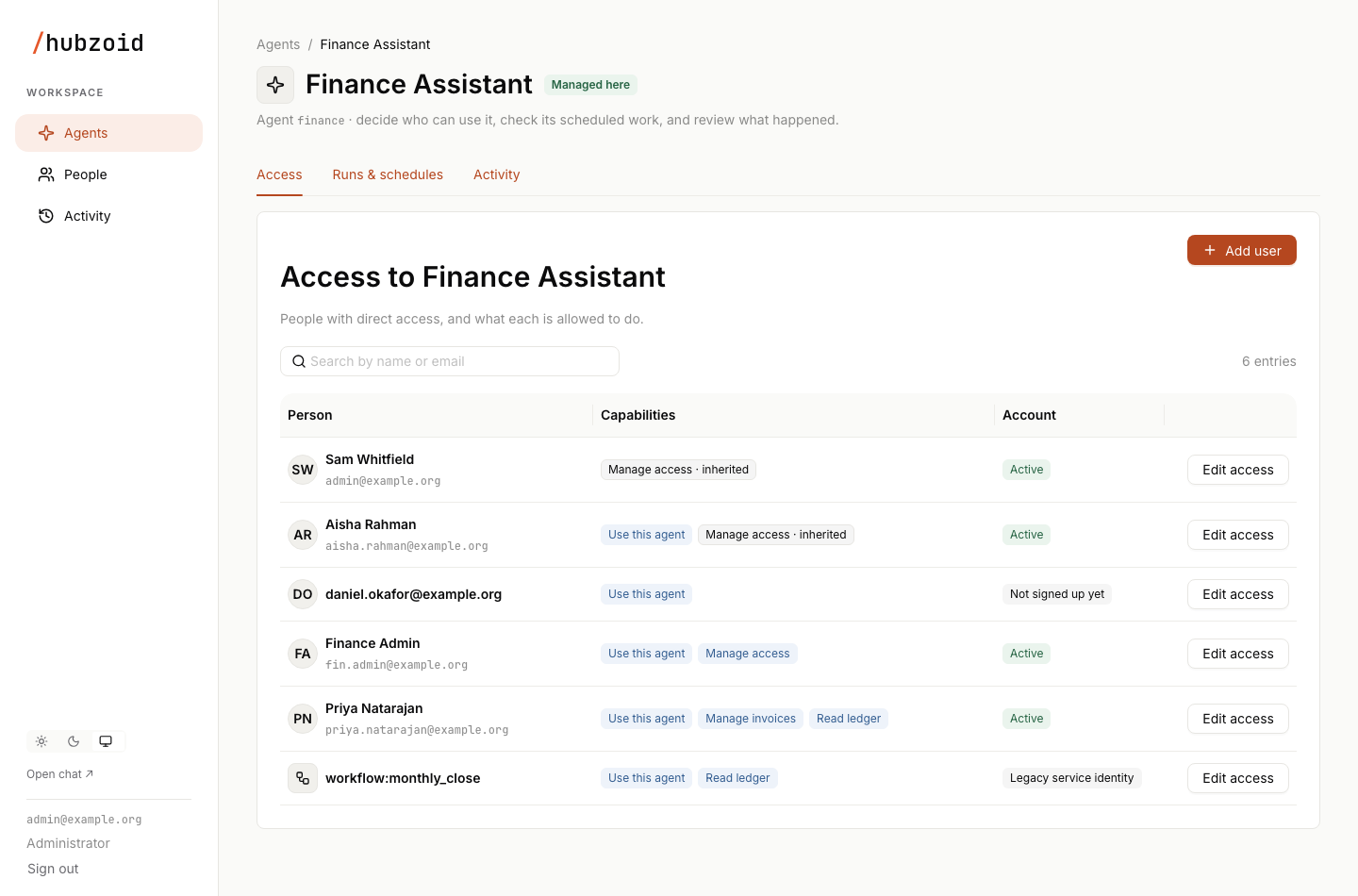
- Open the Console at
/portal/(locallyhttp://localhost:3080/portal/) and choose Agents, then the agent, then the Access tab. - For someone already listed, select Edit access on their row. For an existing user without access to this agent, open them under People and select Add an agent. For someone new, select Add user and enter their name, email and a password you type or generate. Where Google sign-in is set up, Google sign-in only creates the account with no password. Nothing is emailed.
- Open Restricted tools and tick Read ledger. Use this agent is already ticked and stays ticked while any other capability is selected, because every capability includes entry to the agent.
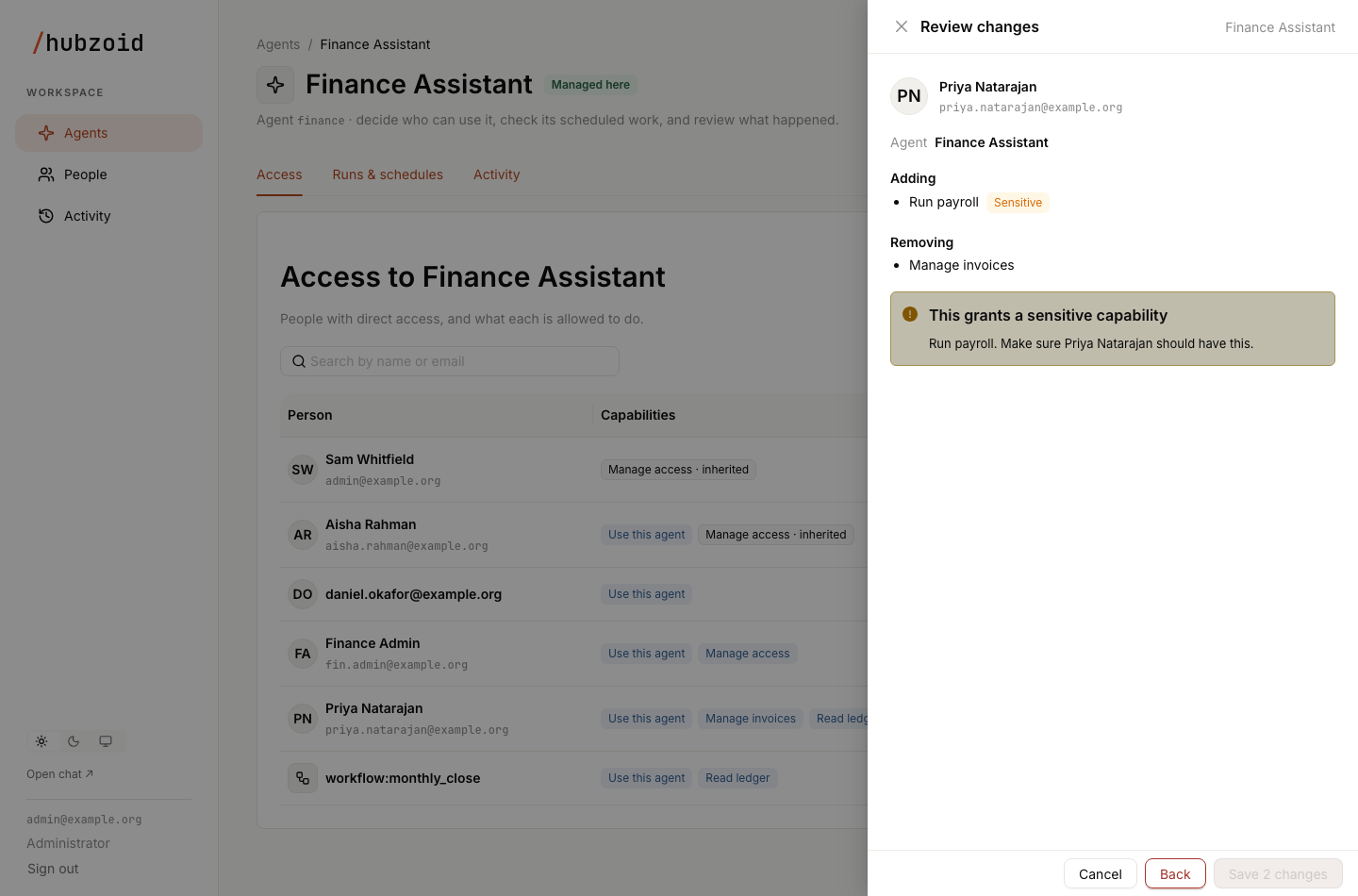
- Select Review changes. The review lists who, the agent, and the capabilities being added and removed, and marks sensitive ones.
- Select Save change (with a count when there is more than one), or Create account for a new user. The whole change set is saved in one transaction, and the Console confirms with "Access updated", or "User added" for a new user, whose password is shown once to copy and share with them yourself.
The permission check changes on the next call. The agent list in the chat app follows within about 30 seconds. Every screen in this flow is described in Agents and access.
Grant access from the CLI
The same store is available on the server. Commands take the hub folder as their last argument and use its name as the agent, or a different agent with --hub.
# Grant. use_hub is added automatically.
hubzoid grant priya@example.org ledger ./finance

# Show every permission a subject effectively holds in the agent
hubzoid access check priya@example.org ./finance

# List every grant in one agent
hubzoid access list ./finance --hub finance

# Remove one permission, or remove use_hub to take away everything in the agent
hubzoid revoke priya@example.org ledger ./finance
hubzoid revoke priya@example.org use_hub ./finance
hubzoid access check prints a line such as priya@example.org in finance: ledger, use_hub. CLI changes are recorded with the operating system user as the actor and appear in Activity as a server operator. The CLI writes the permission name exactly as you type it, while the Console offers only capabilities that exist in the agent, so check the spelling against the file name.
Unlike the Console, hubzoid grant also accepts an email that has no account yet. The access applies when someone first signs in with that email, for example through single sign-on.
Grant a workflow
Workflows and markdown tasks run as an ordinary account, and that account's grants decide what they may call. The account is the first of:
run_ason the@workflowdeclaration, or in the markdown task's frontmatterHUBZOID_WORKFLOW_USER, from the hub's settings, then the deployment's- on a hub managed in the Console, the owner recorded at setup
Grant that account ledger like any person, with Edit access in the Console or hubzoid grant. It must have signed in once and hold Use this agent. For shared automation, create an ordinary account for it, such as reports@example.org. hubzoid schedule list ./finance and the Runs as column in the Console show who each workflow runs as.
When the workflow calls the agent with hub.call_agent, the agent acts as the run's account on the workflow surface, so the same guard decides and logs the call. A workflow can also check the grant before doing work:
from hubzoid import hub, workflow


@workflow(schedule="0 6 1 * *", timezone="Asia/Kolkata", run_as="reports@example.org")
def monthly_close():
    if not hub.user.can("ledger"):
        raise RuntimeError(f"{hub.user.email} needs the ledger permission")
    return hub.call_agent("Summarize last month's ledger entries for account 4000.")
Grants to the older workflow:monthly_close or workflow:md:<task> service identities are kept, but runs that act as an account do not use them. The Console shows them as Legacy service identity and cannot add new ones. Grant the permission to the account instead, then revoke the old grant.
If you set HUBZOID_RESTRICTED_SURFACES, keep workflow in the list, or these calls are refused with surface:workflow.
Test allowed and denied calls
Test with real identities. hubzoid test runs with no signed-in person, so it cannot reach a restricted tool. It is useful to confirm the rest of the agent works.
- Sign in to the chat app as the person you granted and ask: "Show the ledger entries for account 4000 in 2026-08." The agent calls
ledger_read, and a row with the decisionallowand the reasongrantis written. - Sign in as someone who holds only Use this agent. The tool is hidden from them on every runtime, so the agent answers without it and no row is written. A call that reaches the tool another way is refused with an access denied message, and a
no-grantrow is written. - Sign in as someone with no grant in the agent. Their chat requests to it are refused. In a gateway deployment the agent also leaves their model list after the next visibility sync.
To test the workflow, start it by hand with hubzoid schedule run ./finance monthly_close. Its tool calls are recorded with the account it runs as, reports@example.org, and the surface workflow.
Read the decision in Activity
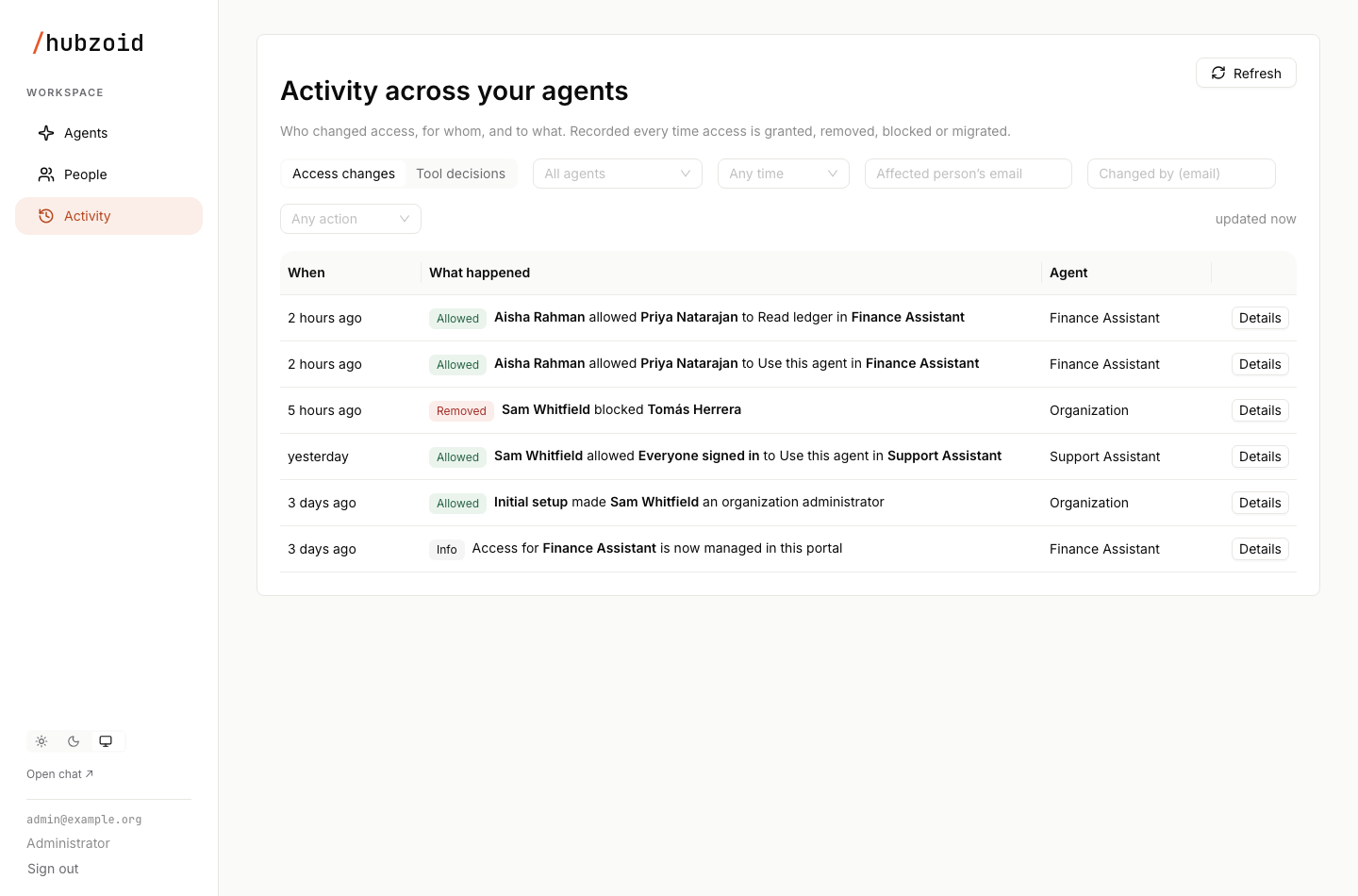
Open the agent and choose the Activity tab, then Tool decisions. Each row reads as a sentence, such as "Priya used ledger_read in Finance Assistant via owui", with a green Allowed or red Denied tag. Filter by outcome, person, tool or channel, and select Details for the exact time, tool, channel and reason. The cross-agent view is the Activity page in the sidebar.
The same rows are available on the server:
hubzoid audit ./finance --user priya@example.org
hubzoid audit ./finance --denied --limit 100
Each line shows the time, the caller, ALLOW or DENY, the tool and the surface with the reason.
Troubleshooting
| What you see | Cause | What to do |
|---|---|---|
Denied with no-grant | The subject lacks the permission, or a CLI grant used a different spelling | Compare hubzoid access check with the file name in restricted/ |
Denied with surface:slack-dm, surface:whatsapp or surface:telegram | That surface is not in the restricted surfaces list | Add it to HUBZOID_RESTRICTED_SURFACES if every request there carries one verified person, then restart |
Denied with surface:workflow | HUBZOID_RESTRICTED_SURFACES was set without workflow | Add workflow back and restart |
Denied with no-group | The hub still uses legacy group access | Migrate the hub, see Access administration |
Denied with blocked | The account is blocked, or its chat account is unavailable | Check the person under People |
Denied with store-error | The operational database could not be read | Check the database and the bridge logs |
| The capability is missing from the Console | The file starts with _, is not in restricted/, or failed to import | Run hubzoid doctor |
A workflow's call is denied with no-grant | The account it runs as lacks the permission, or only an old workflow:* subject holds it | Check Runs as in the Console and grant that account |
| Add user and Edit access are disabled | The agent is tagged Legacy access and is read only in the Console | Migrate the hub first |
Next steps
Identity and access
Subjects, domains, surfaces and the full decision path behind this guide.
Agents and access
Every control on the Access tab, from Add user to the review step.
People and activity
Account states, deleting users and using the two activity records for audits.
CLI reference
All options for hubzoid grant, revoke, access and audit.
Operating runs
Inspect, start, pause, resume and cancel scheduled work, read run status in the Console, drain before deploys and fix common scheduling problems.
Connect an assistant
Connect Claude Code, Codex, Hermes or another MCP client to the Hub with a personal API key, and control which instructions and tools it receives.