
Web chat
Every Hub serves a browser chat app. Start it, ask the agent from a suggestion, follow its steps and pick up approvals and finished work in the Inbox.
Every Hub comes with the Hubzoid web app, a chat in the browser wired to the Hub's agent. Teammates use it without installing anything, and the same app holds sign-in, the Inbox and Settings.
By the end of this page you will have the chat open, an answer that names the file it came from, and know where approvals and finished work arrive.
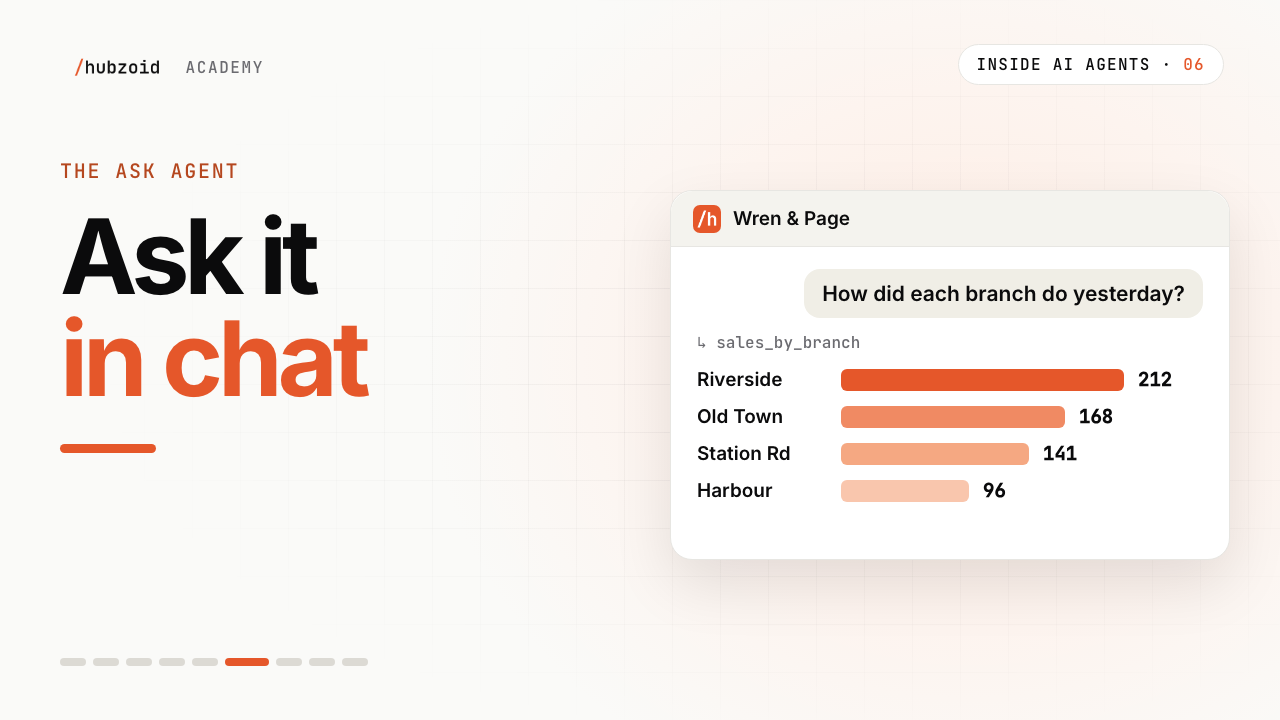 Video lesson 6 · 2:44The Ask agent: give your team an AI agent in chatMake the shared brain available to a teammate in chat.
What you need
- A Hub, such as the starter from
hubzoid init my-hub. See the quickstart. - A model set in the Hub's
.env, such asMODEL=claude-localwith a signed-in Claude Code CLI.
Start the Hub
hubzoid run my-hubhubzoid run prints one ready line and opens the web app in your browser when you run it from a terminal on this machine:
✓ Hubzoid is ready: http://127.0.0.1:3080  (local mode, sign-in off)
  Connect Claude Code: claude mcp add --transport http my-hub http://127.0.0.1:3080/mcp
Sign-in is off on a laptop, so there is no sign-in page and you are the Hub's owner.
Pick a suggestion
The empty chat asks "What would you like to work on?" with a message box and the agent's suggestions underneath.
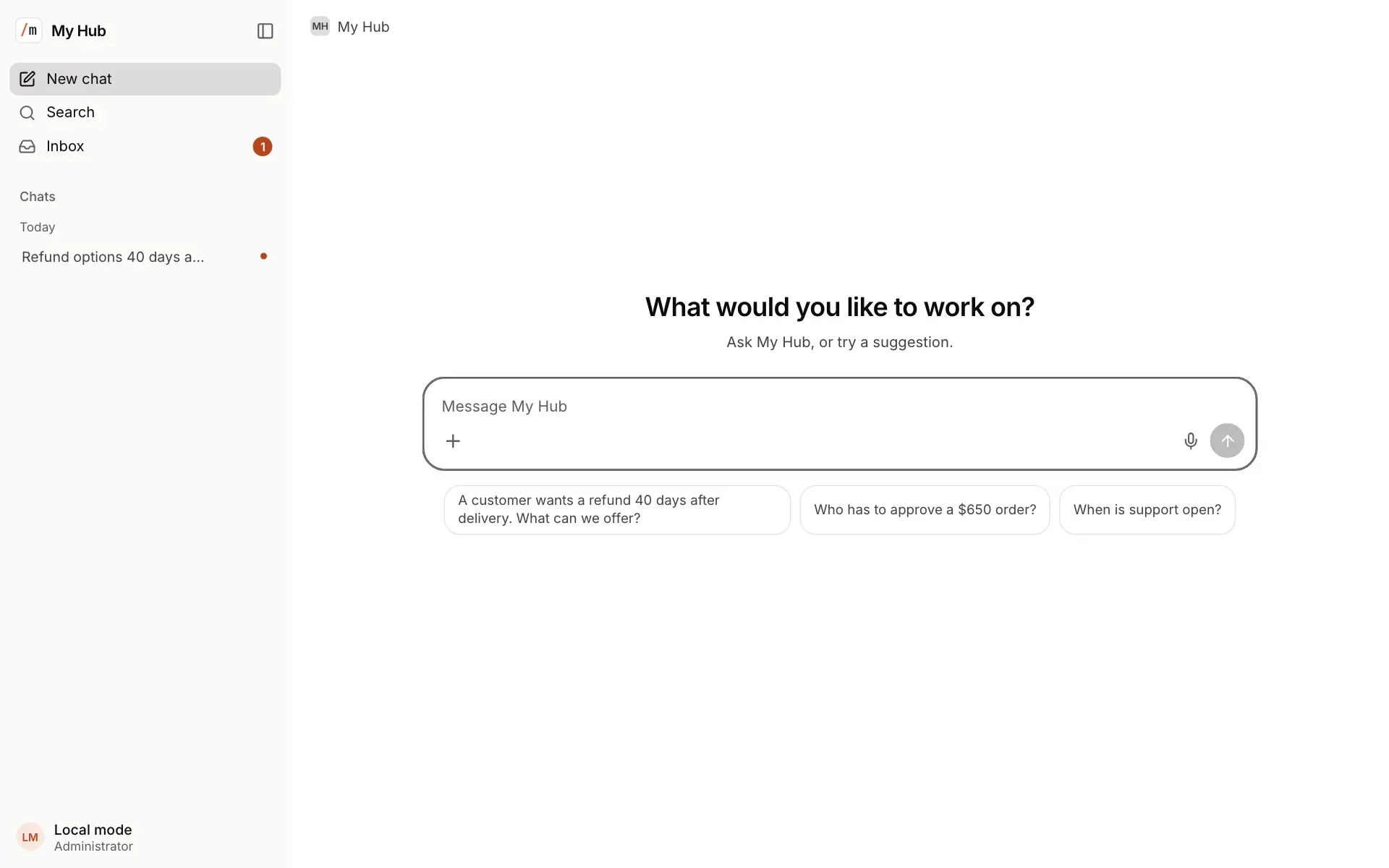
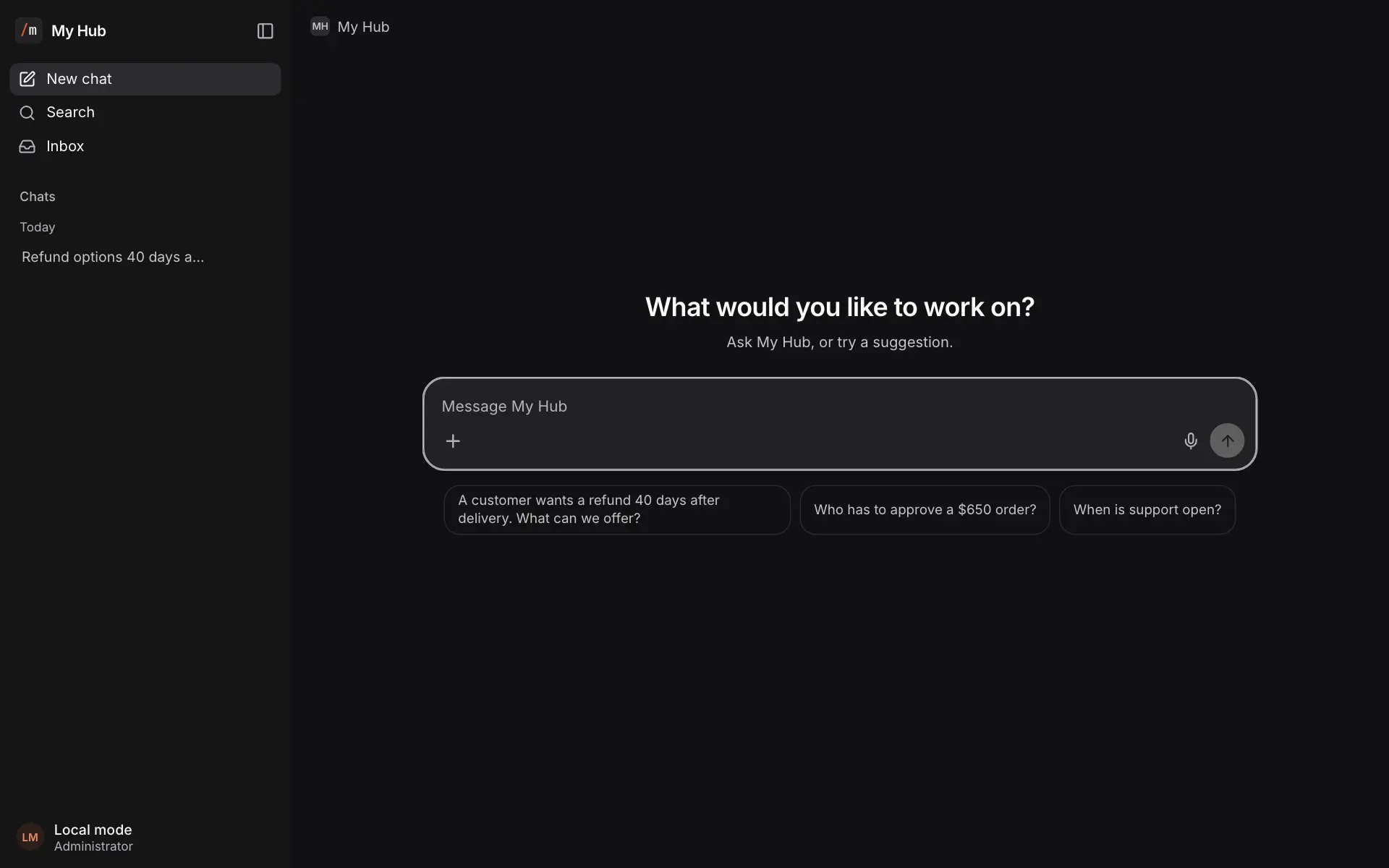
Choose A customer wants a refund 40 days after delivery. What can we offer?, or type your own question.
Read the answer and its steps
The answer streams in as it is written. Each tool the agent uses shows as a step, here Read knowledge, and the answer names the file it used.
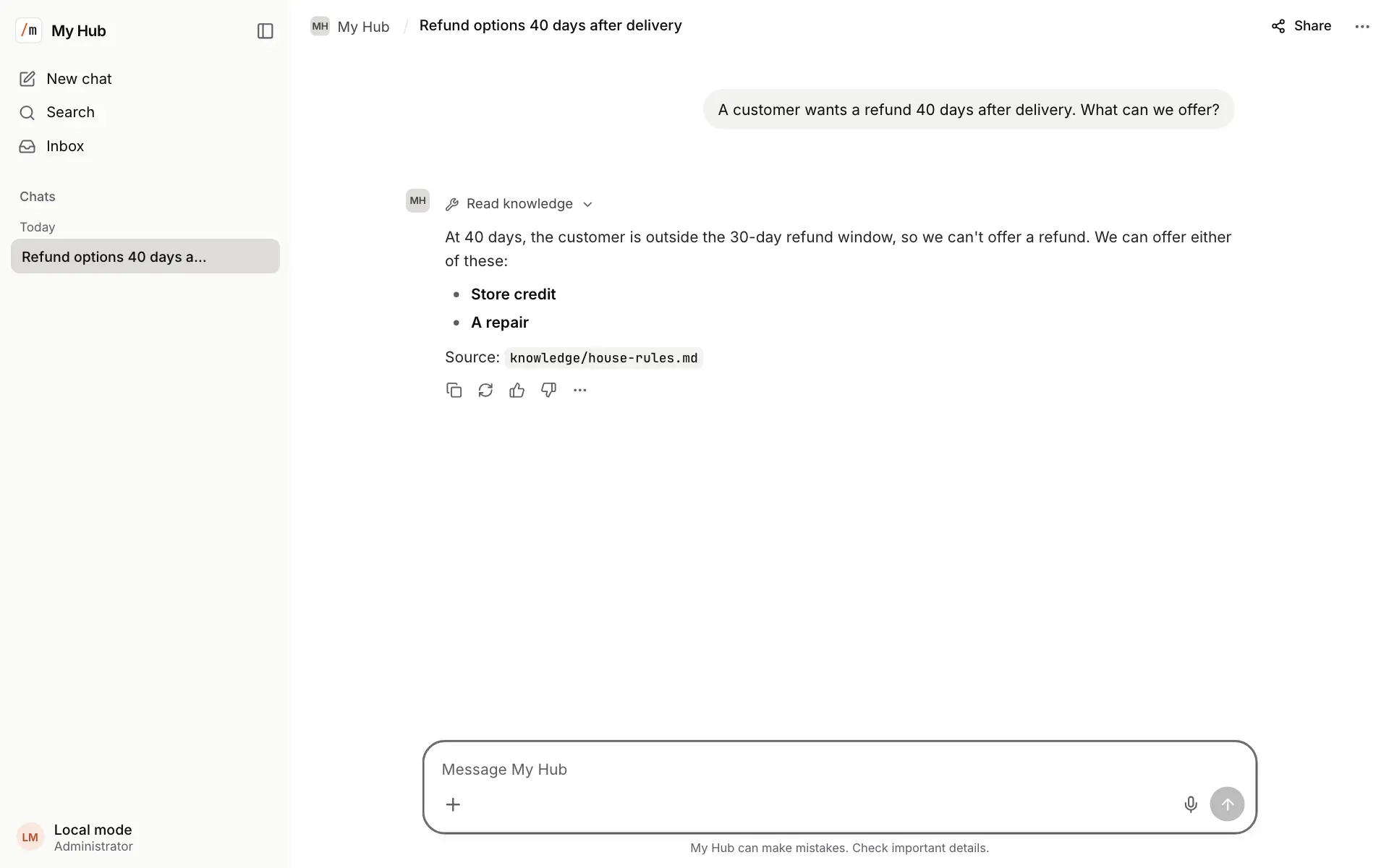
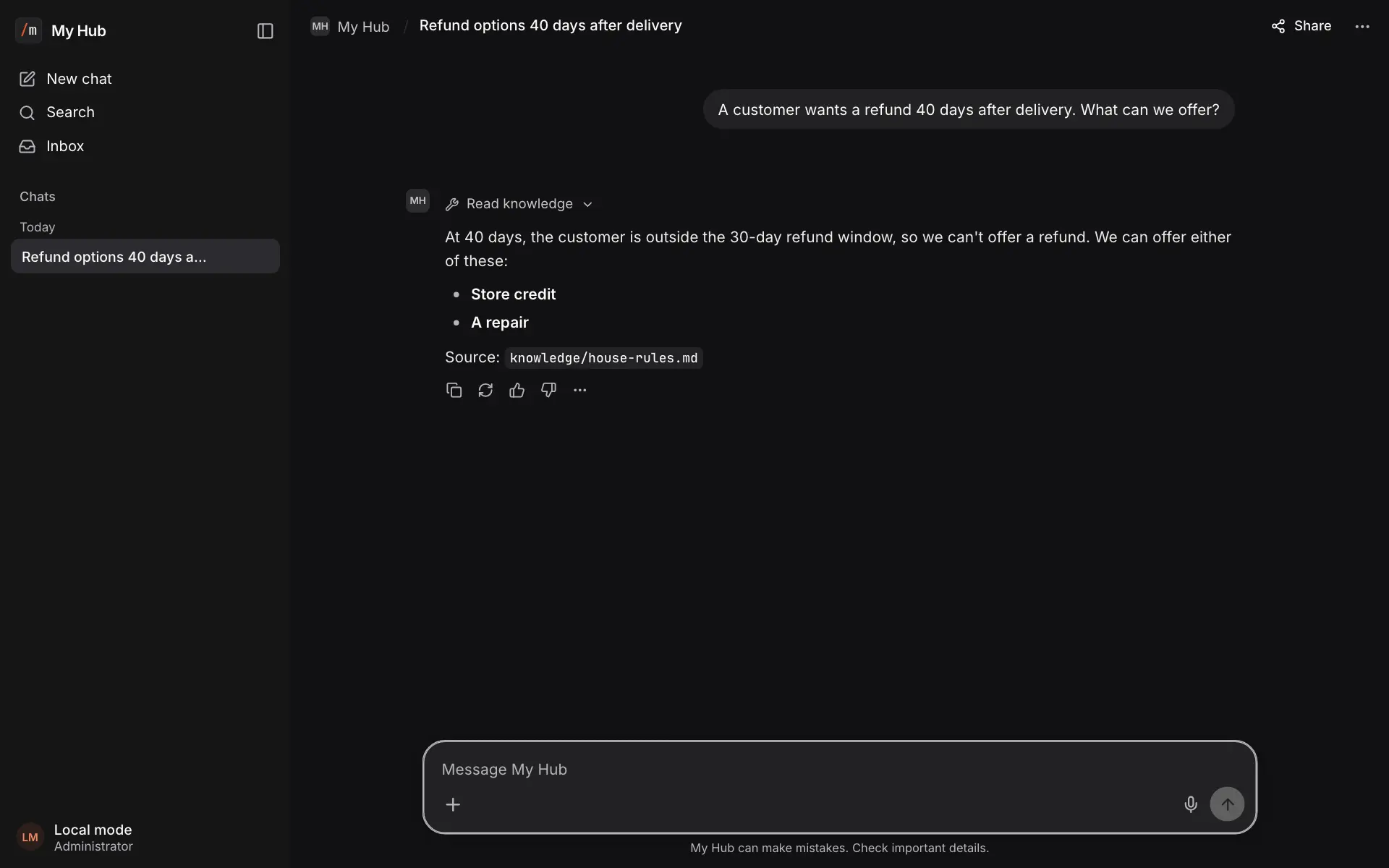
Change the rule in my-hub/knowledge/house-rules.md, restart hubzoid run and ask again to see the answer follow your file.
Check the Inbox
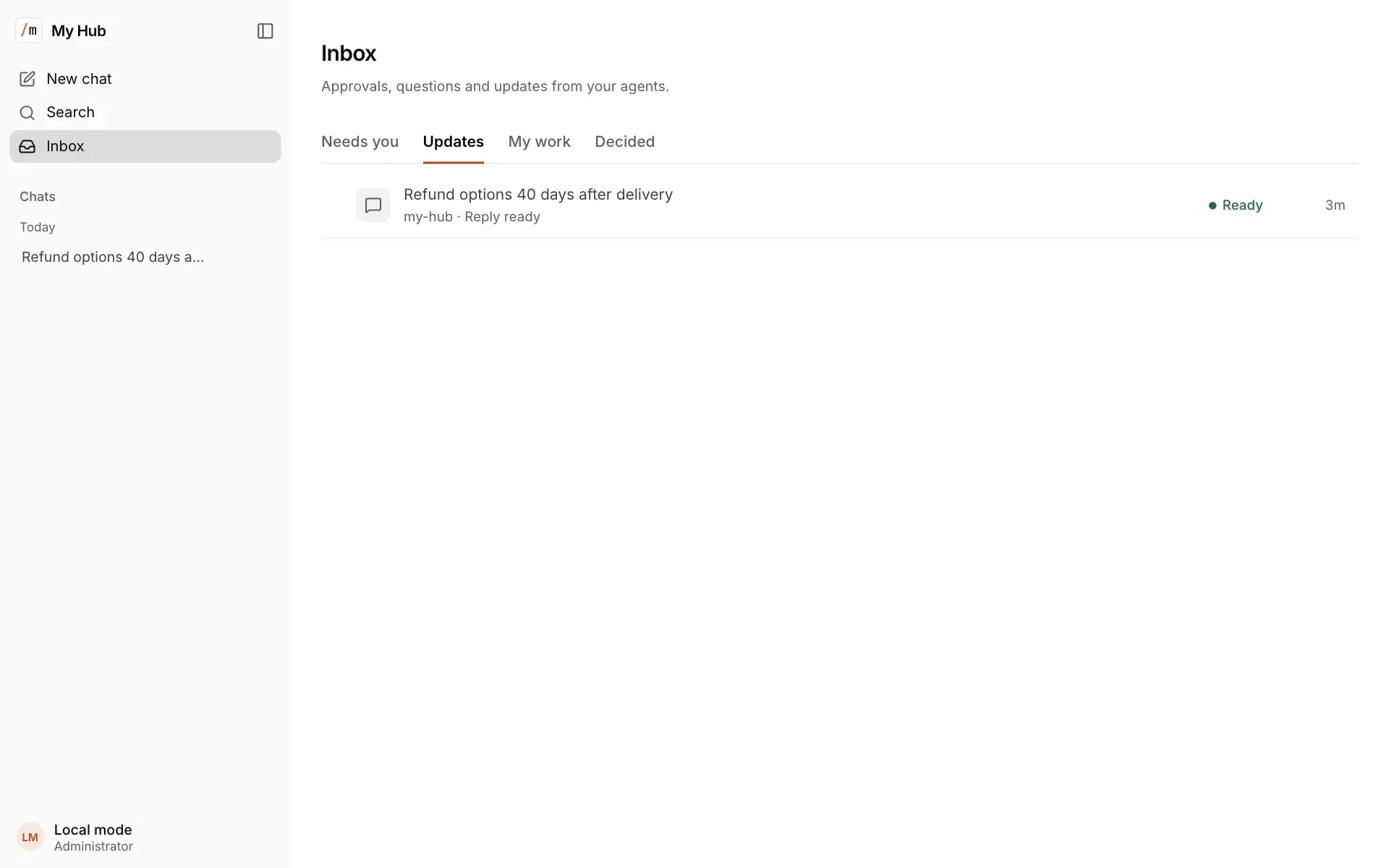
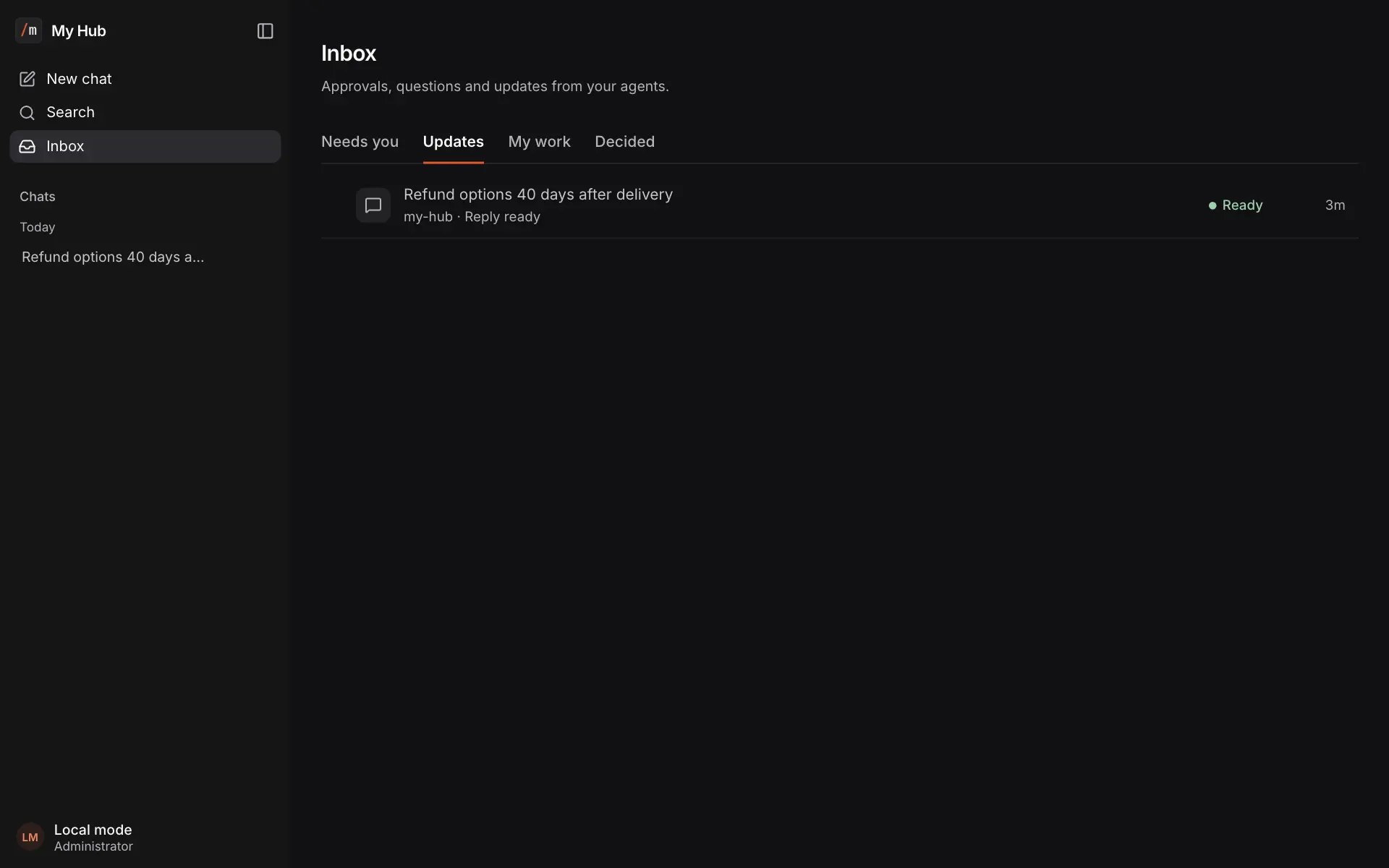
Select Inbox at the top of the sidebar. Approvals and questions from your agents wait there, and a reply that finished while you were elsewhere appears under Updates. See The Inbox.
Chat in the app
| Feature | How it works |
|---|---|
| New chat | New chat in the sidebar. Press ? for the keyboard shortcuts |
| Choose the agent | In a new chat, the agent's name in the header opens a searchable list of the agents you may use. A conversation keeps the agent it started with |
| Streamed replies | Answers stream with Markdown, tables and highlighted code. Each tool call shows as a step marked running, done, failed or stopped |
| Reasoning | On claude-local, a "Thinking…" indicator while the agent reasons. SHOW_THINKING=full shows the summary under Thought process, and off shows nothing |
| Stop, edit, regenerate | Stop response ends a reply. Closing the page does not: the reply keeps running on the server, and a reloaded page follows it. Edit a sent message, or Regenerate response. Each starts a new branch, and the arrows under a message move between versions |
| Model | The model picker shows only the agent's own model, unless the deployment lists models under chat.models.catalog in hubzoid.yaml |
| Conversations | The sidebar has Search, Pinned, Folders and chats grouped by Today, Yesterday, Previous 7 days and Older. Each chat has Rename, Share, Archive and Delete |
| Account menu | At the foot of the sidebar: your email, Settings, Archived chats, Keyboard shortcuts, the Theme and, with sign-in on, Sign out |
| Repeat a request | Ask "repeat this for me every Monday at 9". The agent saves it after you agree. See Schedules and reports |
One reply at a time, and images from other sites
One reply runs per conversation at a time. Images in an answer that point to another site load only when you choose to load them, so an answer cannot send chat data to another host by itself.
The Inbox
The Inbox, at the top of the sidebar and at /inbox, holds everything that needs you or happened for you. Its count shows next to it.
| Tab | What it holds |
|---|---|
| Needs you | Approvals and questions you can answer right there. "You're all caught up" when there are none |
| Updates | Replies that finished while you were elsewhere, and requests waiting on someone else. Mark all read clears them |
| My work | The longer jobs you asked the agents for, with their progress. It used to be in Settings |
| Decided | What was answered |
With several agents, a menu filters the Inbox to one agent. If an agent could not be checked, the Inbox says which, with Retry.
Let teammates sign in
A Hub starts in local mode: sign-in is off, every request from this machine is the owner, admin@localhost, and the public port stays on 127.0.0.1. Before anyone else can reach it, turn sign-in on in the Hub's .env:
HUBZOID_AUTH=true
HUBZOID_PUBLIC_URL=https://hub.example.com
Then create the first administrator and restart the Hub:
hubzoid admin create you@example.com my-hub --ownerThe command prints a one-time sign-in link. Open it, set a password and set up two-step sign-in. The ready line of hubzoid run now ends in (sign-in on). People sign in at /auth with a password, Google, Microsoft or an OpenID Connect provider. Hubzoid sends no email: you share each person's sign-in link yourself. See Authentication.
An account is not access. A person may use an agent only with Use this agent in Settings, and the Hub checks it on every reply. Someone signed in without any agent sees "No agents yet" and "Ask an administrator for access."
How the Hub appears in chat
The web app does not hold the agent's instructions or tools. For every reply the Hub runs its agent with everything the hub folder defines.
What comes from the hub folder
| What people see | Where it comes from |
|---|---|
| The agent's name and avatar | name: in the main AGENTS.md (the folder name without one) and the logo in branding/ |
| The agents in the list | Every agent the person holds Use this agent in |
| Answers that follow the Hub's rules | The AGENTS.md body, knowledge, skills and sub-agents |
| Suggestions on an empty chat | The suggestions: list in the AGENTS.md frontmatter |
| Tool steps | Each tool call with its input and result. SHOW_TOOLS=off hides them |
Tools guarded by a restricted/ file are hidden from a person who may not use them, and refused if reached anyway. See Restrict tools.
Uploads and files
People attach files with the + button, by dragging them onto the chat or by pasting.
Upload limits, images and other files
A message takes up to HUBZOID_MAX_FILES_PER_MESSAGE files (10 by default), each up to HUBZOID_MAX_UPLOAD_BYTES (25 MiB by default). Files are stored in the conversation's folder, <hub>/.hubzoid/chats/web-<conversation id>/uploads/.
- Images in PNG, JPEG, GIF or WebP are shown to the model directly, up to 4 per turn (
HUBZOID_VISION_MAX_IMAGES), scaled to 1568 pixels on the long edge (HUBZOID_VISION_MAX_EDGE). SetHUBZOID_VISION=falsefor a text-only Hub. - Other files are read on demand with
read_upload: the first 200 lines of text, a CSV header with 20 rows, or the first 5 pages of a PDF.read_upload_fullreturns the whole text.
When the agent calls write_artifact, the file is saved in the conversation's artifacts/ folder and the reply ends with a download chip for it.
How download links are signed and when they expire
- Links are signed with a per-hub secret in
<hub>/.hubzoid/artifact_secret. Changing or deleting it revokes every link. SetHUBZOID_ARTIFACT_SECRETonly to share one secret across hosts serving the same Hub. - A link expires after 7 days.
HUBZOID_ARTIFACT_LINK_TTLsets another number of seconds, or0for links that never expire. The conversation's owner can always download its files. - Links use
HUBZOID_PUBLIC_URL. Behind a reverse proxy, set it to the address people open. - Files open on a separate origin, so a script inside an HTML report cannot read the chat app's session.
Share a conversation
Share in the chat header opens Share chat. Create link makes a read-only link, /s/<id>, to a copy of the conversation's current branch. Anyone who can sign in to the same deployment can open it.
What a shared copy keeps, and turning a link off
The copy keeps the messages and which tools ran, but not the tools' arguments or the attached files. Share again to refresh the copy behind the same link. Turn off link stops it, and deleting the conversation stops it too.
Branding
A Hub's look comes from its branding/ folder. Restart the Hub after changing it, then refresh the browser.
Every branding file, and several Hubs
| Item | Files or setting |
|---|---|
| Agent name and app name | name: in the main AGENTS.md |
| Logo and agent avatar | logo.svg, logo.png or logo.webp, then favicon.svg or favicon.png |
| Browser tab icon | favicon.svg, favicon.png or favicon.ico, then logo.svg or logo.png |
| Extra styles | custom.css |
File names are case-insensitive, and the first file present in each row wins. When several Hubs run together, the brand: section of hubzoid.yaml names the app, and each agent keeps its own name and avatar. Settings → Organization → Brand shows it read-only.
How it runs
hubzoid run starts two processes and keeps them together:
What each process does and where it listens
| Process | Where it listens | What it does |
|---|---|---|
| Edge | 127.0.0.1:3080, the public port | The front door for the web app, sign-in, Settings, downloads and MCP. It answers 404 for the bridge's internal API, except a person's own API key on the chat completions API |
| Bridge | 127.0.0.1 only, the first free port from 8000 | Runs the Hub's agent for every reply and serves the web app's API |
- Browser
- Edge on :3080
- Bridge
- Hub agent
Options for hubzoid run, and where conversations are stored
| Option | Effect |
|---|---|
--port | The public port. Default 3080, or PORT |
--bridge-port | The bridge's loopback port, for one hub. Default BRIDGE_PORT, else the first free port from 8000 |
--host | The interface the public port binds to. Default 127.0.0.1. Any other, such as 0.0.0.0, needs sign-in on |
--no-open | Do not open the web app in a browser |
Conversations and accounts live in Hubzoid's operational store, <hub>/.hubzoid/hub.db for one Hub unless DATABASE_URL names another database. Who is asking always comes from the signed-in session: the edge drops any identity headers a browser sends. When hubzoid run runs several Hubs, one web app fronts them all and a person signs in once.
History on each surface
Each surface keeps its own conversations. They share the Hub's instructions, knowledge and tools, not their histories.
| Surface | Where the conversation lives |
|---|---|
| Web chat | Hubzoid's operational store, per person |
| Slack | Slack itself. The adapter reads the thread back on every message |
| WhatsApp and Telegram | The hub database, the last 40 messages per chat by default |
| Chat completions API | The caller sends the conversation with each request |
| MCP | The connected assistant. Each MCP call is independent |
See Memory and history for how the Hub's lasting context differs from conversation history.
If something goes wrong
| What you see | What to do |
|---|---|
| The browser did not open | Open http://127.0.0.1:3080 yourself |
| Port 3080 is in use | Start with hubzoid run my-hub --port 3090 |
hubzoid run --host 0.0.0.0 stops and explains sign-in | Turn sign-in on first. On a network you trust, HUBZOID_ALLOW_UNAUTHENTICATED_NETWORK=true accepts the risk, and anyone who reaches the port is the owner |
| "No agents yet" and "Ask an administrator for access." | The person has no Use this agent grant. Add it on the agent's Access tab |
| The agent cannot schedule a repeated request | Scheduled workflows are off on this machine. See Workflows and schedules |