Part 2 · Lesson 6 of 9 · 2:44 video
The Ask agent: give your team an AI agent in chat
Make the shared brain available to a teammate in chat.
- Before you start
- A running hub, sign-in and a teammate account. Deploy it before the team exercise.
Course content Lesson 6 of 9
- 01Why AI agents need a harness, and how it works
- 02Knowledge and skills: how AI agents use your business knowledge
- 03Tools, connectors and MCP: how AI agents take action
- 04Three types of AI agents, one brain
- 05The brain in detail: build your first hub with Hubzoid
- 06The Ask agent: give your team an AI agent in chat
- 07The daily report: an AI agent workflow on a schedule
- 08Your own Claude, connected through MCP
- 09Access and telemetry: run AI agents for a whole team
Step by step
The commands and files for this lesson, step by step.
Add a teammate
Sign in as Nora and choose Admin Console from the account menu, at the bottom of the chat sidebar. The video shows an older chat, so the screens differ.
Open Agents › Wren & Page › Access › Add user, type Sam's email, and choose Create an account.
Enter his name and a password, or choose Generate. Add his phone number, with the country code, if he will message the agent on WhatsApp or Telegram.
Leave "Use this agent" ticked, then Review changes and Create account.
Share the sign-in details with Sam. The password is shown once. Or choose "Google sign-in only" if Google sign-in is set up.
To grant access before someone first signs in with single sign-on:
Terminal hubzoid grant sam@wrenandpage.example use_hub wren-pageA name, and starter questions
The agent's name and starter questions come from
AGENTS.md. Three to five work best.AGENTS.md (front matter) --- name: Wren & Page description: The Wren & Page shop assistant. suggestions: - How did each branch do yesterday? - Is anything running low at Riverside? - What's our returns policy? ---One more tool
Show
tools_local/sales_by_branch.py23 linestools_local/sales_by_branch.py import csv from datetime import date, timedelta from pathlib import Path from agents import function_tool SALES = Path(__file__).parent.parent / "raw_data" / "sales.csv" @function_tool def sales_by_branch(days: int, title: str = "") -> dict: """Copies sold per branch over the last N days, for all titles or one title.""" if days < 1: return {"error": "days must be a positive number."} with SALES.open(newline="") as f: rows = list(csv.DictReader(f)) if title and not any(r["title"] == title for r in rows): return {"error": f"No sales records for {title}."} last = max(date.fromisoformat(r["date"]) for r in rows) since = last - timedelta(days=days - 1) totals = {} for r in rows: if date.fromisoformat(r["date"]) >= since and (not title or r["title"] == title): totals[r["branch"]] = totals.get(r["branch"], 0) + int(r["copies"]) return {"from": since.isoformat(), "to": last.isoformat(), "copies_sold": totals}With the sample data, Sam's two questions return:
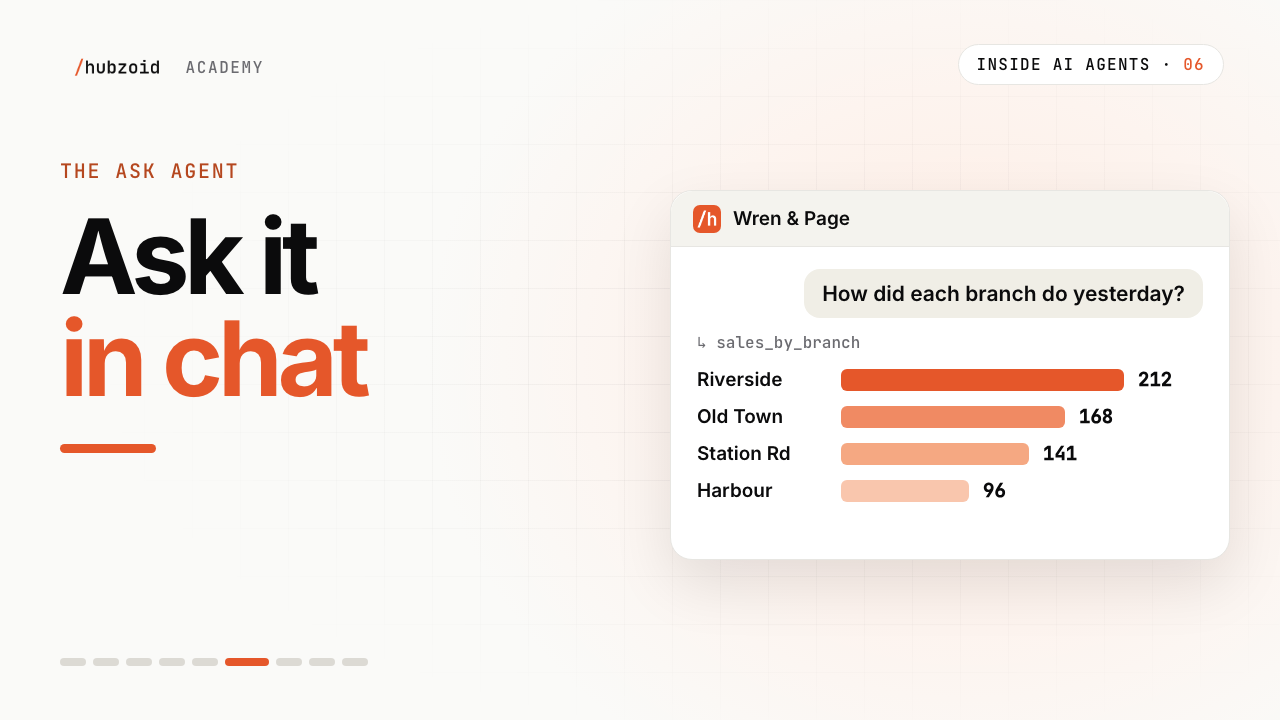
sales_by_branch(days=1) {"from": "2026-09-26", "to": "2026-09-26", "copies_sold": {"Riverside": 212, "Old Town": 168, "Station Road": 141, "Harbour": 96}}sales_by_branch(days=7, title='Paper Moons') {"from": "2026-09-20", "to": "2026-09-26", "copies_sold": {"Riverside": 14, "Old Town": 7, "Station Road": 7, "Harbour": 5}}Riverside sells about 2 a day and has 4 on hand: 2 days of stock, below the reorder line of 5 in
kpi-definitions.md.What the chat shows while it works
Each tool call appears as a step above the answer, with the tool's name, such as
sales_by_branch, and Done when it finishes. Open a step to see what it was given. SetSHOW_TOOLSin.envtocompact(default),fulloroff.Asked for a chart, the agent builds it as a web page and replies with a link to the file. That file is an artifact.
Slack, WhatsApp and Telegram
Slack is the quickest: create the app, add its two tokens to
.env, and start the hub with--slack. Behind the gateway, runhubzoid slack run wren-pagebeside it instead.wren-page/.env SLACK_BOT_TOKEN=xoxb-... SLACK_APP_TOKEN=xapp-...Terminal hubzoid run wren-page --slackWhatsApp and Telegram need a public webhook address. A message from the phone number saved for a person in the Console counts as that person. See the guides below.
Exercise
Try it
Add three starter questions to your
AGENTS.md, and restart the hub.Open a new chat and tap one. Expand the tool steps to see which tools ran.
Ask for the answer as a chart, and open the link it returns.
If you're stuck
Sam signs in but sees “No agents yet”
His account lacks "Use this agent" on Wren & Page. In Access, choose Add user, pick Sam, tick "Use this agent", then review and save. If he is already listed, choose Edit access on his row.
Sam lost his password
In the Console, open People, then Sam, and choose Reset password. Share the one-time link it makes. On the server, hubzoid admin reset-password sam@wrenandpage.example wren-page does the same, and builds the link on HUBZOID_PUBLIC_URL.
The starter buttons don't show
Check that suggestions sits in the front matter between the --- lines, as a list, and restart the hub.
Slack adapter cannot start: SLACK_BOT_TOKEN, SLACK_APP_TOKEN not set
Add the tokens to the hub's .env. If Slack asks for xoxb-, the two tokens are swapped.
Sam can't use the invoice check
Expected. It's restricted until someone grants it to him, and restricted tools are off in Slack, WhatsApp and Telegram by default.
Still stuck? Run hubzoid doctor on your hub, then search GitHub issues (opens in a new tab) with your version and the full error. Setting it up for a team? Request a demo.
Go deeper
- Single-server deploymentRun the gateway on one machine for a team.
- AuthenticationSign-in, Google and single sign-on.
- Agents and accessAdd people and edit their access in the Console.
- Web chatStarter questions, tool steps and files.
- SlackCreate the Slack app and connect it.
- WhatsApp and TelegramWebhooks, numbers and who may reach the agent.
Transcript and what the video shows
Intro
Welcome back to Inside AI Agents. Last time, Maya built the brain on her laptop. This time, Sam starts asking, in chat.
Quick questions, real numbers
Sam runs the Riverside branch. His day is full of quick questions. How did we do yesterday? Are we running low on anything? He wants answers from the shop's real numbers, not from memory.
Ready for the team
First, the brain moves from Maya's laptop to the shop's server, with sign-in turned on, and an API key. The steps are on the website.
Add Sam
Maya opens the Admin Console, goes to the agent's access page, and adds Sam. His name, his email, and a password. Use this agent is already ticked. Sam can sign in with that password, or with Google, if the shop turns it on.
A name, starter questions, and one more tool
In AGENTS.md, Maya gives the agent a name, and adds a few starter questions. They show up as buttons, whenever Sam opens a new chat. She's also added a sales tool, the same way as check stock.
A question, step by step
Sam signs in, and taps the first question. How did each branch do yesterday? While it works, the chat shows each step. The harness calls the sales tool for yesterday, four numbers come back, and the model writes the answer.
Knowledge and tools together
Then a harder one. Is Paper Moons running low at Riverside? The model reads the KPI definitions, to see what running low means. Days of stock, and reorder below five. It checks the stock, four copies, and the sales, about two a day. Two days of stock. Time to reorder.
Files it makes
Can I see that as a chart, for every branch? The brain has a built-in skill for that. It builds the chart as a web page, saves it, and replies with a link. A file the agent hands back like this is called an artifact.
Just what Sam needs
Sam sees just the tools he's been given. The invoice check isn't one of them. And his chats are his own.
Other chat apps
Sam uses the web chat. The same brain can answer in Slack, WhatsApp or Telegram too.
The Ask agent
So that's the Ask agent. A person asks, in chat. The harness uses the brain's knowledge, skills and tools, and shows each step. Then the agent answers, right there in the chat.
Try it and next
Try this. Add three starter questions to your AGENTS.md. Ask one, then ask for the answer as a chart. Every file from this video is on the website, linked in the description.
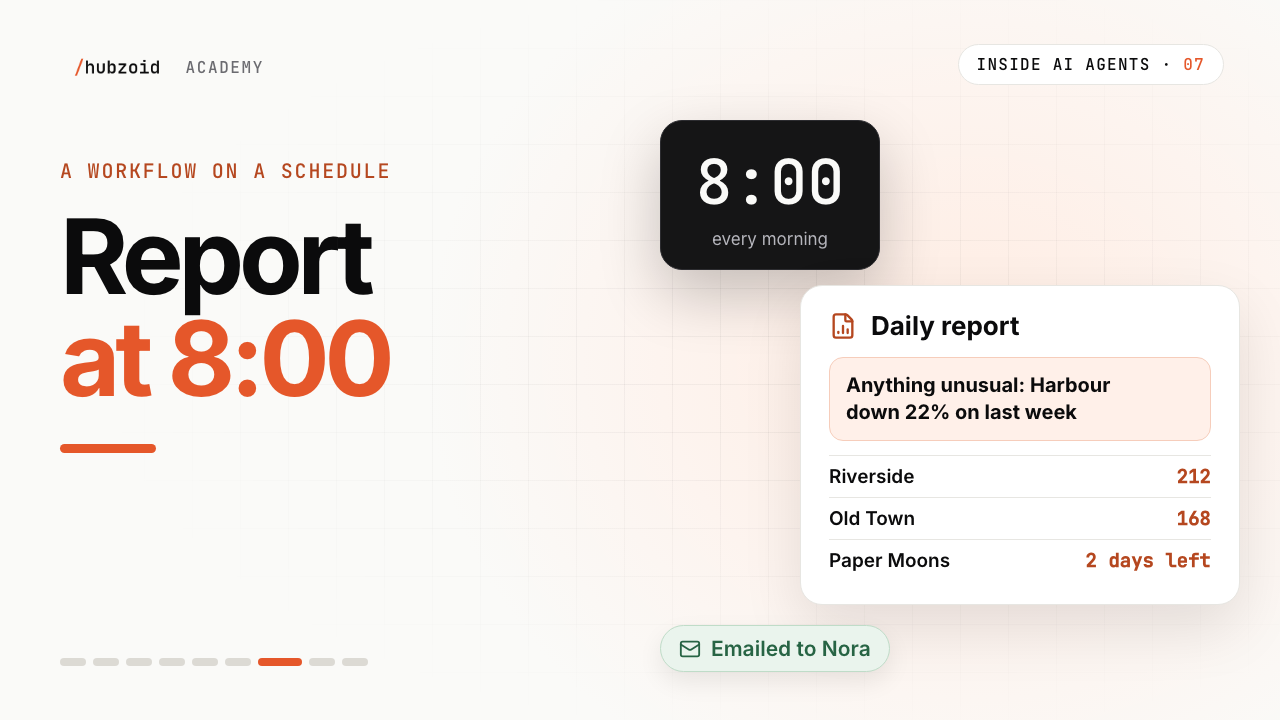
Next time, we'll set up a report for Nora, which arrives before the shop opens.
What the video shows
- The demo adds starter questions and answers from the sample bookshop data.
- Team use requires a running server, sign-in and an account for each person.
 Up next: lesson 7, 3:03The daily report: an AI agent workflow on a schedule