Part 2 · Lesson 8 of 9 · 2:55 video
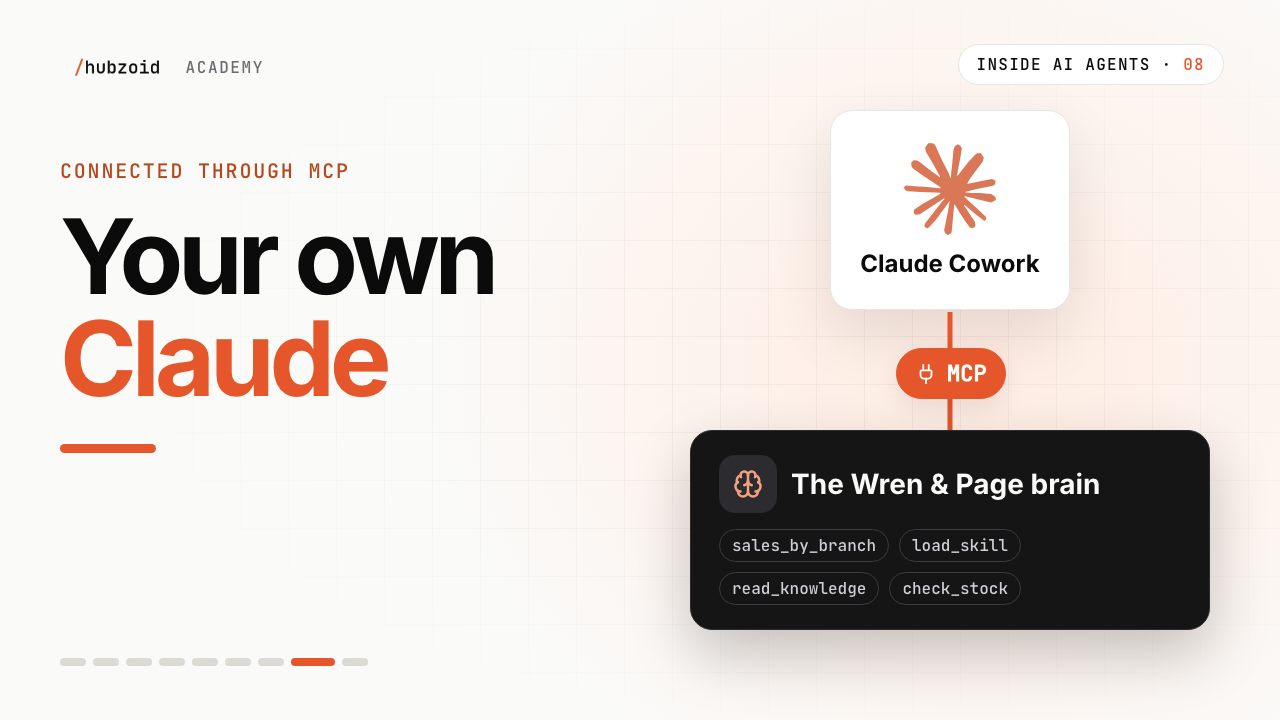
Your own Claude, connected through MCP
Connect an assistant to your hub with your own identity.
- Before you start
- A running hub: hubzoid run on your laptop, or the server from lesson 6. Claude Code, Claude with custom connectors, or another MCP client that supports OAuth sign-in.
Course content Lesson 8 of 9
- 01Why AI agents need a harness, and how it works
- 02Knowledge and skills: how AI agents use your business knowledge
- 03Tools, connectors and MCP: how AI agents take action
- 04Three types of AI agents, one brain
- 05The brain in detail: build your first hub with Hubzoid
- 06The Ask agent: give your team an AI agent in chat
- 07The daily report: an AI agent workflow on a schedule
- 08Your own Claude, connected through MCP
- 09Access and telemetry: run AI agents for a whole team
Step by step
The commands and files for this lesson, step by step.
Turn on the MCP server
On your laptop there is nothing to turn on.
hubzoid runserves MCP by default and prints the line that adds the hub to Claude Code:hubzoid run wren-page (abridged) ✓ Hubzoid is ready: http://127.0.0.1:3080 (local mode, sign-in off) Connect Claude Code: claude mcp add --transport http wren-page http://127.0.0.1:3080/mcpOn the server from lesson 6, add two lines to the hub's
.env, then restart the gateway. The address is the HTTPS address people open, ending in/b/wren-page/mcp.wren-page/.env MCP_SERVER=true MCP_PUBLIC_URL=https://chat.wrenandpage.example/b/wren-page/mcpStarted with The brain's MCP address hubzoid run, on your laptophttp://127.0.0.1:3080/mcp, on by defaulthubzoid gateway, as in lesson 6https://<host>/b/<hub>/mcp, here/b/wren-page/mcpConnect as yourself
Every call runs as the person who signed in. Nobody copies a key.
Claude Code adds the brain with one command. On your laptop, use the line
hubzoid runprinted. For the server:Terminal claude mcp add --transport http wren-page https://chat.wrenandpage.example/b/wren-page/mcpThen start
claude, run/mcp, choosewren-pageand authenticate. Your browser opens Hubzoid. Sign in if asked, check that the page names Wren & Page, and choose Allow connection. Then return to Claude Code.Claude on the web or desktop adds the brain as a custom connector. Open Customize › Connectors › + › Add custom connector, enter a name and the full MCP address, then connect and choose Allow connection. Menu labels depend on your Claude plan, and organization administrators may need to enable the connector first. The video shows this in Claude Cowork, recorded on an older release, so the screens differ.
Other assistants, such as Cursor or Codex, connect the same way if they support OAuth sign-in for a remote MCP server over Streamable HTTP. See their own MCP guides.
A connection lasts up to 30 days. To see or revoke yours, add
/oauth/connectionsto the MCP address, herehttps://chat.wrenandpage.example/b/wren-page/mcp/oauth/connections.What your assistant can use
Your assistant gets It does not get The hub's own tools, such as check_stockandsales_by_branchRestricted tools you have not been granted list_knowledge,read_knowledge,list_skills,load_skillandgrep_dataChat-only tools such as write_artifactandread_uploadThe hub's instructions from AGENTS.md, at connect timeAny model time from the hub: your assistant uses its own model Give assistants their own instructions in
AGENTS.md, so internal notes stay private:AGENTS.md (front matter) --- name: Wren & Page mcp_instructions: | Tools and knowledge for the Wren & Page bookshop. Use sales_by_branch for sales questions and read_knowledge for policies. Name the file you used. ---
Exercise
Try it
Start your hub with
hubzoid run, or turn on the MCP server on your server.Add the hub to Claude Code or Claude as above, and allow the connection as yourself.
Ask something only your files can answer, such as "How did each branch do yesterday?", and watch the assistant call the hub's tools.
If you're stuck
401 Unauthorized, invalid_token
The connection expired or was revoked, or the assistant is sending a fixed key. Remove any Authorization header from its MCP settings and reconnect. In Claude Code, run /mcp and authenticate again. Personal keys and BRIDGE_API_KEYS never work on the MCP address.
The browser says Hub access needed
Your account lacks "Use this agent" on this hub. Ask an administrator for access, then reconnect from your assistant.
The gateway stops: MCP_PUBLIC_URL requires HTTPS
Set MCP_PUBLIC_URL in the hub's .env to the full HTTPS address, ending in /b/wren-page/mcp. Plain HTTP works only on 127.0.0.1 or localhost.
Opening the MCP address in a browser says Method Not Allowed
Expected. The address answers assistants, not browsers. Add /oauth/connections to it to see your connections.
The invoice check is missing
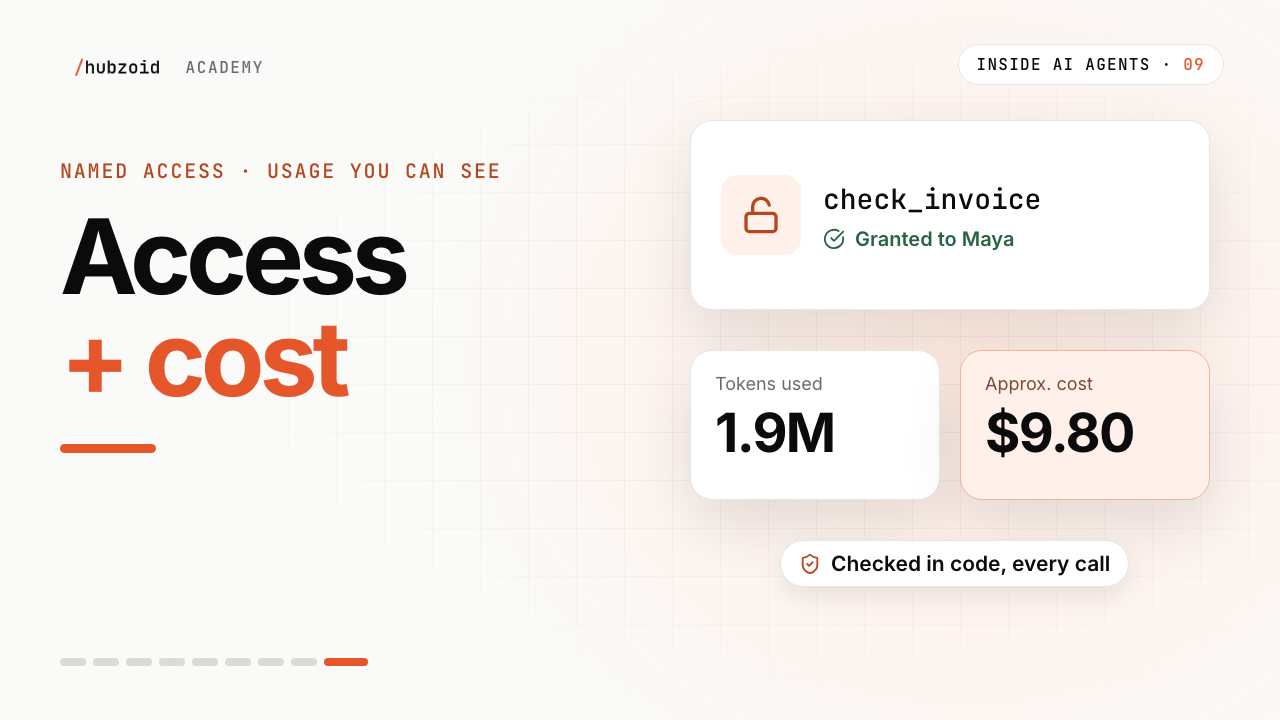
Expected until someone grants it to you. Lesson 9 does.
Claude on the web won't connect
It must reach your hub over the internet, at a trusted HTTPS address. A hub on 127.0.0.1 works only with Claude Code on the same machine.
The assistant seems slow or loses focus
Every tool's description is sent to the assistant on every turn. Keep the tool list short and the descriptions clear.
Still stuck? Run hubzoid doctor on your hub, then search GitHub issues (opens in a new tab) with your version and the full error. Setting it up for a team? Request a demo.
Go deeper
- Connect an assistantThe hub's MCP server, sign-in and clients.
- Identity and accessWhy every call runs as the person who connected.
- Claude Code and MCP (opens in a new tab)Add, list and manage MCP servers in Claude Code.
- Claude custom connectors (opens in a new tab)Add a remote MCP server to Claude.
- Codex and MCP (opens in a new tab)Configure MCP servers for Codex.
Transcript and what the video shows
Intro
Welcome back to Inside AI Agents. Last time, the brain wrote Nora's report on its own. This time, we bring the same brain into Maya's Claude Cowork.
Where Maya already works
Maya spends her day in Claude Cowork. She checks orders, drafts emails, and cleans up spreadsheets. When she needs the shop's numbers, she'd rather ask right there, with the brain beside her.
The brain becomes an MCP server
In part one, MCP brought tools into an agent. Here, it runs the other way. The brain itself becomes an MCP server. On the shop's server, it's one line in .env. MCP server, true. After a restart, the brain has its own MCP address. The shop's address, /mcp.
Nora adds it once
Nora adds the brain to the shop's Claude, once. It's a custom connector, with a name and that address.
Maya signs in as herself
Then Maya connects, and signs in as herself. So whatever Claude does through it, it does as Maya, with Maya's access.
Other assistants too
The same brain works in ChatGPT, and in Claude on the web. And Codex, Cursor and Claude Code connect too, like any assistant that supports MCP.
How it works
Here, the harness is Claude Cowork. It runs the loop, with its own model, on Maya's own plan. The brain shows up as tools. The shop's own tools, like check stock and sales by branch. And tools to read the knowledge, and load the skills. Claude picks a tool, the brain runs it, and sends back the result. The brain runs no model here. It supplies what the shop knows, and checks who's asking, on every call.
Ask, right where she works
Now Maya asks, in Claude Cowork. How did each branch do yesterday? Claude calls the sales tool, and gets the same four numbers Sam saw in chat. Then, write this morning's report for Nora. Claude loads the daily report skill from the brain, reads the KPI definitions, and follows the steps. So the report comes out the shop's way.
The same rules
Every call follows the same rules as the chat. Maya doesn't have access to the invoice check, so she can't use it here either. We'll open it up next time.
The third way in
So that's the third way in. Your own assistant, connected through MCP. Same brain, same tools, same rules, in the assistant you already use. And with that, all three ways into the brain are built.
Try it and next
Try this. Turn on the MCP server in your hub. Add it to Claude as a custom connector, and sign in as yourself. Then ask it something only your files can answer. Every step is on the website, linked in the description.
Next time, in the last video, we'll open the invoice check for the people who need it, and see how the whole team uses the brain.
What the video shows
- The on-screen connector uses the Hub MCP address and a person signs in as themselves.
- A cloud assistant needs a public HTTPS endpoint. Connector setup must match the released OAuth flow.
 Up next: lesson 9, 3:04Access and telemetry: run AI agents for a whole team